Wi-Fi Connected but No Internet in Windows 11: Step-by-Step Diagnosis
Diagnose Wi-Fi connected without internet: compare devices, inspect IP and gateway details, and test DNS before changing settings or resetting networking.
Joining the router does not prove the whole path works
The Wi-Fi symbol is present, but pages will not load. Wireless association is only part of the route: your computer also needs usable network configuration, internet service and name resolution. We will locate the failing stage using read-only checks first, then make a limited change when evidence supports it. No command sequence is guaranteed to solve every case.
Use the guide on your own computer and network or with their administrator’s permission. Do not independently change corporate DNS, VPN or managed settings. You do not need to publish the router password or send a complete network report to a stranger. Prepare a note of each observation instead of cycling through unrelated fixes.
First comparison: one device or the whole network?
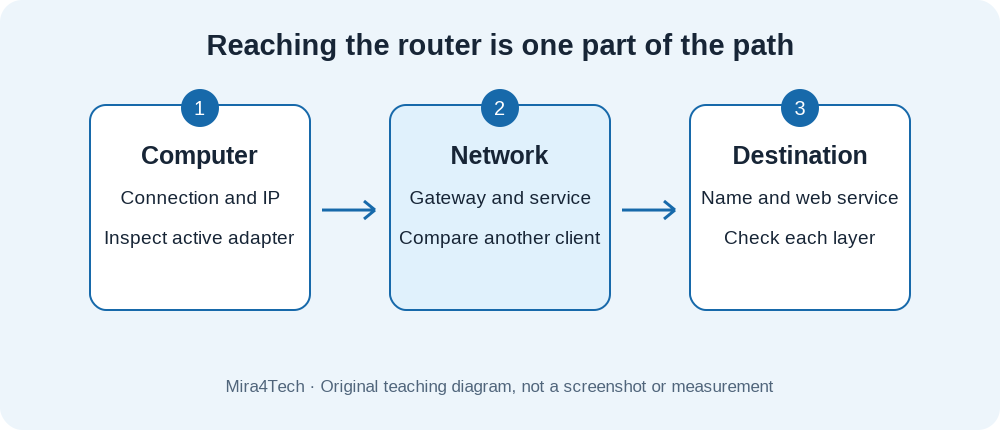
- Try two different websites and another internet-dependent application. One failing site is not evidence that the complete connection is down.
- On a phone using the same Wi-Fi, temporarily turn off mobile data and test access. Restore its previous setting afterwards. A successful cellular connection does not test the router.
- If every device fails, inspect service status and router indicators using that model’s instructions. If only one fails, focus on its connection and settings.
- Where practical, try the computer on another trusted connection or Ethernet. The comparison narrows possibilities; it does not independently prove that one component is defective.
Record when the fault began and what changed: a driver update, VPN software, router movement or a service interruption. “Only this computer, only on the home network” provides more direction than “the internet is broken”.
Check the obvious connection and run the troubleshooter
Confirm the intended network name and that airplane mode is off. In Windows 11, use the Network and Internet troubleshooter in Get Help, as Microsoft recommends. Read proposed changes and what the tool actually applied, then repeat the original task. Merely opening the troubleshooter does not establish a repair.
Hotel and public networks may require a captive portal. Follow the network’s official sign-in prompt and check the venue and terms. Do not type an email-account password into an unfamiliar page. Opening arbitrary HTTP pages or bypassing a certificate warning is not a sound way to force connectivity.
Inspect the address and gateway without changing them
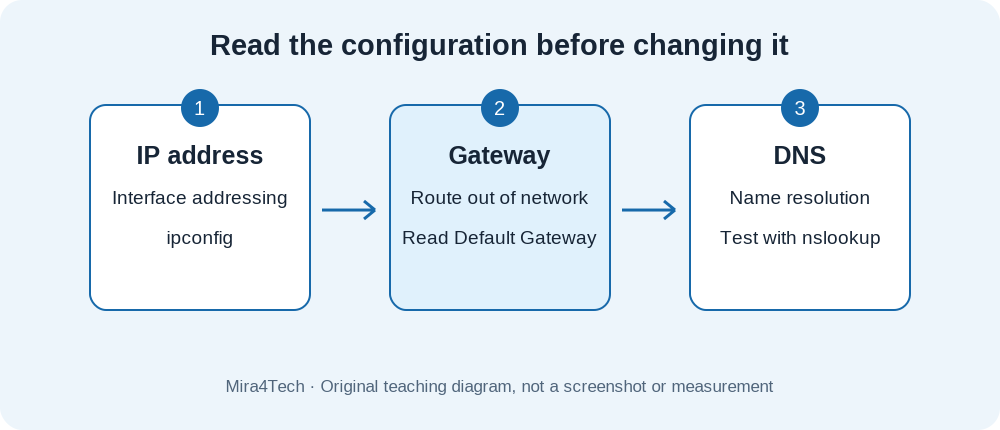
Open Command Prompt from Start and run ipconfig. It reads current configuration rather than resetting it. Use ipconfig /all to include DNS server details. Find the active Wireless LAN adapter entry for Wi-Fi; do not mistake a disconnected interface or VPN adapter for the connection you are investigating.
ipconfig
ipconfig /all
Note IPv4 Address, Default Gateway and DNS Servers. In an ordinary home IPv4 setup, a 169.254 address together with a missing expected gateway suggests the client has not obtained suitable DHCP configuration. That is not evidence that changing DNS will fix it. IPv6-based and specially managed networks need their own context, so avoid conclusions from an isolated address.
The /all output can include computer names and physical addresses. Keep the report locally and redact unnecessary details if sharing an excerpt. Do not copy a static IP from a video; it can conflict with another client or be unsuitable for the network.
Test the gateway while recognising ping limitations
Use the actual gateway address from your output. The following example applies only if your gateway really is 192.168.1.1; otherwise replace it. Some devices and policies decline echo requests, so a reply is useful but a missing reply alone does not prove the router has failed.
ping 192.168.1.1If only this computer has trouble reaching the gateway, move closer and review its band and connection before testing again. If all clients fail and router indicators suggest a fault, follow the model’s documentation or contact the provider. Do not press Reset: restarting normally is very different from erasing your saved configuration and restoring factory defaults.
Test names separately from the rest of the connection
DNS translates a website name into addresses. Query a known name and read whether an address, a timeout or another error returns. This checks a name query, not all browsing or the browser’s exact resolver path. A browser may use its own encrypted-DNS configuration.
nslookup www.microsoft.comIf an address returns, test access to a web-service port. Open PowerShell for the next command; it is different from a Command Prompt command. TcpTestSucceeded indicates the outcome of a TCP test to that target and port at that moment, not a full HTTPS or all-websites health check.
Test-NetConnection www.microsoft.com -Port 443If name queries fail on this computer while others on the same Wi-Fi work, review its configured DNS, VPN and relevant policy. Do not copy an arbitrary public resolver. Clearing the local DNS cache can help with an outdated cached record, but cannot repair a service outage or unreachable gateway.
ipconfig /flushdnsIf cache clearing requests administrator authority, use it only when authorised. Look for its completion message, then repeat name resolution and opening the site. Do not change three unrelated settings before measuring the effect of this one action.
Use observations to select the next check
| Observation | Useful next direction |
|---|---|
| Only one site fails | Investigate that site, application or specific error |
| All clients lack internet access | Inspect provider status and the router’s documented service connection |
| One client lacks expected addressing | Review Wi-Fi, DHCP and its adapter configuration |
| DNS fails on one client | Review that client’s resolver, VPN and policies |
| DNS succeeds but one service fails | Investigate service reachability, browser, timing and error message |
These are diagnostic directions, not laboratory results proving defective hardware. For an intermittent fault, record times and repeat the same check. One successful screenshot cannot explain interruptions occurring every few minutes.
Prefer the smallest justified action and retest
For a local client problem, disconnect Wi-Fi and reconnect to the correct network. Forget removes a saved network profile and may require credentials again; establish a way back before using it, especially on a managed network. If a router restart is justified, choose a suitable time, follow the normal power-restart instructions and wait for boot to finish.
Network reset is broader: adapter configuration can be removed and VPN or virtual networking may need setup again. Treat it as a late step after recording necessary information and consulting the administrator where appropriate. Do not disable firewall or protection software to restore browsing, or remove an adapter driver without a known official recovery source.
Finish with a result you can explain to support
Repeat the two websites, the application and the gateway or DNS check that originally failed. Observe the connection for a period relevant to the task. A useful report might say that the phone worked on the same Wi-Fi, the computer had an address and gateway, its name query failed, and after one identified action both lookup and browsing succeeded.
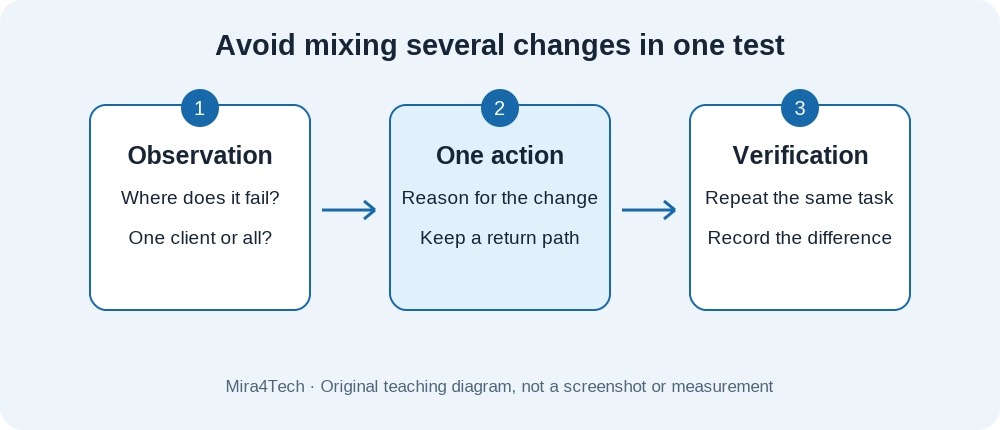
If the issue remains, give support the error text, time, affected devices and completed checks, without passwords, Wi-Fi keys or account credentials. This provides a meaningful starting point instead of another round of generic resets.
Questions before trying the steps
Should changing DNS be the first fix?
No. An unconfigured client or unavailable service is not repaired simply by selecting another resolver. Identify the failing stage first.
Does a failed ping prove an outage?
No. Echo replies can be blocked. Compare device, name-resolution and service-access results before concluding.
Should I press the router Reset button?
It may erase service settings. Start with specific checks and distinguish a normal restart from a factory reset.
Choose a useful next step
Official references and image rights
- Microsoft: Wi-Fi connection problems
- Microsoft Learn: ipconfig
- Microsoft Learn: nslookup
- Microsoft Learn: Test-NetConnection
Prepared by the Mira4Tech Team using official references. Original diagrams are clearly labelled teaching aids; this is not a claim of testing every device or interface. Menu wording can vary with release and system language.