ipconfig, ping and tracert: Diagnose a Windows Network Connection
Read IP, gateway and DNS settings, test connectivity in stages, and interpret ping latency and tracert timeouts without blindly changing network settings.

Build an explanation, not a long list of commands
“The internet is broken” does not identify the failing layer. Is the computer connected to the router, does its adapter have an address, can it reach an external destination, and is name resolution involved? This lesson builds a small diagnostic report using Windows tools, tying each result to a question instead of changing DNS and resetting everything at once.
The exercise reads settings and performs bounded connectivity checks on your computer and an authorised network. Open a regular Command Prompt window. These examples normally need no administrator elevation and do not change the adapter address. Address release, network reset and firewall changes are not part of collecting this evidence.
1. Keep the test conditions clear
Record whether the connection is Wi-Fi or Ethernet, the actual adapter and any VPN or virtual networking involved. Do not disable an organisational VPN without approval: routing and restrictions may be intentional. When possible, compare the same task on another device on the network to distinguish a general fault from one computer’s problem.
Use one known destination rather than comparing different websites at different times. Another device working does not rule out a faulty port or adapter on this computer. One website failing also does not prove that all internet access is down. Record timing and the exact symptom before the diagnostic story changes.
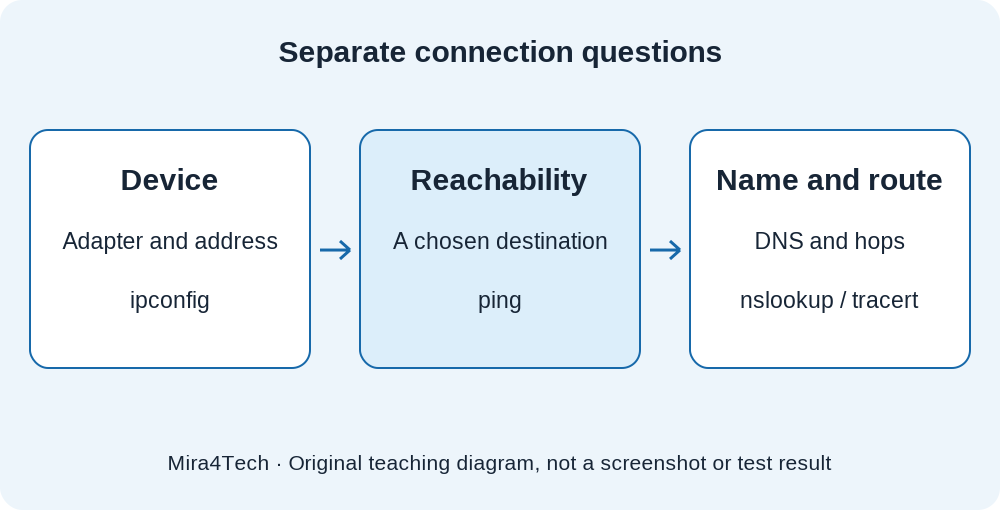
2. Read ipconfig and select the correct adapter
ipconfig
ipconfig /all
Begin with the shorter output and request detail when needed. Find the real connected adapter rather than reading the first block. Inspect IPv4 Address, Default Gateway, DNS Servers and DHCP status. Disconnected or virtual adapters may be unrelated to the current internet connection.
| Field | Interpretation |
|---|---|
| IPv4 Address | The address of this adapter, not every device |
| Default Gateway | A route beyond the local network where required |
| DNS Servers | Configured servers for name queries |
| DHCP Enabled | Whether addressing is obtained through DHCP |
A 169.254 address may indicate automatic local IPv4 configuration instead of the expected DHCP address, but needs network context and does not explain the cause by itself. Copying another device’s IP is not a repair: addresses must be valid and unique according to the network design. Avoid posting the complete /all output publicly because it can expose environment details.
3. Separate loopback from reaching the router
ping /n 4 127.0.0.1This checks IPv4 loopback on the local computer, not internet speed or the complete network adapter and cable. Success does not prove the router is reachable. Next test the gateway read from the correct adapter. The following example assumes 192.168.1.1; replace it with your actual gateway before running it.
ping /n 4 192.168.1.1A reply provides evidence that this destination responded to this message type from this computer at this time. No reply does not immediately establish a failed router: ICMP may be restricted. Review the link, addressing and an authorised actual task such as opening the router interface rather than treating one probe as a complete verdict.
4. Test an external destination without confusing latency and speed
Once the local situation is understood, a known external address can be checked where permitted by the network. The following sends only four probes to 1.1.1.1. It is not a recommendation to change DNS to that address. Either the network or destination may restrict responses, so silence alone is not a complete diagnosis.
ping /n 4 1.1.1.1Read Sent, Received, Lost and response times. Ping measures round-trip behaviour for small messages in this test; it is not a megabits-per-second download measurement or proof that a web service works. Four probes are a small sample, not a description of the entire day. Compare only after considering the medium, destination and conditions.
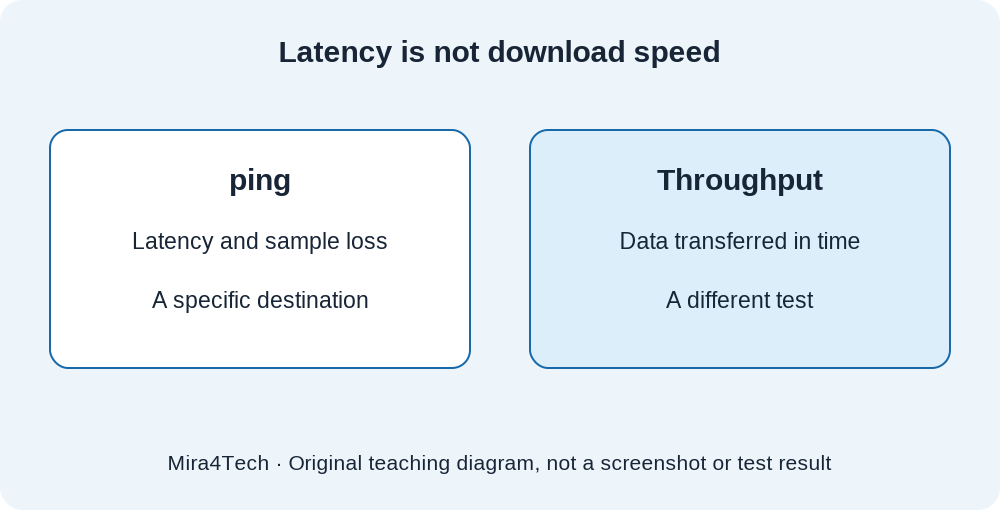
5. Ask an explicit name-resolution question
nslookup example.comnslookup queries DNS about the domain and reports the server and answer or error. example.com is reserved for examples; choose another known domain appropriate to your test when useful. Server: Unknown alone does not necessarily mean the requested lookup failed. It can concern the server’s reverse name while the requested domain still receives a valid answer.
Reaching an address while a particular name fails directs attention toward name resolution and policy, not an automatic requirement to replace the configured resolver. A browser can use a different DNS mechanism or proxy, so a successful nslookup is not proof that every browser request must succeed. Record the difference rather than ignoring it.
6. Interpret tracert without blaming every asterisk
tracert /d /h 12 /w 1000 example.comtracert shows information about responding hops toward a destination. /d avoids reverse name lookups for intermediate hops but does not remove the initial need to resolve a named destination. /h limits this example to twelve hops; /w sets the response wait in milliseconds. The example may stop before arrival if the route needs more hops.
Asterisks indicate that the expected reply did not arrive within the wait. Some routers do not answer those probes while forwarding traffic normally. A silent intermediate hop followed by responding hops or a reachable destination is not evidence that the silent router cut the connection. Routes and timing vary; this tool alone cannot assign responsibility for every slowdown.
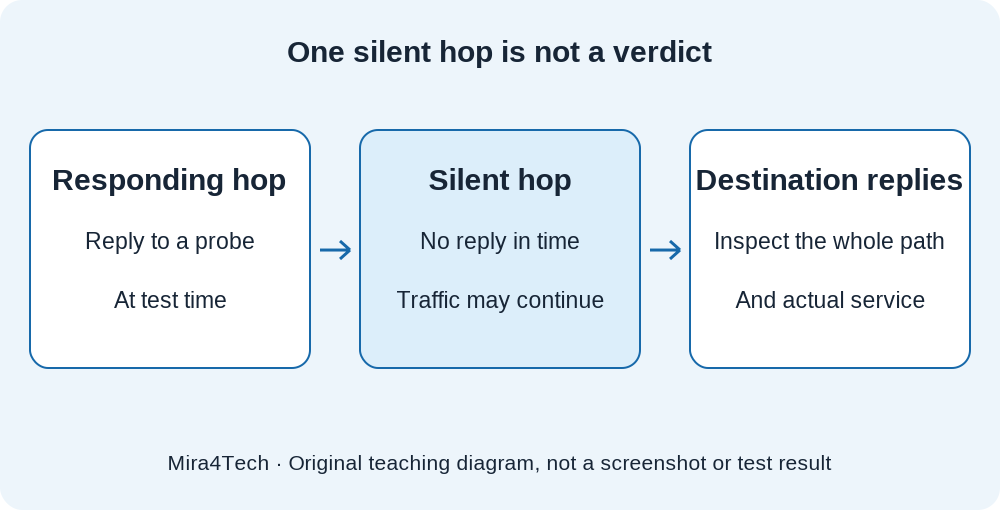
7. Write a summary that supports the next decision
| Observation | Next question |
|---|---|
| Unexpected adapter addressing | Authorised link and DHCP configuration |
| Gateway replies but a destination does not | ICMP policy, routing and the actual service |
| A name query fails | Configured resolver, policy and exact error |
| Only one website fails | Site, browser, certificate and application context |
| Trace asterisks but destination success | Do not treat the asterisks alone as an outage |
Use a four-line report: connection type, relevant addressing after redaction, test and time, then success or failure. A long screenshot exposing the entire network is unnecessary. This summary helps you or support select a useful next action instead of repeating commands that add no information.
Finish the investigation before considering Reset
- Identify the real adapter and distinguish its address, gateway and DNS settings.
- Run one bounded test to the correct gateway and describe responsiveness without calling it a download test.
- Perform a name query and one trace, explaining the limits of each result.
- Return to the original browser or file-sharing task and choose a relevant next lesson based on evidence.
An unresolved cause does not make the report useless: it narrows uncertainty. Do not jump to disabling the firewall or assigning an arbitrary static address. A successful connectivity probe also does not validate shared-folder permissions. Each layer needs its own appropriate question.
Questions before trying the steps
Does low ping guarantee a fast download?
No. Latency and throughput measure different behaviour and both depend on destination and test conditions.
Is every timeout a fault on my computer?
No. Policy, a nonresponding destination or another path condition can cause silence. Interpret it alongside the actual service.
Choose a useful next step
Diagnose connected Wi-Fi without internet
Official references and preparation
- Microsoft: ipconfig
- Microsoft: ping
- Microsoft: tracert
- Microsoft: nslookup
- Microsoft: DNS client troubleshooting
Prepared by the Mira4Tech Team using official documentation. Examples and original diagrams are educational, not a claim of running every command on every device or release. Menu wording can vary. Practise on sample files in an environment you may administer, and read each result before continuing.