Change a Router Wi‑Fi Name and Password Securely
Keep control of the network after changing it
Distinguish the router administration password from the Wi-Fi password, change one understood setting and reconnect one device to verify it. Identify the router model, genuine management address and recovery route first. Store service information privately. Documentation does not require publishing a password screenshot.
This guide explains the safe general process for changing a Wi‑Fi name and password. Menu locations vary by router and provider, so it does not guess a WE interface or present a generic screenshot as your exact model.
Use these steps only on a device or network you own or are authorized to inspect. Record original values, and stop before any action that could erase data or interrupt a service if its impact is unclear.
Key terms in plain language
- SSID: the network name shown when selecting Wi‑Fi.
- Router admin password: opens settings; it is separate from the Wi‑Fi password.
- WPA2/WPA3: methods for encrypting a Wi‑Fi connection.
- Firmware: the internal software that runs the router.
Prerequisites
- Ownership or permission to administer the router.
- A connected phone or computer and the device label or provider guide.
- The current settings recorded and a time when a brief outage is acceptable.
Identify the router and official sign-in method
Read the label for make and model, then use the manufacturer guide or ISP instructions. Some routers use an official app; others use a local page. Do not trust addresses or passwords from random posts.
- Connect to the current network. Find the admin address in the official guide. Open it from a trusted network, not public Wi‑Fi.
You reached the official sign-in page and found the process without disclosing credentials.
Common issue at this step
If credentials fail, stop guessing and ask the provider or owner before resetting.
Change admin credentials when needed
The admin password controls settings. A long unique password reduces risk from anyone on the network. Store it in a password manager.
- Open System or Administration settings for your model. Replace a default admin password if the provider allows it. Avoid changing WAN or VLAN settings while editing Wi‑Fi.
You can sign out and sign back in using the new admin password.
Common issue at this step
A factory reset may erase ISP internet, phone, or TV settings. Do not use Reset as a first fix.
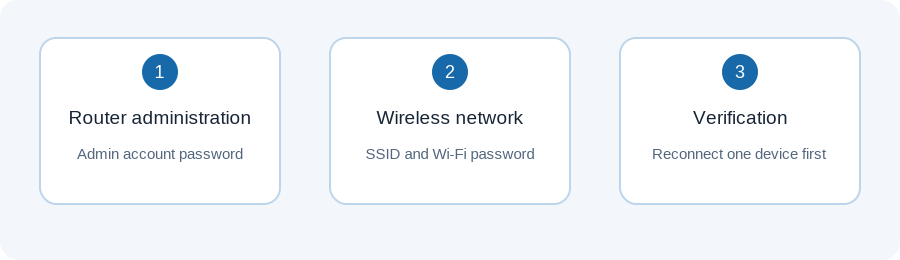
Change the network name, Wi‑Fi password, and encryption
Open Wireless or Wi‑Fi Settings. Choose an SSID that does not expose your name or address. Use WPA2-AES or WPA3 when available, and a unique passphrase of at least 14 characters. Saving usually disconnects devices.
- Update both 2.4 GHz and 5 GHz networks if shown. Do not leave a network open. Save changes without also changing channel or bandwidth.
The new SSID appears and a test device joins with the new password.
Common issue at this step
If Wi‑Fi disappears, use Ethernet or the official admin app and follow your exact model guide; avoid a random factory reset.
Test coverage and update the router
Reconnect one phone and test the internet near the router and where you use it. Check Firmware Update and install only an official stable release with reliable power.
- Review connected devices, confirming ownership before removing an unknown one. Record the model, firmware version, and change date.
Authorized devices reconnect, websites load, and settings are stored securely.
Common issue at this step
If an older device cannot use WPA3, choose the model's recommended secure compatibility mode rather than disabling encryption.
Troubleshooting
Cannot find the admin page
Check the router model guide or provider app and confirm your device is connected to that router. Addresses and interfaces vary.
A device will not connect after the change
Forget the saved network, select the new SSID, and enter the new password. Check letter case and keyboard layout.
Internet stopped after saving
Use Ethernet if available and review only Wi‑Fi settings. If WAN settings changed accidentally, contact the ISP before factory reset.
Security and privacy
- Never post Wi‑Fi or router-admin passwords publicly.
- Disable WPS if the manufacturer recommends it and you do not need it; turn off remote administration if unused.
- Keep a settings backup, a change record, and a separate guest network for visitors.
- You reached the official sign-in page and found the process without disclosing credentials.
- You can sign out and sign back in using the new admin password.
- The new SSID appears and a test device joins with the new password.
- Authorized devices reconnect, websites load, and settings are stored securely.
Official references
Practice: change Wi-Fi without losing the configuration
Assume internet access works and only the wireless password needs changing. Privately record the current network name and security mode first. A provider name such as WE does not identify a single router interface: check the exact model and firmware documentation. Use the gateway address reported by your device rather than a random search result offering a router login.
- Use an Ethernet cable for administration if possible. Open the Wireless or WLAN area documented for your model. Select the intended network; different radio bands may have separate names.
- Change only the Wi-Fi password and save it privately. Leave the provider’s WAN, VLAN and connection credentials alone. Wait for the save operation to finish.
- Reconnect one phone with the new password. If it keeps using a saved password, forget that network and connect again. Open a website, then test the computer and any other essential devices.
A successful result includes joining the correct network, reaching the internet, and retaining access to router administration. The Wi-Fi password and the administrator password protect different things. If administration stops working, check the cable, gateway address and model instructions before a factory reset. Resetting can erase provider settings and leave you needing the provider’s help.
Two passwords with different jobs
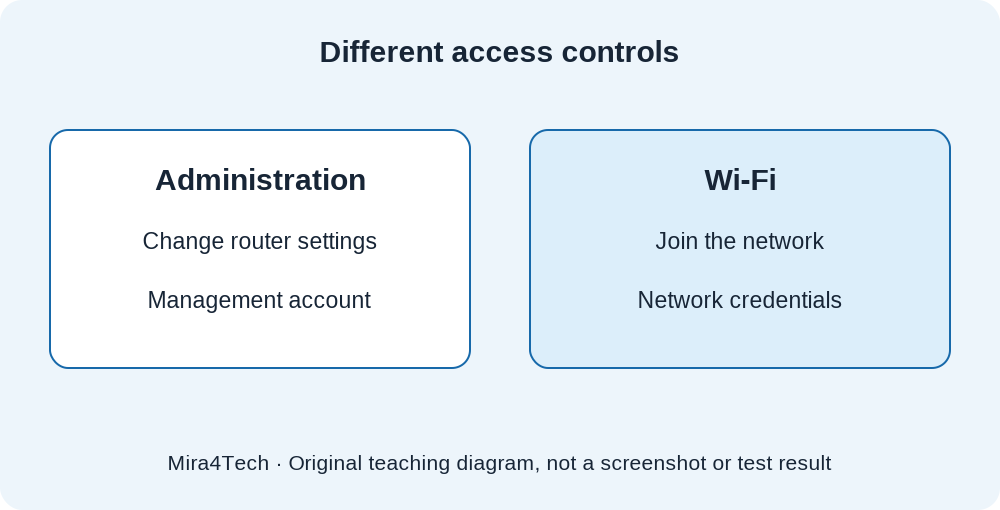
A Wi-Fi password change affects devices joining the wireless network; an administration password controls access to router settings. Treat them as separate changes and tests. Do not alter PPPoE, VLAN or WAN because those controls sit near Wi-Fi settings: they may belong to the service-provider configuration.
Use documentation for the actual model and interface release. If identifying management through Default Gateway, verify that the active adapter belongs to the intended network rather than a VPN. Do not enter credentials into a lookalike vendor page or search advertisement.
Verify connectivity and management after saving
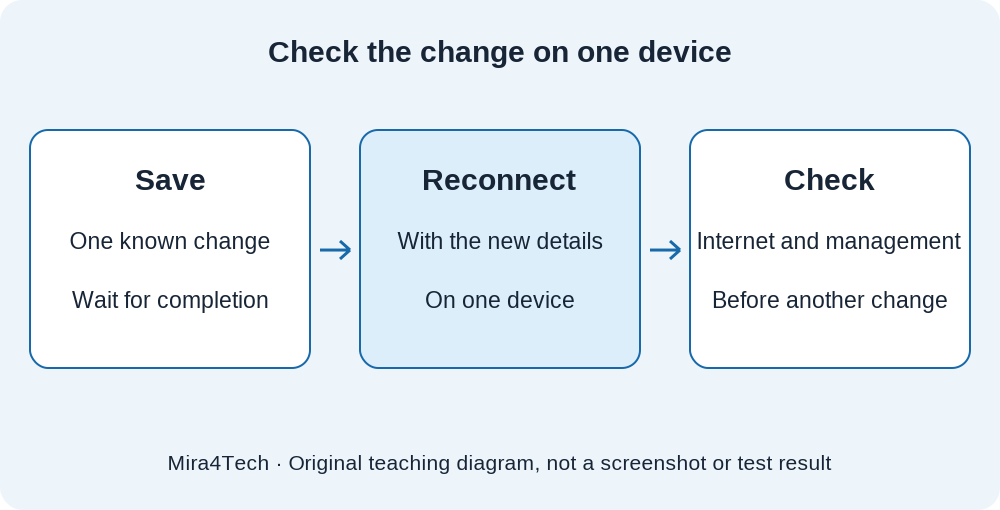
- Connect one device with the intended network name and password, removing an obsolete saved connection only when necessary.
- Test a website and the trusted management page.
- For coverage questions, review 2.4 versus 5 GHz instead of changing encryption arbitrarily.
- For connectivity without internet, follow the network diagnosis lesson.
Do not factory-reset a router simply because one phone fails to connect. It can erase service settings requiring provider assistance. Revisit the last change and the management route prepared earlier before taking broader action.