Wi-Fi vs Ethernet: Speed, Stability, and a Practical Windows 11 Test
Compare Wi-Fi and Ethernet under similar conditions, distinguish link rate, throughput and latency, and choose for your actual tasks.
Choose for your needs rather than declaring a technology winner
Complete two reasonably comparable rounds and distinguish local link rate, internet throughput and response time. Retain actual readings instead of copying example numbers. Use a device supporting both media on an authorised network, remembering that speed tests can consume a limited data allowance.
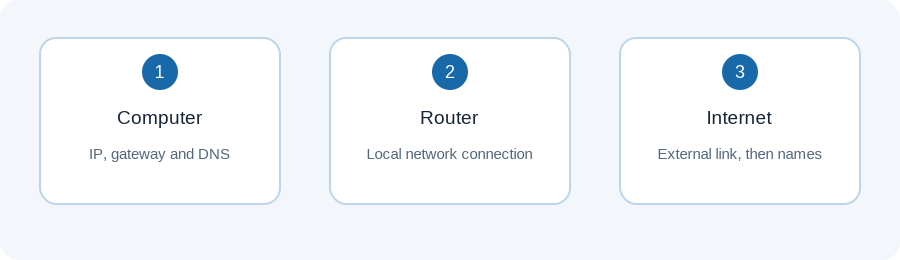
Does connecting a PC with an Ethernet cable always make the internet faster? Why can downloads look fast while video calls still break up? This guide compares Wi-Fi and Ethernet, then walks through a practical test on the same computer.
What is the difference?
Wi-Fi connects a device to the network wirelessly. Ethernet uses a network cable. At home, both usually meet at the router and use the same internet connection. Changing the local connection does not increase the speed of your internet plan.
Separate three parts: the computer-to-router connection, the router's connection to the provider, and the remote server. A bottleneck in any part can limit the result.
Terms to understand
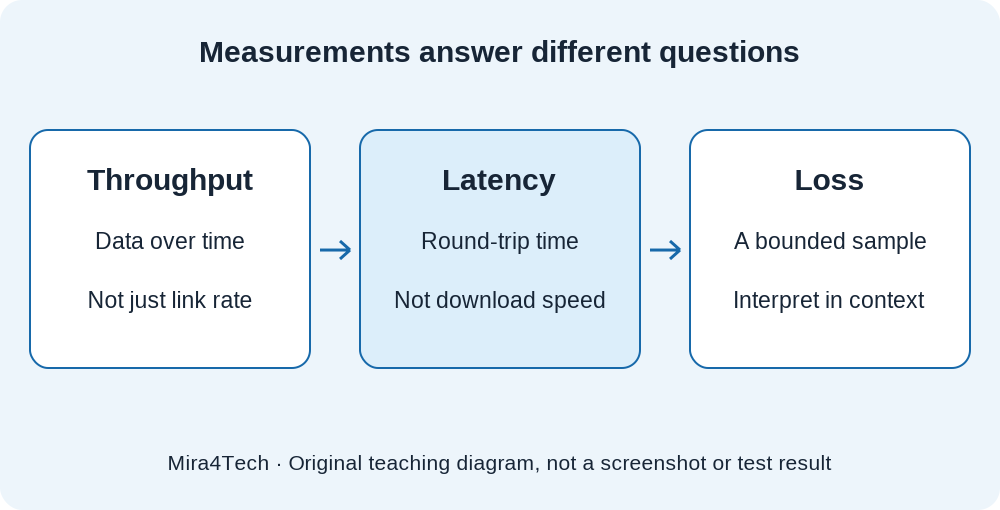
- Transfer speed: how much data moves over time, often shown in Mbps, or megabits per second.
- MB/s: megabytes per second, a unit often used by download applications. Divide Mbps by 8 for the theoretical equivalent: 100 Mbps equals 12.5 MB/s before overhead and other limits.
- Latency: the time for a request to travel to its destination and back, usually measured in milliseconds.
- Delay variation: changes in delivery timing that can disrupt calls or games despite a good download speed.
- Packet loss: some units of data do not arrive, potentially causing interruptions or retransmission.
Which connection suits your use?
Consistency and distance
Ethernet can help a stationary PC avoid wireless signal problems. Wi-Fi supports movement, but location, walls, interference and nearby devices affect its performance. A laptop may work well near the router and struggle in another room. See Intel's Wi-Fi troubleshooting guidance.
Speed
Actual equipment matters. Ethernet through a 100 Mbps port can be slower than modern Wi-Fi under suitable conditions. A faulty cable or port can also reduce the negotiated link speed. That local link rate is different from a measured internet download speed. See Intel's Ethernet link-speed explanation.
Your task
Wi-Fi may comfortably handle browsing and mobile work. For a desktop, long calls or games affected by interruptions, try Ethernet and compare consistency. Problems beyond the home, including provider congestion, may affect both connections.
Prepare the test
- Use a Windows 11 PC that supports both connections. Check compatibility and advertised speed if an Ethernet adapter is needed.
- Have a working network cable and a router LAN port.
- Use a network you are authorized to access, and have its Wi-Fi password available if needed.
- Pause downloads and syncing. Use the same speed-test service and server for both rounds.
First, test Wi-Fi alone
Unplug Ethernet and connect to your home wireless network. Open Settings, then Network & internet, then Wi-Fi, and confirm the network name. Labels can differ with your Windows language and update.
Keep the PC in the same location. Record download speed, upload speed and any reported latency. Run three closely spaced measurements rather than relying on one result. Speed tests can consume substantial data on a limited plan.
Next, test Ethernet alone
Connect the cable to a router LAN port and the PC, then temporarily turn Wi-Fi off. Open Settings, Network & internet, then Ethernet to check the connection. Do not use the router's WAN port intended for its upstream connection. See Microsoft's Ethernet connection checks.
Repeat measurements using the same service and server shortly after the first round. Record the results, then turn Wi-Fi back on if needed.
Check the local connection to the router
Open Start, type cmd, and open Command Prompt. Run ipconfig and find Default Gateway under the adapter being tested. Ignore unrelated or virtual adapters. See Microsoft's ipconfig reference.
If your gateway is 192.168.1.1, run ping -n 20 192.168.1.1, substituting your actual address. Repeat for each connection. The command sends 20 requests and reports loss and response times. Compare repeated results; this is a short local check, not a speed test or formal jitter measurement. See Microsoft's ping reference.
Troubleshoot the result
Wi-Fi improves near the router: try a closer location with fewer obstacles. Compare 2.4 and 5 GHz if available; equipment and surroundings matter. Wi-Fi 6 does not automatically mean 6 GHz support; Wi-Fi 6E adds that support. See Intel's Wi-Fi band explanation.
Ethernet is connected without internet: reseat both cable ends. Try another known-working cable or LAN port. Change one thing at a time and repeat the check. See Intel's Ethernet checks.
Both are slow: compare another device at roughly the same time, then repeat later. If the issue affects multiple devices, keep your observations and contact the provider instead of making random configuration changes.
Do not disable Windows Firewall or assign an arbitrary IP address to improve speed. Automatic DHCP addressing is typical for home networks. Choose a network profile appropriate to your trust in the network, and avoid enabling file sharing on untrusted networks. See Microsoft's essential network settings.
Make your choice
Choose what meets your needs where you actually use the computer: mobility, consistent calls, or file-transfer performance. Keep a short record of connection type, location, download/upload results and observed interruptions. Repeated observations give you a clearer basis for deciding than a technology name or an advertised maximum rate.
Change the connection medium, not the entire experiment
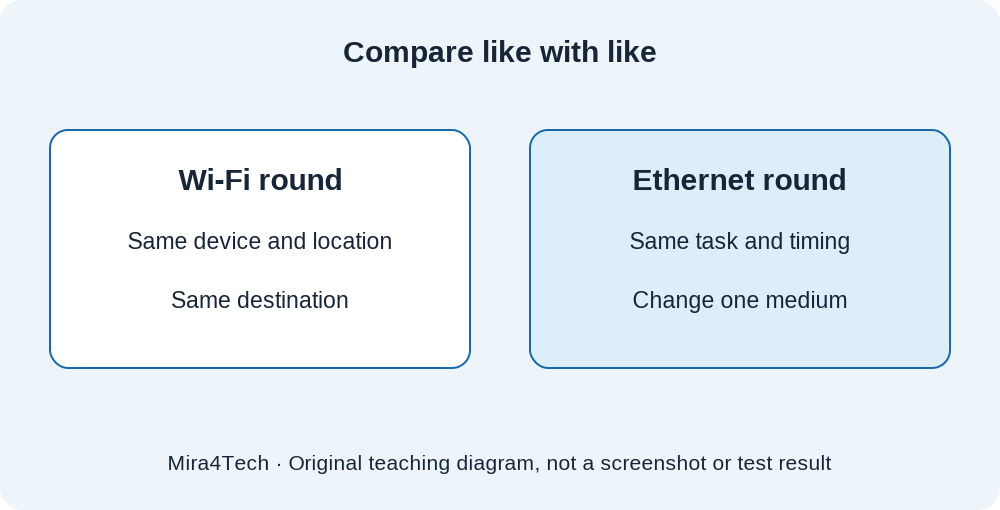
Comparing Wi-Fi near the router in the morning with Ethernet on another computer at night cannot isolate the medium. Keep the computer, task and destination consistent, pause background transfers and avoid treating simultaneous adapters as combined bandwidth. Record location and timing for each round.
Differences may come from a port, cable, interference or congestion outside the home. Three readings are not a complete diagnosis. A large negotiated link rate does not mean the subscription or destination transfers at that rate. A successful ping also cannot certify file-sharing permissions or an hour-long call.
Keep a small notebook and finish with a decision
| Record for each round | Why it matters |
|---|---|
| Connection, place and time | Avoid comparing different conditions |
| Destination and task | Identify what was actually measured |
| Result and observed interruptions | Connect numbers to the real task |
| The single change | Identify what may have affected the result |
If the outcome remains unclear, review network-command interpretation. For location-dependent Wi-Fi, compare 2.4 and 5 GHz after checking device support. The useful outcome is a choice for your actual working location, not a promise that one medium is always faster.