Networking from Zero: IP, Routers, DNS, and DHCP in Practice
Networks let devices exchange data. Map a home connection, read Windows settings, and test connectivity one layer at a time instead of changing random addresses.
Use these steps only on a device or network you own or are authorized to inspect. Record original values, and stop before any action that could erase data or interrupt a service if its impact is unclear.
Key terms in plain language
- LAN: a local network in a home or office.
- IP: a numeric address for a device interface on a network.
- Subnet mask or prefix: identifies which part of an IP belongs to the network.
- Gateway: usually the router address that forwards traffic to other networks.
- DNS: looks up the IP address associated with a site name.
- DHCP: automatically assigns IP addresses and network settings.
Prerequisites
- A Windows PC on a home network or lab you are authorized to inspect.
- The Wi‑Fi name and password if using wireless.
- Administrator rights are not needed to read connection details.
Find where the connection stops
At home, a computer connects to a router through Wi‑Fi or Ethernet, and the router connects to your provider. A modem and router may be one device. Compare your PC with another device to see whether the issue is isolated.
- Try the same site on two devices. Check whether other sites work. Record the error and time.
You know whether one computer or the whole network is affected.
Common issue at this step
If all devices fail at once, check the router and provider before changing one computer.
Read the IPv4 settings
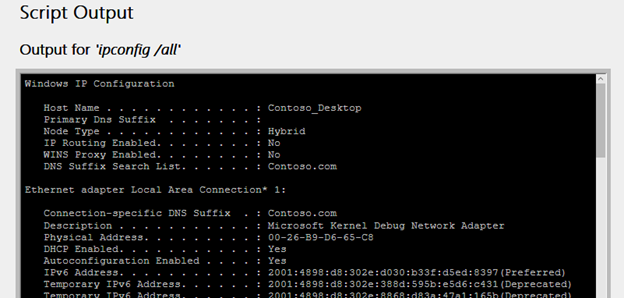
Open Command Prompt and run ipconfig /all. For the active adapter, note IPv4 Address, Subnet Mask, Default Gateway, and DNS Servers. A 169.254 address often means DHCP did not provide settings.
- Open Start, type cmd, open Command Prompt, and run ipconfig /all. Ignore disconnected adapters. Do not post your address and device name publicly.
The active adapter has an IP, gateway, and DNS values that fit your network.
Common issue at this step
If you see 169.254, reconnect first. Do not invent a static address; it could conflict with another device.
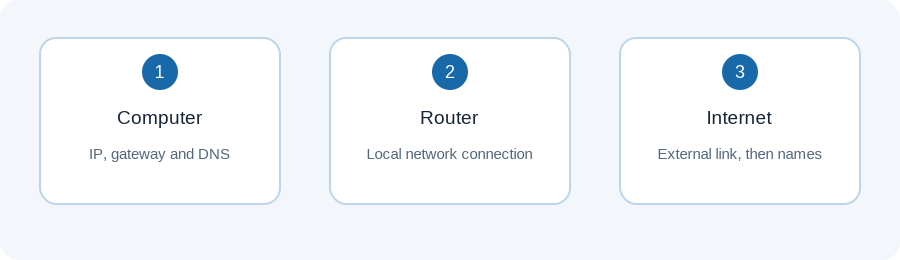
Test the device, router, then a site name
Ping the Default Gateway. Then try a known website. If an external IP is reachable but a site name fails, run nslookup to inspect DNS. Some servers block ping, so do not rely on it alone.
- Ping the gateway shown on your device. Then run nslookup example.com. Keep internal addresses private.
You narrowed the issue to Wi‑Fi, local connectivity, DNS, or internet service.
Common issue at this step
Do not switch to an unknown DNS service or disable the firewall as a test.
Understand DHCP and DNS and reconnect safely
DHCP leases an address, gateway, and DNS server to a device. DNS does not carry website files; it helps locate a server. At home, reconnect or restart the router after warning others. On a work network, do not renew addresses without permission.
- In ipconfig /all, inspect DHCP Enabled and lease times. Disconnect and reconnect Wi‑Fi. Do not use ipconfig /release on a remote or managed network without a plan.
You can explain what DHCP and DNS do and why a local address sometimes changes.
Common issue at this step
Get the network administrator's approval before clearing IP settings or setting a static address.
Troubleshooting
IP address starts with 169.254
Reconnect Ethernet or Wi‑Fi. See whether other devices receive an IP. If only one fails, ask the router owner to check DHCP or restrictions.
Connected, but sites will not open
Compare nslookup results with another site and check provider status. Revert a DNS change if it did not help.
Wi‑Fi is slow or drops
Test closer to the router, over Ethernet if possible, and at different times. Walls, interference, and router placement matter; record the original channel before changing it.
Real example: the Microsoft Windows wireless report
For intermittent Wi-Fi, run the following in an administrator Command Prompt, then open the HTML file at the printed path. It covers connection sessions from the last three days. Select an error marker to inspect the event. Keep the report private because it includes device and network information.
netsh wlan show wlanreport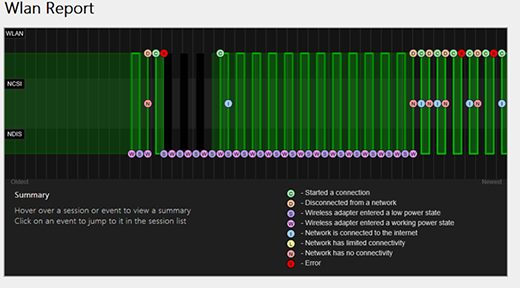
Security and privacy
- Use WPA2-AES or WPA3 when available and a unique strong password.
- Do not disclose router credentials, admin address, or management password.
- Update router software only from the manufacturer and replace default admin credentials safely.
- You know whether one computer or the whole network is affected.
- The active adapter has an IP, gateway, and DNS values that fit your network.
- You narrowed the issue to Wi‑Fi, local connectivity, DNS, or internet service.
- You can explain what DHCP and DNS do and why a local address sometimes changes.
Official references
Practice: separate a computer problem from a network problem
Start with a specific symptom: the computer reports a connection but a website will not open. A network link alone does not prove internet access. Try the same site on a phone using the same Wi-Fi, with mobile data temporarily off so a cellular connection cannot hide the failure. Record this baseline before changing DNS or assigning addresses.
- Run
ipconfig /allin Command Prompt. Locate the adapter that is actually connected and record its IPv4 address, default gateway and DNS servers. VPN and virtual adapters may also appear; the first adapter is not necessarily the relevant one. - Run
pingfollowed by the gateway address you recorded. Replies support a working local path. Missing replies are inconclusive because a device may block ICMP; compare them with link status and whether the router administration page opens. - Try several websites, then run
nslookup example.com. A DNS answer confirms that lookup, not that every browser or web service works. Compare the results on the second device.
If every device fails, investigate the router’s provider connection. If only this computer fails, review a recently introduced VPN, proxy or networking application. Change one reversible item, then repeat the same test. Do not leave the firewall disabled, and avoid renewing an address on a computer you are administering remotely because your session may disconnect.
After checking the connection between the computers, follow the guide to sharing a folder between two Windows computers. Start with a practice folder and a specific account, then test reading and permissions.