2.4 GHz vs 5 GHz Wi-Fi: Choose and Test the Right Band
Compare 2.4 GHz and 5 GHz Wi-Fi coverage, interference and device support, then choose and test a band without making random router changes.
One router can produce different results in different rooms
Your connection works beside the router but weakens in another room, or two similar network names leave you unsure which to select. The 2.4 GHz and 5 GHz distinction concerns the radio link between device and router, not two different internet subscriptions. We will compare the bands on a device supporting both, change one factor at a time and choose according to stability where you actually use it.
There is no promised speed figure and no need to change every router setting. Some products broadcast both bands under one name; others allow separate names. Some client devices support only 2.4 GHz. Establish compatibility before concluding that an invisible network is broken.
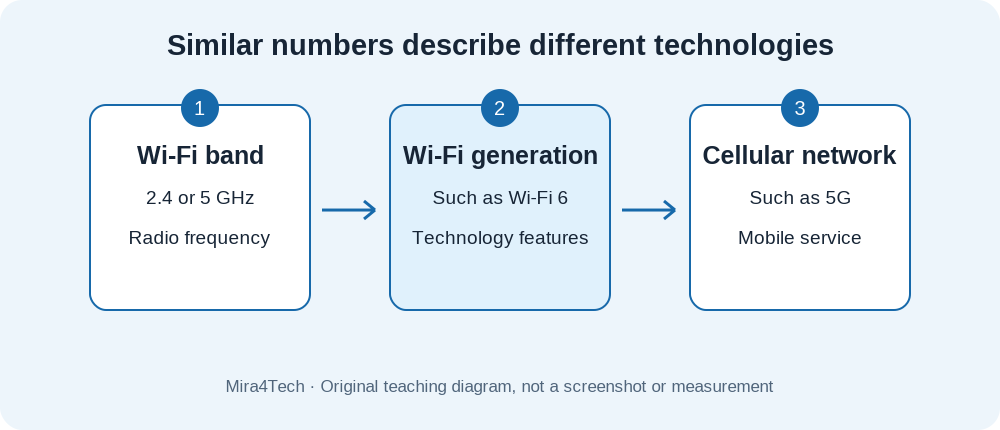
5 GHz Wi-Fi is different from cellular 5G
GHz measures frequency, whereas 5G names a cellular-network generation. A 5 GHz Wi-Fi setting does not mean the router needs a 5G SIM. Wi-Fi 5 and Wi-Fi 6 name technology generations, another distinction from the frequency band. Similar-looking numbers do not establish speed or compatibility.
A dual-band router can provide 2.4 GHz and 5 GHz according to its design and settings. Your device uses a particular band at the time you inspect the connection, even if both share a network name. Additional router or phone capabilities do not automatically become available to every older device connected to it.
Compare the properties that matter at home
| Property | 2.4 GHz | 5 GHz |
|---|---|---|
| Distance and obstacles | Often reaches farther, depending on the site | Often affected more by distance and obstacles |
| Interference | May share spectrum with many devices and networks | May offer less crowded spectrum in your location |
| Potential close-range capacity | Depends on technology, channel and device | Often higher with suitable support and signal |
| Device compatibility | Common in older and some smart-home devices | Must be supported by both router and client |
“Often” matters. A wall, poor placement or neighbouring networks can change the outcome. Frequency alone does not set the maximum speed; connection standard, channel width, client capabilities and competing devices matter too. There is no reliable universal answer that makes 5 GHz best for every device in every room.
Prepare a fair comparison
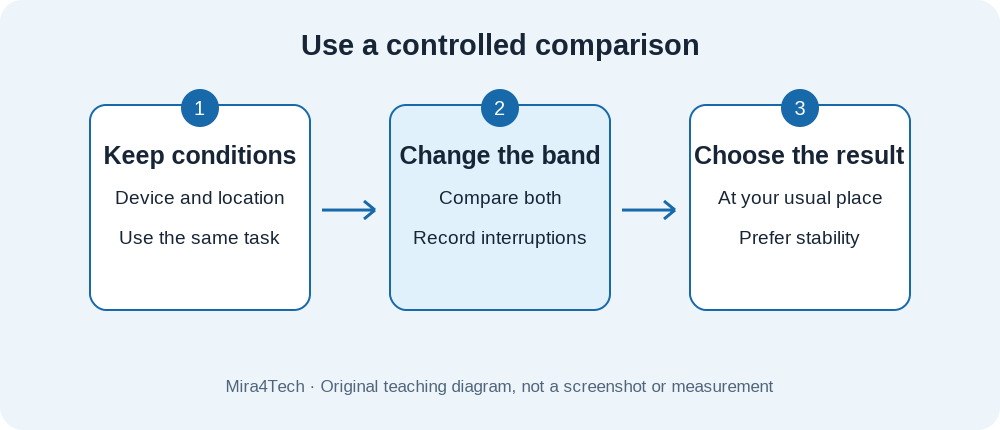
- Use one device that supports both bands and avoid large background downloads during the comparison. Keep the internet subscription and router position unchanged.
- Choose two identifiable locations: near the router, then your normal working room. Record the location rather than relying on memory.
- Note the network name, reported band, time and task, such as a call or opening a known page.
- If router administration is necessary, use a device you administer and the local management address documented for that model. Record the previous setting without capturing passwords.
You do not need to disconnect the whole household or factory-reset the router. Postpone changes that could interrupt an important call or remote session. A clear return path prevents a second unrelated change while you are still unsure what caused the interruption.
Check the actual band rather than trusting a network name
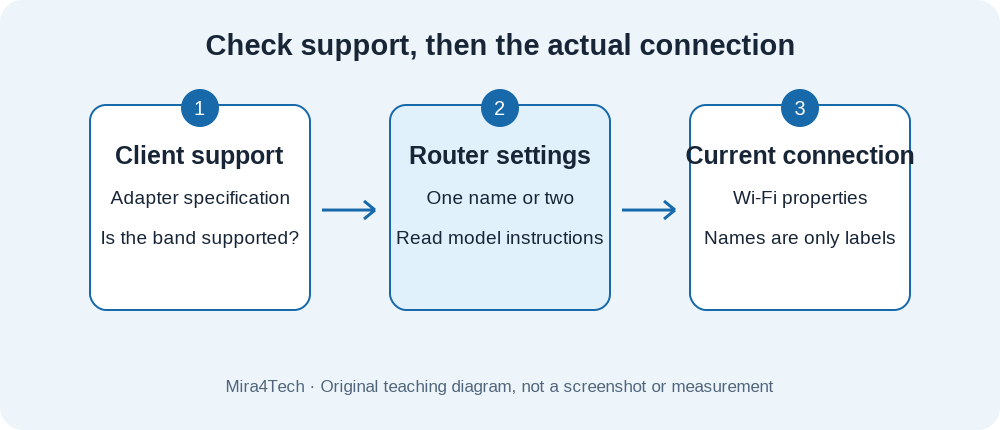
In Windows 11, open Settings → Network & internet → Wi-Fi and inspect the current connection’s properties. Look for Network band where available; wording and placement can vary by release. On a phone, inspect network details if its interface exposes them. A name such as Home_5G is only a label the administrator can change.
Seeing one name does not establish that another band is missing. A feature such as Smart Connect may present multiple bands under a shared name and steer devices according to the router’s policy. Consult that model’s instructions before separating names. Renaming a network cannot add a missing radio capability to a client.
Try the band suited to the place and task
Near the router, with a compatible modern client, start by trying 5 GHz for a task benefiting from capacity and stability. In a distant room, or on a client that sees only 2.4 GHz, test the usable band rather than searching endlessly for an unsupported name. If a shared-name arrangement works well, splitting it is not a requirement of this guide.
- If separate names already exist, connect to the first and perform the same task in the same position.
- Join the second, confirm its band from connection properties if possible and repeat the task.
- Record interruptions, frozen audio or page-loading failures. If using a speed test, repeat it under comparable conditions instead of trusting one result.
- Repeat in your everyday location, then prefer the stable result there rather than the largest number recorded beside the router.
A reported link speed describes the wireless link, not guaranteed internet throughput. If the subscription or test server is the bottleneck, both bands may produce similar internet-test readings despite different radio capacity.
If separate band names are needed temporarily
Read the instructions matching the router model and hardware revision. Look for the documented Wireless, Smart Connect or band-steering controls and understand what disabling a shared-name mode changes. Record the current configuration, adjust only the relevant setting and save as directed. There is no universal management address or administrator password for every router.
Changing a wireless name or related settings can disconnect clients and require reconnection. Retain supported strong encryption and a suitable password; separating bands does not require an open network or weaker security. If shared naming is more suitable after the experiment, restore the recorded configuration and check that household devices reconnect.
If 5 GHz is absent or keeps dropping
Check the adapter’s specification, confirm that the router broadcasts the band and test close enough to receive it. If only one computer is affected, review its adapter driver through the manufacturer’s support. Channel availability can depend on the region and client. Do not change the router’s country to evade restrictions or copy a channel recommendation made for another country.
If a band appears but weakens behind walls, return to the location comparison. Higher transmit power or a wider channel is not automatically a fix. If all devices join either band but cannot reach the internet, follow a separate connectivity diagnosis. Changing frequency alone cannot repair an ISP fault or establish that DNS is working.
Write down a decision you can use later
A useful outcome might be that the office laptop is stable on 5 GHz, a distant device uses 2.4 GHz and shared naming remains appropriate for the rest of the household. You do not need one absolute winner. Record device, place, band and task without passwords or other people’s device details.
If neither band offers a clear improvement, retain the more stable arrangement and consider router placement or Ethernet for a fixed computer. Band selection is one diagnostic step, not an immediate reason to buy another router.
Questions before trying the steps
Can 5 GHz exceed my internet subscription speed?
It does not increase the contracted connection. It changes the wireless portion; the remaining path still limits the end-to-end result.
Must I use two different names?
No. A shared name may be appropriate. Separation can help a specific test or device when supported, after reviewing the effect on other clients.
Do full signal bars guarantee working internet?
They describe one aspect of signal strength, not ISP availability, DNS correctness or every application’s performance.
Choose a useful next step
Official references and image rights
- TP-Link: wireless-band differences
- Linksys: frequency, device support and environment
- TP-Link: signal and coverage guidance
Prepared by the Mira4Tech Team using official references. Original diagrams are clearly labelled teaching aids; this is not a claim of testing every device or interface. Menu wording can vary with release and system language.