Chrome ERR_CONNECTION_RESET: Trace an Interrupted Connection
The connection was interrupted while the page was loading. Understand the context and follow diagnostic checks and verification, with an original diagram and official references.
This guide explains the message in context, walks through focused checks and verifies the outcome. The website does not run commands on your device; choose an appropriate action after understanding its conditions.

What the message means
A reset describes an interrupted connection without identifying which component ended it. Network instability, proxy or VPN configuration, security software or the site may be involved. Compare scope and timing, then change one factor when evidence supports doing so.
Prepare a controlled check
Keep the message, time, app or device name and version. Save work and use a non-sensitive training file when testing. Start with an observable check, change one factor and record the result. On a managed device, follow your authorised access and organisation policies.
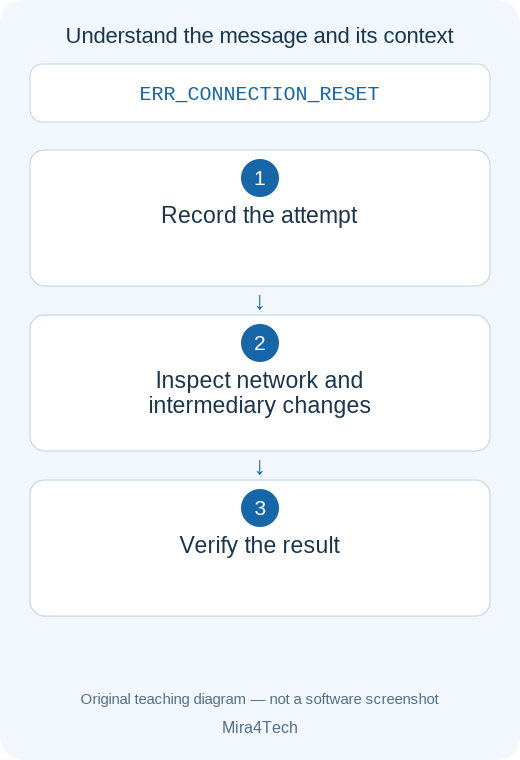
Step 1: Record the attempt
Note the address, time and whether you were opening a page or uploading. Confirm a form or purchase status before resubmitting. For an upload, retain the local original and review the service’s published size and format limits.
Step 2: Compare scope
Try a known site using the same connection and compare another device when available. A single successful page does not conclusively identify the router or site as responsible. Keep the test pattern rather than reporting only that the internet is broken.
Step 3: Inspect network and intermediary changes
Check whether Wi-Fi disconnected or the network changed during the request. Review required proxy or VPN configuration and contemporaneous security alerts. Preserve organisation settings and ask its administrator to investigate a correlated block.
Step 4: Compare browser state
Update Chrome and reopen it after saving work. For a public page, compare a private window without signing in. Avoid initially clearing all browsing data: doing so can sign you out and remove unrelated page state without identifying a cause.
Step 5: Escalate to the appropriate owner
For a repeatable single-site problem, give its owner the address, time and code. If several devices fail on one network, provide comparisons to the network administrator or ISP. Avoid router factory resets or arbitrary port changes as default remedies.
Verify the outcome
Retry the same operation after the targeted change and verify completion inside the service. A working homepage does not prove that a longer upload succeeds; test the original task with a non-sensitive training file.
When to stop and seek help
Stop for certificate warnings or demands to disable network protection. A connection reset does not justify giving an unknown person remote access.
Two questions before another change
Is the code alone enough to choose a remedy?
No. The location and circumstances must match this guide. If a new code, message or stage appears, record it and establish its context before another action.
What evidence should I give support?
Provide the product and version, error and time, attempted checks and observed results. Redact passwords, recovery codes, identities and personal files. Verify a support provider before granting remote control.
Related practical guides
Sources and scope
Prepared and edited by the Mira4Tech team. The checking sequence uses documented message meanings and product guidance; it is not a claim of testing your device or proving one cause for every occurrence. Interface labels can vary with version and language.