NET::ERR_CERT_DATE_INVALID: Check the Clock and Certificate Dates
The connection certificate could not be validated against the current date. Understand the context and follow diagnostic checks and verification, with an original diagram and official references.
This guide explains the message in context, walks through focused checks and verifies the outcome. The website does not run commands on your device; choose an appropriate action after understanding its conditions.

What the message means
HTTPS validation depends on an accurate date and the certificate’s validity period. The device clock, website certificate or an organisation-managed intermediary can be involved. Correcting a clock cannot renew a site’s expired certificate, and bypassing the warning does not repair validation.
Prepare a controlled check
Keep the message, time, app or device name and version. Save work and use a non-sensitive training file when testing. Start with an observable check, change one factor and record the result. On a managed device, follow your authorised access and organisation policies.
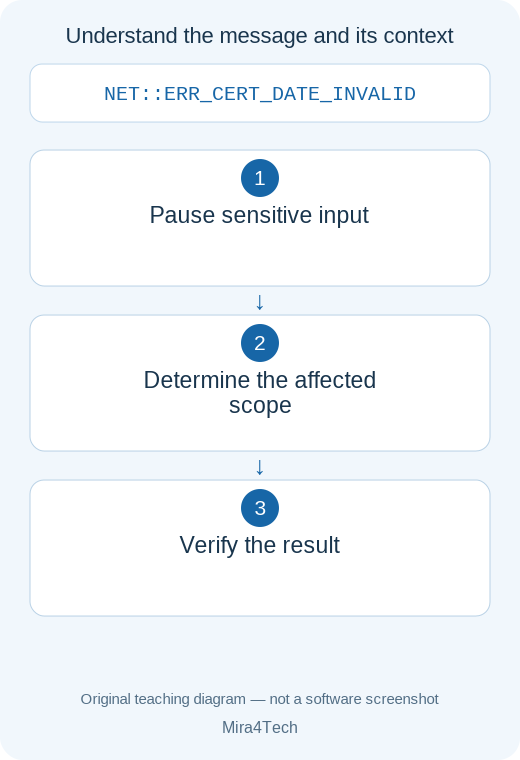
Step 1: Pause sensitive input
Do not enter passwords or payment details on the affected page. Note the domain and code without proceeding through an untrusted connection. Reading warning details can help diagnosis; creating a browser exception is not a certificate repair.
Step 2: Check date and time zone
Open Windows Settings, Time & language, Date & time. Compare the date, year, time and time zone with reality and use the provided synchronisation when authorised. A correct time zone does not compensate for an incorrect year.
Step 3: Determine the affected scope
After correcting the clock, reopen the correct domain. If many known HTTPS sites still fail, investigate time settings or a managed intermediary with IT. A single affected site may need its owner to renew a certificate or correct its chain.
Step 4: Review the network context
Use the network owner’s legitimate sign-in portal on public Wi-Fi. Ask IT about approved proxy or HTTPS inspection on a managed device. Never install an unknown root certificate or roll the clock back to make an expired certificate appear valid.
Step 5: Escalate specific evidence
Give the site owner the code, test time and domain without credentials. If the clock becomes wrong after every restart, consult device-model support rather than repeatedly changing browser settings. Follow manufacturer procedures for any hardware servicing.
Verify the outcome
Reopen the correct domain and confirm that validation succeeds without a warning. An exception or disabled certificate checking does not count as success. If you own the site, compare another up-to-date device with an accurate clock.
When to stop and seek help
Stop if the warning persists, particularly for sign-in or payment sites, and contact the network or site owner through a trusted channel.
Two questions before another change
Is the code alone enough to choose a remedy?
No. The location and circumstances must match this guide. If a new code, message or stage appears, record it and establish its context before another action.
What evidence should I give support?
Provide the product and version, error and time, attempted checks and observed results. Redact passwords, recovery codes, identities and personal files. Verify a support provider before granting remote control.
Related practical guides
Sources and scope
Prepared and edited by the Mira4Tech team. The checking sequence uses documented message meanings and product guidance; it is not a claim of testing your device or proving one cause for every occurrence. Interface labels can vary with version and language.