Chrome ERR_NAME_NOT_RESOLVED: Check the Address and DNS
The browser could not obtain an appropriate address for the site name. Understand the context and follow diagnostic checks and verification, with an original diagram and official references.
This guide explains the message in context, walks through focused checks and verifies the outcome. The website does not run commands on your device; choose an appropriate action after understanding its conditions.

What the message means
Name-resolution messages concern translating a hostname into a network address. A typo, an unavailable domain or a DNS-path problem may be involved. Some diagnostics display NXDOMAIN. A DNS message does not prove that the website server is healthy or that changing resolvers will solve every failure.
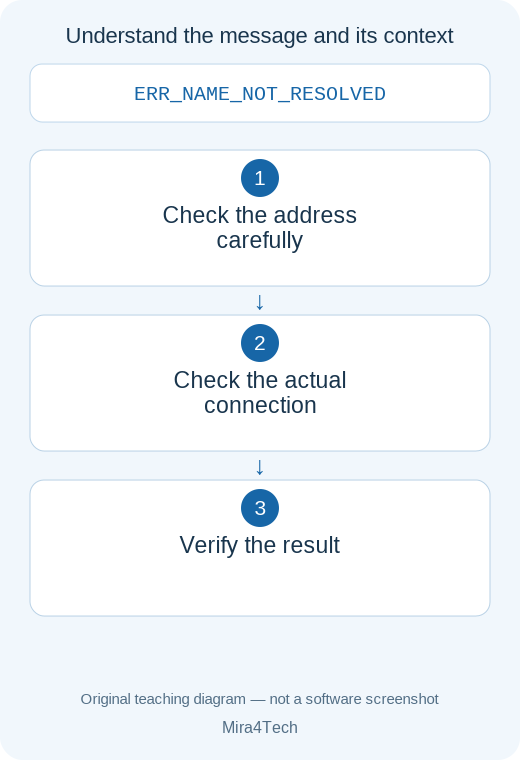
Prepare a controlled check
Keep the message, time, app or device name and version. Save work and use a non-sensitive training file when testing. Start with an observable check, change one factor and record the result. On a managed device, follow your authorised access and organisation policies.
Step 1: Check the address carefully
Type the known address directly and inspect spelling, dots and suffix. Distinguish a public website from an internal work-network hostname. Never sign in to a lookalike domain as an alternative.
Step 2: Establish the scope
Try another known site on the same device and, when available, the failing site on another device using the same network. Record both outcomes. One failing name differs from all names failing; a second device’s success does not alone identify the first device’s cause.
Step 3: Check the actual connection
Confirm the intended network and any legitimate public-network sign-in portal. Review authorised VPN or proxy requirements rather than blindly removing them. Internal work names may require the organisation’s connection.
Step 4: Interpret DNS tests carefully
On Windows, use the linked network-diagnosis guide to inspect a public hostname with nslookup. Record the responding server and result. The tool and a browser using Secure DNS may take different paths; keep their observations distinct.
Step 5: Correct the identified issue
Correct a typo or escalate a broader failure to the router owner, ISP or DNS administrator. Do not copy a resolver address from an unknown comment without understanding policy and rollback. A single broken public domain may need its owner to review DNS records.
Verify the outcome
Reopen the correct hostname and verify the intended HTTPS site. Direct IP access is not always equivalent because hosting and certificates may depend on the name. Distinguish successful DNS resolution from successful page loading.
When to stop and seek help
Stop if the result becomes a certificate warning or someone requests router or account credentials to fix a hostname.
Two questions before another change
Is the code alone enough to choose a remedy?
No. The location and circumstances must match this guide. If a new code, message or stage appears, record it and establish its context before another action.
What evidence should I give support?
Provide the product and version, error and time, attempted checks and observed results. Redact passwords, recovery codes, identities and personal files. Verify a support provider before granting remote control.
Related practical guides
Sources and scope
Prepared and edited by the Mira4Tech team. The checking sequence uses documented message meanings and product guidance; it is not a claim of testing your device or proving one cause for every occurrence. Interface labels can vary with version and language.