SMB Guest Access Blocked: Use Authenticated Sharing Securely
Security policy blocks unauthenticated guest access to the share. Understand the context and follow diagnostic checks and verification, with an original diagram and official references.
This guide explains the message in context, walks through focused checks and verifies the outcome. The website does not run commands on your device; choose an appropriate action after understanding its conditions.

What the message means
This message indicates an attempted unauthenticated guest connection. Microsoft recommends updating or replacing devices that depend on guest-only authentication. Review the sign-in method and both endpoints’ security support instead of assuming that working sharing requires weaker client policies.
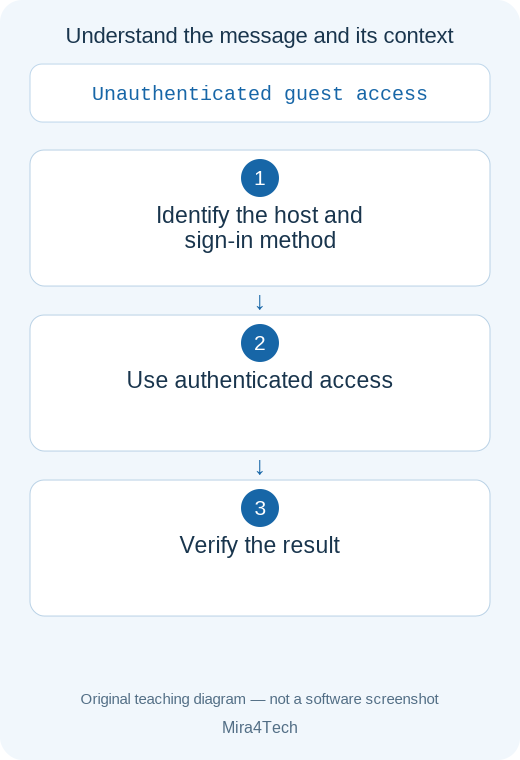
Prepare a controlled check
Keep the message, time, app or device name and version. Save work and use a non-sensitive training file when testing. Start with an observable check, change one factor and record the result. On a managed device, follow your authorised access and organisation policies.
Step 1: Identify the host and sign-in method
Record the NAS model or host OS, share name and whether a username and password are required. Visibility in Network does not prove support for the required sign-in method. Confirm it with the owner instead of repeatedly sending empty credentials.
Step 2: Review model-specific support
Check the manufacturer’s model page for firmware and supported SMB settings. Do not use firmware for a similar model. Prepare a verified backup and follow the vendor’s procedure before an update that could affect stored data.
Step 3: Use authenticated access
Have the owner create a suitable account with scoped share permissions, then use those credentials in Windows. The account does not need full control over the whole device. Check share and filesystem permissions and use read-only access when sufficient.
Step 4: Check modern SMB requirements
Review SMB2 or SMB3 and signing support for the endpoints’ versions. If an old appliance cannot support the required configuration, consider a supported upgrade or another owner-approved transfer method rather than enabling SMB1 or disabling signing across clients.
Step 5: Reconnect using the intended identity
If guest access is still attempted despite an account, review saved credentials for that host with the administrator and reconnect as the authorised user. Keep passwords out of commands and terminal history. Test an approved training file.
Verify the outcome
Verify an authenticated connection that permits the intended task while retaining protection. Record the owner-approved identity and configuration and test only the required read or write access. Silencing the warning with weaker policy is not verification of a secure solution.
When to stop and seek help
Stop before weakening a work device’s policy or updating a NAS without recovery planning. Escalate to the network administrator when the host cannot support secure access.
Two questions before another change
Is the code alone enough to choose a remedy?
No. The location and circumstances must match this guide. If a new code, message or stage appears, record it and establish its context before another action.
What evidence should I give support?
Provide the product and version, error and time, attempted checks and observed results. Redact passwords, recovery codes, identities and personal files. Verify a support provider before granting remote control.
Related practical guides
Sources and scope
Prepared and edited by the Mira4Tech team. The checking sequence uses documented message meanings and product guidance; it is not a claim of testing your device or proving one cause for every occurrence. Interface labels can vary with version and language.