Linux find and grep Tutorial: Search Filenames and File Contents
Learn when to use find versus grep, practise filename and content searches with known sample data, and interpret matches and errors without changing system files.

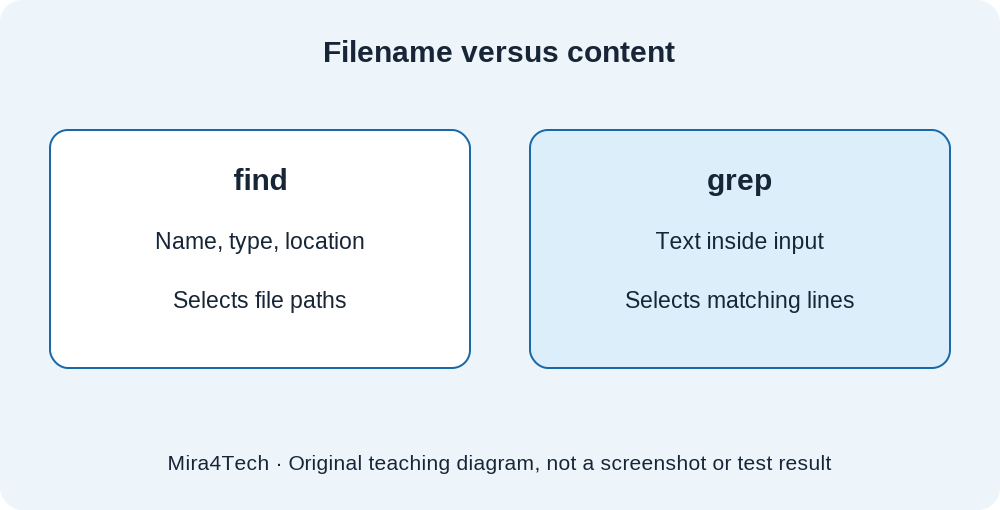
Are you searching for a filename or something inside it?
When a directory contains many files, begin by defining the question. find traverses a file tree using conditions such as name and type. grep selects lines from text input that match a search. Choosing the right tool helps, but a deliberate search scope and a correct interpretation matter more than a complicated command.
We will create small, known sample data and ask questions whose answers can be checked. The examples suit common GNU environments on Ubuntu, Debian, Fedora and CentOS Stream. This is a reading and searching exercise: no bulk deletion, permission changes or sudo-based access bypasses are needed. Complete the file-navigation lesson first if paths and command arguments are unfamiliar.
1. Create data with predictable answers
Open an ordinary Terminal and create a fresh directory. search_lab stores its path in this session. If mktemp fails or does not print a path under your home, stop before any writing commands. Do not continue with an uncertain destination.
search_lab=$(mktemp -d "$HOME/mira-search.XXXXXX")
printf "%s\n" "$search_lab"
We will create two documents and a sample log. The && operators make later writes conditional on earlier success. Because > can replace an existing file, it is restricted to the fresh practice directory. The log is an authored teaching example, not an actual diagnostic report from your machine.
mkdir -- "$search_lab/docs" "$search_lab/logs" &&
printf "Network practice\nCheck the router\n" > "$search_lab/docs/notes.txt" &&
printf "INFO started\nERROR sample connection\nINFO finished\n" > "$search_lab/logs/app.log" &&
printf "A second note\n" > "$search_lab/docs/Other.TXT"
You now have notes.txt and Other.TXT in docs, plus app.log in logs. The second log line deliberately contains ERROR. Knowing this makes the search outcome verifiable instead of confusing a functioning tool with a solution to a problem that never occurred.
2. Find a filename within a chosen scope
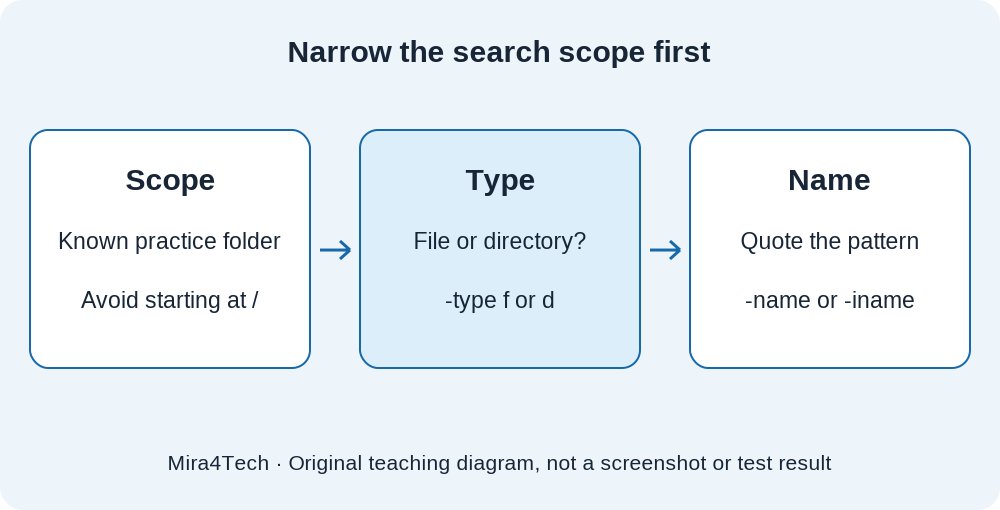
find "$search_lab" -type f -name "*.txt" -printThe first argument sets the starting directory. -type f restricts the result to regular files, -name matches the filename pattern and -print displays selected paths. Quoting *.txt keeps the shell from expanding it against the current directory before find receives it.
Our data should match notes.txt but not Other.TXT because -name is case-sensitive. An absent result does not prove a file was lost; the location or condition may be different from what you intended. Start with a known small directory rather than searching all of / and trying to interpret a flood of access errors.
3. Change one condition and observe the difference
find "$search_lab" -type f -iname "*.txt" -print
find "$search_lab" -type d -name docs -print
The first command uses -iname for a case-insensitive filename match, so both sample documents should qualify. The second selects a directory named docs because -type d changes the required object type. Neither operation changes the files; we have changed only the question.
| Option | Purpose in this exercise |
|---|---|
| -type f | Regular files |
| -type d | Directories |
| -name | Case-sensitive filename matching |
| -iname | Case-insensitive filename matching |
| Display results without acting on them |
4. Find a word inside a text file
grep -nF -- "ERROR" "$search_lab/logs/app.log"-F treats the search as a fixed string rather than a regular expression, and -n includes the line number. Expect the second line that we deliberately created. Colours can differ by configuration. The printed number identifies a position within the file; it is not a count of network failures or a judgement about their severity.
grep does not automatically understand a PDF, word-processing document or photograph as ordinary text. If a binary format yields no useful text, do not enable random options until unreadable symbols appear. Identify the format and use an appropriate extraction tool where needed. This lesson intentionally uses simple text files.
5. Select the output that answers your question
grep -niF -- "error" "$search_lab/logs/app.log"
grep -lF -- "router" "$search_lab/docs/notes.txt"
grep -cF -- "INFO" "$search_lab/logs/app.log"
Adding -i ignores case in matching, -l prints the matching filename and -c counts selected lines. In our data, the router question should identify notes.txt, while the INFO count corresponds to the two matching lines in app.log. That is a count of lines, not the total occurrences of the word inside each line.
Prefer the smallest output that answers the question. Listing filenames can be more useful than printing entire documents, especially when sharing diagnostics with support. An occurrence of ERROR also does not identify one universal cause: surrounding context and timing require their own interpretation.
6. Combine filename selection and content searching
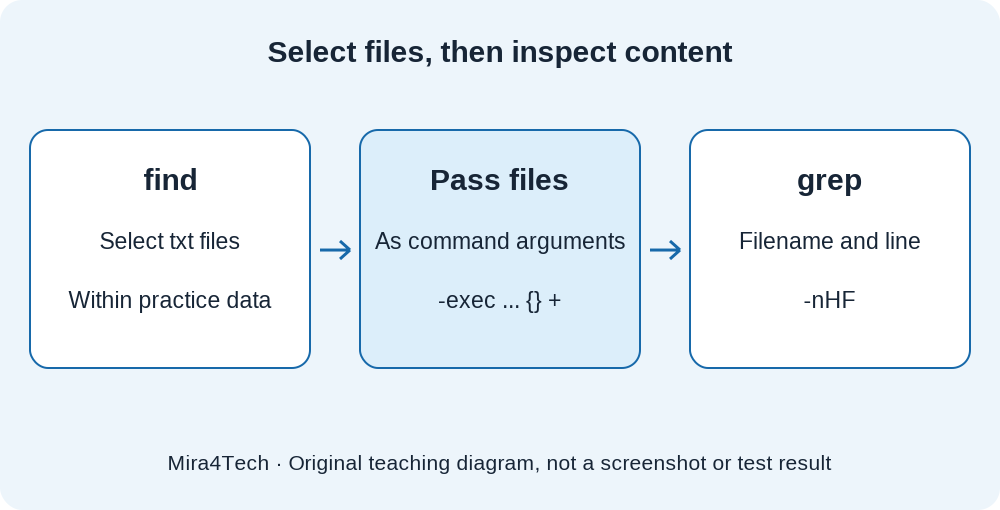
find "$search_lab" -type f -name "*.txt" -exec grep -nHF -- "router" {} +find first selects filenames, then passes those files to grep. -H requests filenames alongside line numbers, {} represents selected files and + groups them into suitable argument lists. Expect the document containing router. We are not attaching a deletion action or executing unknown files.
Avoid feeding a display of space-separated names into an elaborate command without understanding filename handling. Names can contain spaces and special characters. This form passes files as arguments instead of manually splitting screen text. When you already know the exact file, direct grep is simpler than combining tools.
7. Distinguish no matches from an actual error
grep -nF -- "NOT_PRESENT" "$search_lab/logs/app.log"
printf "Exit status: %s\n" "$?"
For ordinary grep use, status 0 means a line was selected, 1 means none was selected and 2 means an error. Print $? immediately after the command so another operation does not replace that status. The example deliberately searches for absent text; the absence of output is expected and does not indicate a broken installation.
This interpretation concerns the direct invocation above. In a pipeline, the status you inspect may belong to its last command rather than grep. There is no need to build an automated script in this first lesson. Read the message, scope and search string before moving on to automation.
Finish with three questions you can check
- List practice documents ending in TXT regardless of case and verify that both appear.
- Display the ERROR line number, then search for absent text and explain the different status.
- Search for router only in txt files and explain why the log file is not part of that filename selection.
A Permission denied message calls for inspecting scope rather than searching a broader area with sudo. When an expected file is missing, check case, quoting and object type. Keep this exercise directory for the permissions lesson. No recursive cleanup or automated deletion is required.
Questions before trying the steps
Does grep search filenames?
It searches the content it reads. Use find or file-manager tools to select names, then inspect the corresponding content.
Why start with -F?
It treats the search literally instead of interpreting regular-expression symbols. Learn patterns when you have a clear need for them.
Choose a useful next step
Review paths and files before searching
Official references and preparation
- GNU Findutils: names, tests and actions
- GNU grep: matching controls
- GNU grep: output controls
- GNU grep: exit status
- GNU: fresh practice directories
- Ubuntu: paths and the shell
Prepared by the Mira4Tech Team using official documentation. Examples and original diagrams are educational, not a claim of running every command on every device or release. Menu wording can vary. Practise on sample files in an environment you may administer, and read each result before continuing.