Linux Files and Folders: Learn pwd, cd, ls, Copying and Moving
Practise Linux navigation, absolute and relative paths, copying, moving and renaming in a fresh folder, with checks that protect existing files.

Learn where commands act before changing permissions
After installing Linux, it is tempting to paste commands containing paths you do not recognise. Before chmod or package installation, learn a simpler foundation: where am I, what exists here, and am I copying a file or moving it? We will create a fresh directory under your account, write a practice note, copy it, rename the copy and verify the outcome. System directories and administrator privileges are unnecessary.
These basic commands are normally available through GNU tools on Ubuntu, Debian, Fedora and CentOS Stream. Terminal appearance can differ, but the distinction between source and destination remains. Open Terminal as your ordinary user. Examples are training instructions, not captured results from your computer; do not begin with important work files.
1. Understand the path before entering a command
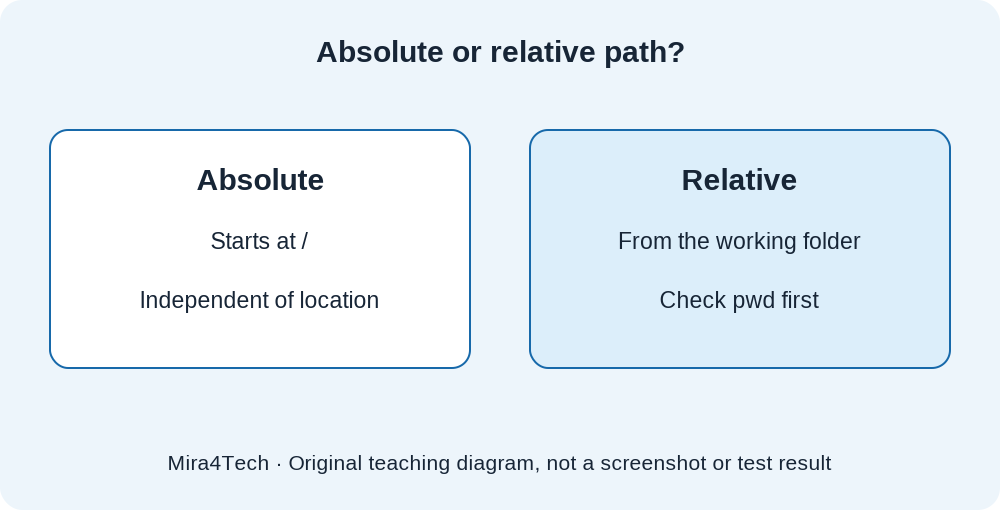
An absolute path starts at the root /, such as /home/user/Documents. A relative path begins at your current working directory, such as notes/report.txt. A single dot means the current directory, while two dots mean its parent. In normal shell use, ~ refers to your home directory. Linux path separators are forward slashes, unlike the familiar backslashes in Windows paths.
| Command | Purpose |
|---|---|
| pwd | Print the current working directory |
| cd "$HOME" | Go to your account’s home directory |
| cd .. | Move up one directory |
| ls -la | List details including hidden entries |
Typical Linux filesystems distinguish Report.txt from report.txt. Spaces also matter: quoting "My Notes" makes one argument instead of two. Our examples quote paths and use -- where supported to separate command options from filenames. These habits make the destination clearer before any operation writes data.
2. Create a genuinely new practice directory
Run the next two lines in the same Terminal session. mktemp creates a fresh name instead of risking an existing folder with a predictable name. lab_dir stores the generated path for later steps, and the second line displays it so you know exactly where the exercise will happen.
lab_dir=$(mktemp -d "$HOME/mira-files.XXXXXX")
printf "%s\n" "$lab_dir"
Expect a path under your home directory whose name starts with mira-files followed by a changing suffix. If an error appears or no path is printed, stop before continuing with creation commands. A variable from a closed terminal is not automatically available in a new session. The XXXXXX characters form a template and are replaced in the actual directory name.
4. Create two folders and one note
mkdir -- "$lab_dir/inbox" "$lab_dir/archive" &&
printf "First Linux practice\n" > "$lab_dir/inbox/notes.txt"
ls -l -- "$lab_dir/inbox"
mkdir creates inbox and archive within the fresh practice directory. The && operator makes writing the note conditional on successful directory creation. The > operator writes a file and can replace existing contents, which is why it is used only in this newly created exercise area. Do not substitute an important real document into the example.
Expect notes.txt in inbox while archive remains empty. You can inspect it through the graphical file manager as an additional check. Creating files in your own practice directory does not need sudo. A Permission denied message calls for checking the destination and ownership, not giving everything mode 777.
5. Copy the note and understand the independent result
cp -i -- "$lab_dir/inbox/notes.txt" "$lab_dir/archive/notes-copy.txt"
ls -l -- "$lab_dir/inbox" "$lab_dir/archive"
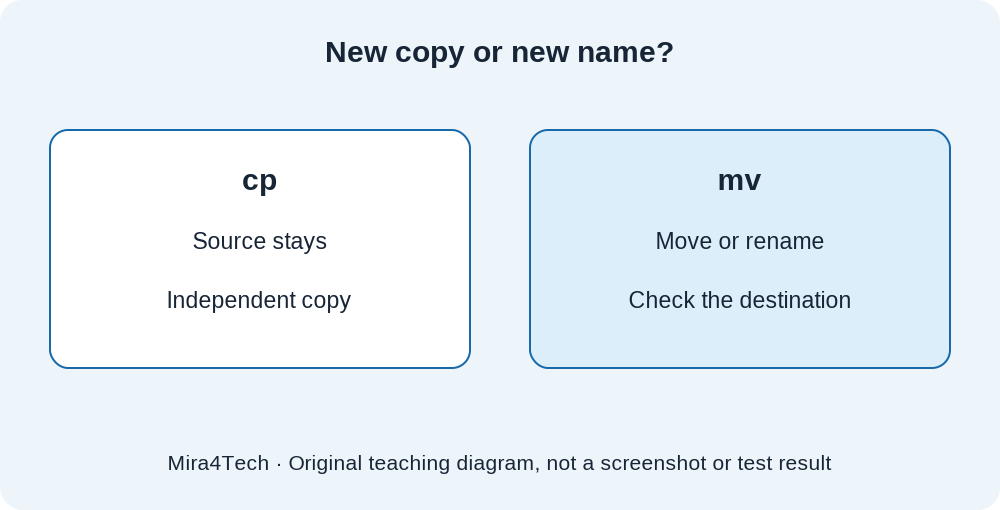
The first path is the source and the second is the destination. You now have the original and a copy in archive. The -i option asks before overwriting an existing destination. If an unexpected question appears, decline replacement and inspect why. Forcing the operation with -f is not a substitute for understanding the path.
Editing an ordinary copy does not automatically edit its source. Symbolic links and cloud synchronisation can introduce different behaviour, but neither is part of this exercise. Copying an entire directory needs a suitable recursive option such as -R; do not add broad preservation or privilege options simply because another example contains them.
6. Rename the copy and verify its content
mv -i -- "$lab_dir/archive/notes-copy.txt" "$lab_dir/archive/final-notes.txt"
ls -l -- "$lab_dir/archive"
cat -- "$lab_dir/archive/final-notes.txt"
Here mv changes the copy’s name within the same directory; it does not create a third independent file. final-notes.txt should replace notes-copy.txt while the original stays in inbox. Read the result to verify that the intended copy was moved. The disappearance of a name alone is not proof that the destination is correct.
Moving between filesystems can involve copying and then removing the source after successful transfer, so it is not always instantaneous. Wait for completion before disconnecting external storage. This exercise stays within one practice directory to explain the distinction without introducing a second storage device.
7. Test your understanding without deletion commands
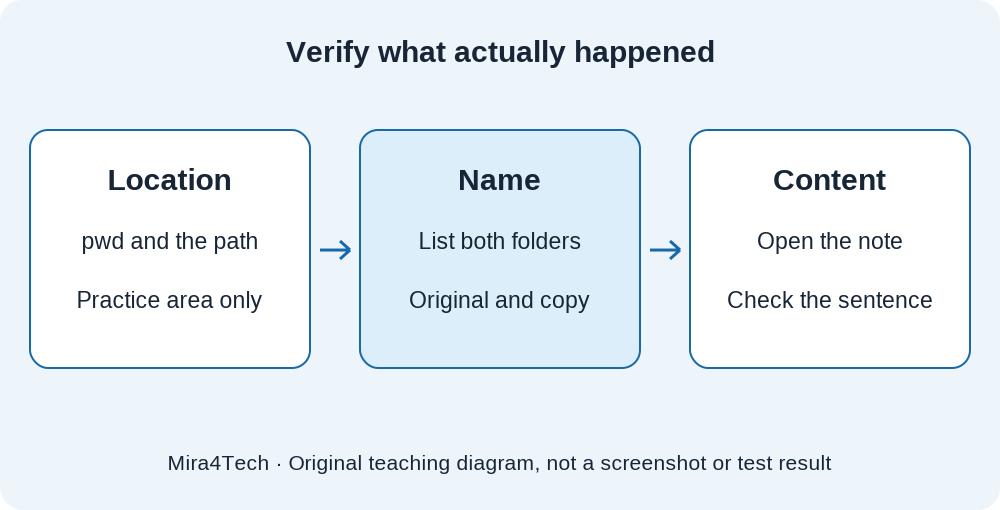
- Print pwd and identify whether you are inside the practice directory.
- List inbox and archive, checking the original and the renamed copy.
- Return home and inspect the practice file by its absolute path, proving that it can be addressed from another location.
- Explain why cp left the source intact while mv did not retain the copy’s old name.
cd -- "$HOME"
ls -l -- "$lab_dir/archive/final-notes.txt"
The outcome is concrete: two directories, one original note and a renamed copy. No rm -rf cleanup is needed. If you later remove the exercise, open the printed location in the file manager and inspect its contents before moving only that practice directory to the trash where supported.
Read the kind of error instead of adding privileges
No such file or directory often indicates a missing name or path component. Check case, spaces and the parent directory. File exists after mkdir means the destination already exists, not that you should delete it. A fresh Terminal session also will not automatically contain the lab_dir value created in an earlier one.
Do not turn a path error into a permissions change. Return to listing and inspect what you entered. When asking for help, redact private account names and paths before posting output. Understanding source and destination now makes the next lessons on searching and permissions easier to follow and safer to apply.
Questions before trying the steps
Is this tied to one distribution?
The exercise uses GNU tools commonly provided by the four named distributions. Their package-manager differences do not change copying and moving here.
Do I need sudo?
Not inside a practice directory belonging to your account. Unexpected privilege requirements are a reason to inspect the location first.
Choose a useful next step
Next: find files and search their contents
Official references and preparation
- Ubuntu: command-line introduction
- GNU: fresh practice directories
- GNU: mkdir
- GNU: cp
- GNU: mv
- GNU: directory listing
Prepared by the Mira4Tech Team using official documentation. Examples and original diagrams are educational, not a claim of running every command on every device or release. Menu wording can vary. Practise on sample files in an environment you may administer, and read each result before continuing.