Install, Update and Remove Software with APT on Ubuntu and Debian
Find, install and remove software with APT, understand update versus upgrade, review proposed changes and diagnose common package-management errors.

Follow one package from discovery to verification
Ubuntu and Debian provide package management that records software sources and dependencies, rather than requiring an arbitrary download and installation guesswork. We will refresh package information, inspect a small tool called tree, install and test it, then remove it only if we added it specifically for practice. Understanding the proposed operation matters more than memorising a block of commands.
Choose a virtual machine or training environment you administer. Installation and upgrade operations can change the system and require an internet connection and authorised privileges. Searching and reading information normally do not require sudo. Follow organisational policy on a managed computer. The original diagrams explain the workflow; they are not claimed measurements or screenshots from every supported release.
Understand packages, repositories and dependencies
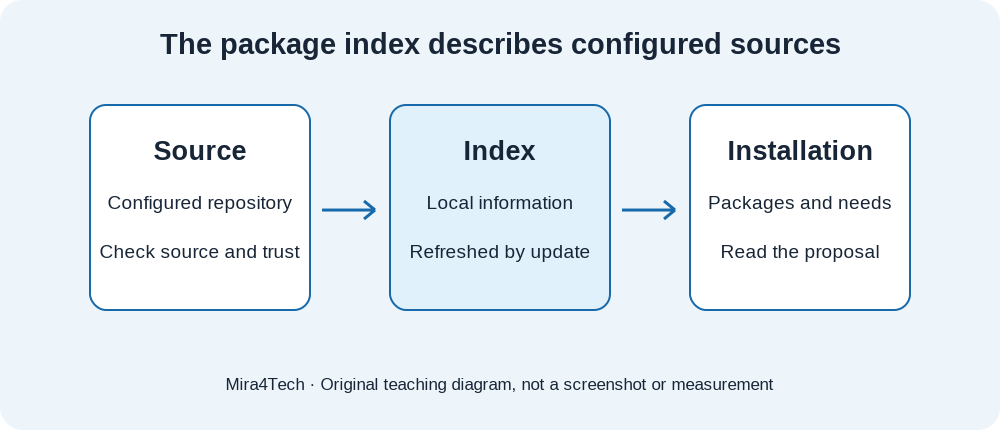
A package combines software files and metadata that allow the manager to install and track a version. A repository is a configured source of packages supplied by the distribution or added with your approval. A dependency is another package the software needs. Installing one application may therefore download several packages, which APT lists before proceeding.
This guide concerns deb packages managed by APT. A Snap, Flatpak or AppImage does not become an APT package simply because it runs on Ubuntu. A graphical application with a familiar name may be managed through a different route. Fedora and CentOS Stream normally use DNF for their distribution packages; do not paste this tutorial’s APT commands there unchanged.
| Environment | Appropriate route |
|---|---|
| Ubuntu and Debian | APT for packages in configured repositories |
| Fedora and CentOS Stream | Use the DNF guide and distribution-specific sources |
| Snap, Flatpak or AppImage | Use the management process for that format |
Read the release and initial package state
Open Terminal and run these commands. os-release identifies the distribution and release, apt --version identifies the tool, and the final command checks whether tree is already installed. Record its initial presence: removing software that existed before the exercise could interfere with your normal work.
cat /etc/os-release
apt --version
apt list --installed tree
If apt is unavailable, check the distribution instead of forcing a different package manager onto it. A sudo password prompt may display no characters or stars while you type. Review the command receiving that authority, and never post the account password in a comment or support conversation.
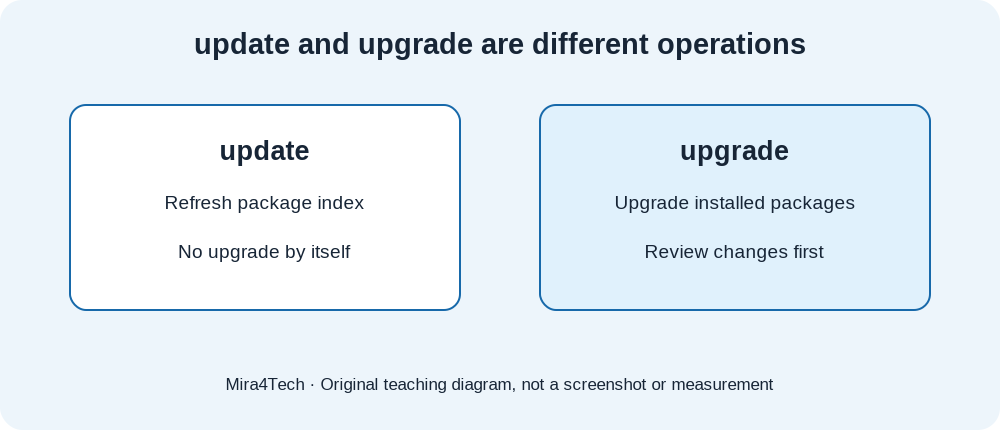
update refreshes package information, not installed programs
The package index is a local record of software available through configured repositories. Run the following and wait for it to finish. This operation refreshes source information; it does not by itself upgrade the computer’s installed packages.
sudo apt updateInspect the final warnings and errors. When a source cannot be downloaded, APT may retain older information for it, so a Done message alone does not prove every source refreshed successfully. Investigate connection or signature failures instead of disabling verification. Do not add Debian repositories to Ubuntu or the reverse just to obtain a different version.
Search and inspect the candidate source
Search for tree, then read the package details and version policy. A search may return several similarly named packages; select the exact name after reading its purpose. apt policy exposes the installed version, candidate version and available sources according to this machine’s configuration.
apt search tree
apt show tree
apt policy tree
We do not prescribe a fixed version number because it varies by release and configured repositories. A candidate is not proof that an arbitrary third-party source is trustworthy. Start with appropriate distribution repositories in a fresh environment. Before adding another source, understand why it is needed, who maintains it and how it will be kept current.
Read the installation plan before accepting
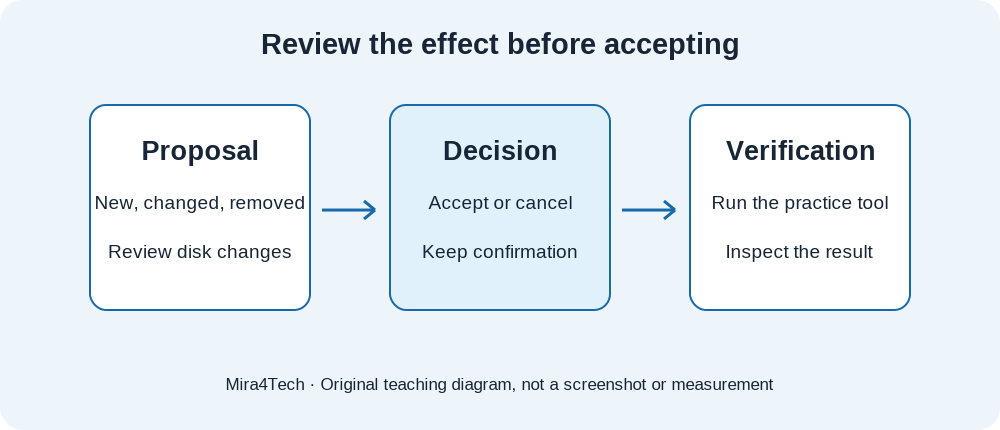
The next command requests tree from the configured APT sources. Review new, upgraded and removed packages, download size and disk-space changes. If important components would be removed or the scope is unexpected, choose N or cancel and investigate. The example deliberately leaves out -y because reviewing confirmation is part of the exercise.
sudo apt install treeIf the package already exists, APT may report that the available version is installed or propose an upgrade according to policy. After accepting, wait for configuration to finish and the prompt to return. Download completion alone does not establish that installation completed. Do not shut down mid-operation or launch another package manager concurrently.
Test against newly created, known files
Check the tool version, then create a fresh practice directory under your home. mktemp generates a new name so the exercise does not overwrite an existing project. lab_dir exists in the current terminal session; keep the commands in that session and inspect the printed path before proceeding.
tree --version
lab_dir=$(mktemp -d "$HOME/mira-apt-lab.XXXXXX")
printf "%s\n" "$lab_dir"
mkdir "$lab_dir/documents"
touch "$lab_dir/documents/example.txt"
tree "$lab_dir"
Expect a documents directory with example.txt beneath it because you just created those entries. A different tree-drawing style or version number is not inherently a failure. You are checking that the installed tool runs and describes known data, without exposing private document names or taking a screenshot of the entire home directory.
Review available updates and the scope of upgrade
After refreshing the index, list upgradeable packages and simulate the proposed operation. The -s simulation does not apply its package changes. It describes the current proposal rather than guaranteeing a later real run will be identical after sources or installed state change.
apt list --upgradable
sudo apt -s upgrade
The real operation below concerns eligible installed system packages, not only tree. Run it when you deliberately choose a suitable maintenance time, have backed up important work and have reviewed the plan. Some changes may require restarting services or the machine; read the messages rather than dismissing them automatically.
sudo apt upgradefull-upgrade can remove packages to resolve dependency changes; it is not merely a stronger name for the same beginner step. Upgrading the whole distribution release is another procedure. These commands are not a licence to mix arbitrary Ubuntu or Debian release sources.
Remove the practice package only if you added it
If tree was absent before the exercise and you no longer need it, request its removal and review the changes before confirming. If it was already present, understand the command without removing it, or practise in a fresh virtual machine. Uninstalling the tool does not automatically erase the practice documents you created in your home directory.
sudo apt remove tree
apt list --installed tree
apt policy tree
remove uninstalls the package while some package configuration may remain. purge also requests removal of system-managed package configuration; it is not a promise to erase all user-created files. Review autoremove proposals rather than accepting them blindly: sudo apt -s autoremove provides a simulation. You can leave the operation alone if its entries are unclear. Completing this lesson does not require broad cleanup.
Resolve the cause instead of bypassing safeguards
| Message or symptom | First check |
|---|---|
| Unable to locate package | Exact name, successful index refresh and release-appropriate sources |
| Could not get lock | Whether a legitimate updater is still working; wait instead of deleting locks |
| Signature or untrusted-source error | Source, system time and distribution guidance; retain verification |
| Interruption or insufficient space | Connectivity, available storage and the actual APT message |
If the system reports an interrupted package operation, read its recommended recovery in context. Do not kill a manager, remove its locks or copy an unrelated repair command from a comment. When seeking help, share relevant error text only after removing private machine names, source addresses or authentication details.
Questions before trying the steps
Are update and upgrade the same operation?
No. update refreshes available-package information; upgrade proposes changes to installed packages. Read each result before proceeding.
Does apt manage every Ubuntu application?
No. This guide covers APT packages; Snap, Flatpak and AppImage follow different management processes.
Should I add -y to save time?
Keep confirmation visible while learning. Automatic acceptance does not replace understanding an installation, removal or upgrade plan.
Choose a useful next step
Next: understand services, control their state and inspect logs
Understand account permissions before using sudo
Official references and image rights
- Ubuntu: Install and manage packages
- Debian: apt(8)
- Debian: package operations and simulation
- Debian Administrator’s Handbook: APT
Prepared by the Mira4Tech Team using official references. Original diagrams are clearly labelled teaching aids; this is not a claim of testing every device or interface. Menu wording can vary with release and system language.