APT Unable to Locate Package: Check the Name and Repositories
APT cannot find the package name in its available source metadata. Understand the context and follow diagnostic checks and verification, with an original diagram and official references.
This guide explains the message in context, walks through focused checks and verifies the outcome. The website does not run commands on your device; choose an appropriate action after understanding its conditions.

What the message means
APT searches configured repository metadata rather than every program on the internet. The package name may differ from the app name, metadata refresh may have failed or the package may be unavailable for the release or architecture. The message does not automatically justify adding a PPA or third-party repository.
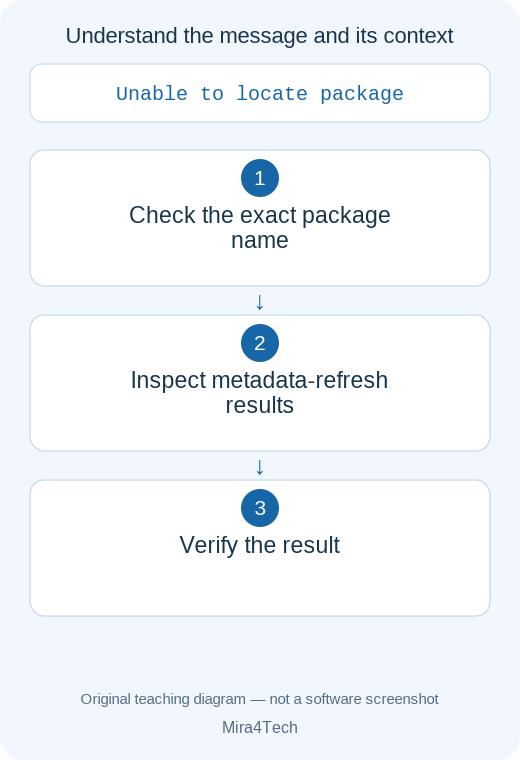
Prepare a controlled check
Keep the message, time, app or device name and version. Save work and use a non-sensitive training file when testing. Start with an observable check, change one factor and record the result. On a managed device, follow your authorised access and organisation policies.
Step 1: Check the exact package name
Review spelling and hyphens in the package argument. Do not type placeholder brackets from generic instructions. Check the publisher’s distribution method: repository package, Flatpak or a separate installer.
Step 2: Confirm distribution and release
Identify the installed Ubuntu or Debian release and whether the publisher supports it. Fedora instructions using DNF cannot be converted by replacing a command name. Package availability can depend on release and processor architecture.
Step 3: Inspect metadata-refresh results
When authorised to manage packages, refresh repository metadata using the linked APT guide and read the complete output. DNS, signature or obsolete-source errors mean the refresh may be incomplete. Do not bypass signature validation to obtain search results.
Step 4: Search before installing
Use apt search or apt-cache policy for the intended name to inspect configured availability. The nano example is a training package, not a substitute for any missing app. No candidate or exact match calls for source and support review, not forcing another package.
Step 5: Choose a supported distribution method
Consult distribution repositories and the official publisher. Before adding a required external source, review identity, release support, signing and removal instructions. Avoid running an unknown downloaded script with elevated privileges or taking packages from random comments.
Inspection command examples
These examples inspect the applicable environment described above. Review output before making changes and redact personal data before sharing it. The APT nano example is a training package.
apt-cache policy nanoVerify the outcome
Confirm an appropriate package candidate before installing. After following a supported installation method, test the app itself and record any new failure. A successful package search does not prove compatibility with every Linux release.
When to stop and seek help
Stop if the proposed method bypasses signature checks, adds an unverified source or targets an unsupported distribution release.
Two questions before another change
Is the code alone enough to choose a remedy?
No. The location and circumstances must match this guide. If a new code, message or stage appears, record it and establish its context before another action.
What evidence should I give support?
Provide the product and version, error and time, attempted checks and observed results. Redact passwords, recovery codes, identities and personal files. Verify a support provider before granting remote control.
Related practical guides
Sources and scope
Prepared and edited by the Mira4Tech team. The checking sequence uses documented message meanings and product guidance; it is not a claim of testing your device or proving one cause for every occurrence. Interface labels can vary with version and language.