Ubuntu File Permissions and Users: Practical chmod and chown Guide
Understand owners, groups and rwx permissions. Practise chmod and chown in a dedicated Ubuntu exercise folder without opening private files to everyone.

Turn Permission denied into a specific question
Before adding sudo to every failed command, ask which account is running it, who owns the file and which access is required. This exercise answers those questions using a new folder owned by your normal account. You will inspect the result and change one permission deliberately instead of applying chmod 777 and opening access more broadly than the task requires.
The exercise targets a local Linux filesystem in Ubuntu. The ownership and rwx principles also apply to GNU tools in Debian, Fedora and CentOS Stream, although account-management commands and defaults can differ. Start in an Ubuntu virtual machine rather than with work documents or a Windows shared folder. Do not transfer account-creation instructions across distributions without checking their documentation.
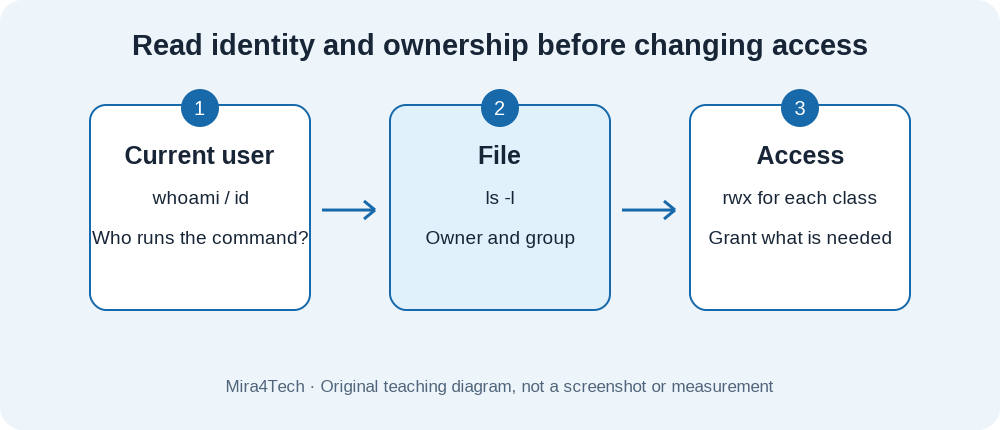
Identify the current account, owner and group
The current user is the account executing the command. A file has an owner and a group, with traditional permissions for the owner, members of that group and others. A group can organise shared access without making its members administrators. id displays your identity and memberships; whoami prints the current account name.
whoami
id
Read the values from your own session rather than copying a UID from an example. If your terminal is running as root, return to an ordinary user session before practising. Reading a file or learning permissions does not require making an account a sudo administrator. Administrative authority should be used for a justified task, not as the default response to an error.
Create a fresh practice directory
Open Terminal and run the following block in the same session. mktemp creates a new name under your home directory, avoiding a fixed name that might already contain real work. The lab_dir variable stores its path only in this session. Quoting path variables prevents spaces from splitting a single path into multiple arguments.
lab_dir=$(mktemp -d "$HOME/mira-permissions.XXXXXX")
printf "%s\n" "$lab_dir"
printf "%s\n" "Mira4Tech practice only" > "$lab_dir/note.txt"
chmod 700 "$lab_dir"
chmod 600 "$lab_dir/note.txt"
ls -ld "$lab_dir"
ls -l "$lab_dir/note.txt"
Check that the printed path is inside your home directory. The folder and the harmless practice file are now private to your account through these traditional mode bits. A new terminal will not automatically contain lab_dir. Do not continue with editing commands until you have set and verified the correct practice path in that session.
Read rwx before changing it
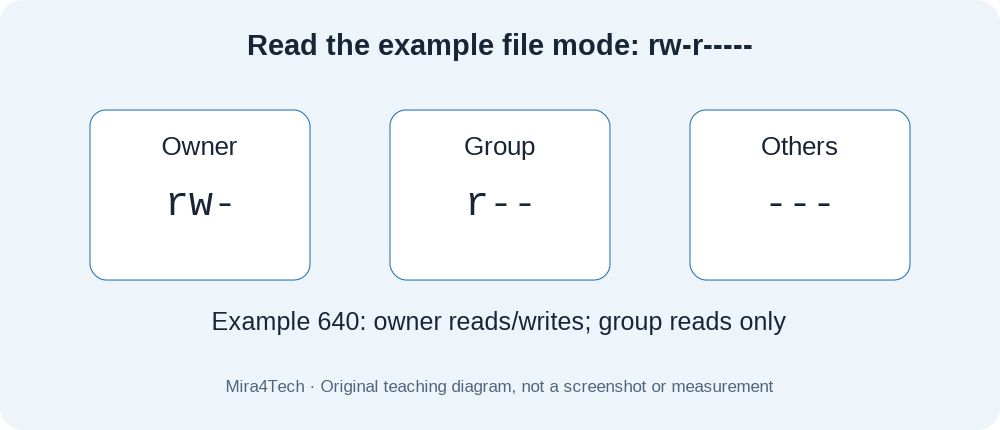
For the practice file, expect a permission string beginning -rw-------. The initial character indicates the object type. Three characters follow for the owner, three for the group and three for others. r means read, w means write, and x means execute for a file or search/traverse for a directory. A dash marks a permission not granted to that class.
| Object | r | w | x |
|---|---|---|---|
| Regular file | Read contents | Modify contents | Attempt execution as a program |
| Directory | List entry names | Create or remove entries, with required access | Traverse the directory to access known entries |
Removing a file depends on its containing directory’s permissions and rules too. A read-only file is not, by itself, a guarantee against deletion. Separating file-content access from directory-entry management makes that difference visible before you design a real sharing arrangement.
Change one permission with symbolic notation
Starting with the private 600 file, add group read access, inspect it, then remove that addition. The g selects the group and + adds a permission without replacing unrelated ordinary bits. We name one file explicitly. There is no recursive -R operation that could extend to a whole directory tree.
chmod g+r "$lab_dir/note.txt"
ls -l "$lab_dir/note.txt"
chmod g-r "$lab_dir/note.txt"
ls -l "$lab_dir/note.txt"
Expect -rw-r----- after the addition and -rw------- after removal. This demonstrates a mode-bit change, not complete working group sharing. The practice directory is still 700, so another account cannot traverse it simply because its file grants group read access. Do not open the entire home directory to force the experiment to work.
Understand 600, 640 and 700 rather than memorising them
Within each class, read has value 4, write 2 and execute or traverse 1. Add the required values: 6 is read plus write, while 5 is read plus execute. The usual three digits specify owner, group and others. chmod 640 sets the requested traditional file mode; g+r adjusts one part of it.
chmod 640 "$lab_dir/note.txt"
ls -l "$lab_dir/note.txt"
chmod 600 "$lab_dir/note.txt"| Mode | Owner | Group | Others | Possible use |
|---|---|---|---|---|
| 600 | Read/write | None | None | A private account-owned file |
| 640 | Read/write | Read | None | A file in a deliberately configured group arrangement |
| 700 | Read/write/traverse | None | None | A private practice directory |
These are not universal recipes for every system object. Adding x to a picture does not turn it into a program. 777 cannot fix incorrect ownership or every filesystem restriction. A + following the displayed permissions can indicate an extended access-control list, so the ordinary triplets may not explain all effective access.
Use chown for ownership, chmod for mode
chmod changes permissions; chown changes the owner or group. Optionally, in a virtual machine you administer, create a separate file, transfer its ownership to root and return it to your account. This step requires sudo authorisation. If you do not have it, read the explanation rather than seeking unnecessary authority.
printf "%s\n" "Ownership practice" > "$lab_dir/owner-demo.txt"
sudo chown root:root "$lab_dir/owner-demo.txt"
ls -l "$lab_dir/owner-demo.txt"
sudo chown "$(id -un):$(id -gn)" "$lab_dir/owner-demo.txt"
ls -l "$lab_dir/owner-demo.txt"
The return command obtains the account and primary group from your current identity; do not substitute another person’s account. Compare the owner and group columns before and after. Never extend this exercise to /etc, /usr or the complete home directory. A broad recursive chown can break application and system expectations.
When would you create another account or group?
Separate accounts are a clearer boundary for two people using a computer than sharing one password. Collaboration may require a purpose-built group and shared directory, including the permissions of its parent paths. Ubuntu offers documented graphical account settings and administrative tools. A new daily-use account does not automatically need administrator privileges.
This exercise creates no accounts and changes no group memberships, keeping its effects confined. For actual group sharing, test from the other account’s session after its membership is refreshed. A successful test as the owner says nothing about whether a group member can reach the file. Check every directory in the path, not just the last file.
Check the final state without touching system files
Return the file to 600 and the practice directory to 700, then inspect ls -l again. Record the command, exact practice path and mode before and after the change. If you no longer want the exercise, inspect the printed directory in the file manager and remove only that newly created practice folder. Recursive deletion is unnecessary for learning permissions.
If access remains denied, inspect ownership and path traversal, then consider a read-only mount, shared-folder behaviour, ACLs or a security policy. FAT, NTFS and virtual-machine shared folders can represent permissions differently from a native Linux filesystem. A chmod result there is not a reason to disable system protections.
Questions before trying the steps
Do these commands apply outside Ubuntu?
Ownership, rwx and GNU tools are shared across distributions including Debian, Fedora and CentOS Stream. Account-management tools and default policies require distribution-specific review.
Does every chmod need sudo?
A file owner can normally change its mode without sudo. Understand the denial and your authority before adding administrator privileges.
Why avoid 777?
It grants broad access to classes that may not need it and does not resolve every denial. Decide which account needs which access, then grant only the necessary permissions.
Choose a useful next step
Official references and image rights
Prepared by the Mira4Tech Team using official references. Original diagrams are clearly labelled teaching aids; this is not a claim of testing every device or interface. Menu wording can vary with release and system language.