Linux Services with systemctl and journalctl: Start, Enable and Diagnose
Understand systemd service states and start versus enable, practise with a limited user service, and inspect journalctl logs without stopping essential system services.

Installed software and a running service are different states
Installing a program does not establish that its service has started, and starting a service now does not automatically enable future activation. systemd manages units, including .service units. systemctl lets you inspect and control their state, while journalctl reads available records so that diagnosis goes beyond repeating restart.
We will use an ordinary account in an Ubuntu virtual machine and create a user service that simply waits for 15 minutes before exiting. It opens no network port and does not stop networking, SSH or firewall services. Basic commands also apply to Debian, Fedora and CentOS Stream when systemd is their service manager, although application unit names and defaults differ. Original diagrams explain concepts rather than claiming tests on every distribution.
Distinguish system services from user services
Without --user, systemctl normally addresses the system manager. With --user, it addresses your account’s service manager. A unit existing in one context need not exist under the same name in the other. We do not add sudo to the practice commands: sudo systemctl --user can select a different user context or fail to reach the expected session.
ps -p 1 -o comm=
systemctl --version
systemctl --user list-units --type=service --no-pager
command -v sleep
Confirm that the training environment uses systemd and that --user can reach your account’s manager. An unconfigured container or WSL environment may not supply this setup. If the bus cannot be reached, use a normal virtual-machine login rather than exporting arbitrary session variables. Verify an absolute path to the sleep executable. The unit below uses /usr/bin/sleep; adjust it only after establishing a valid different path.
Read the state instead of labelling everything working or broken
| Field | Meaning |
|---|---|
| Loaded | Whether the definition was loaded and from which path |
| Active and Sub | General and detailed runtime state, such as active/running or inactive/dead |
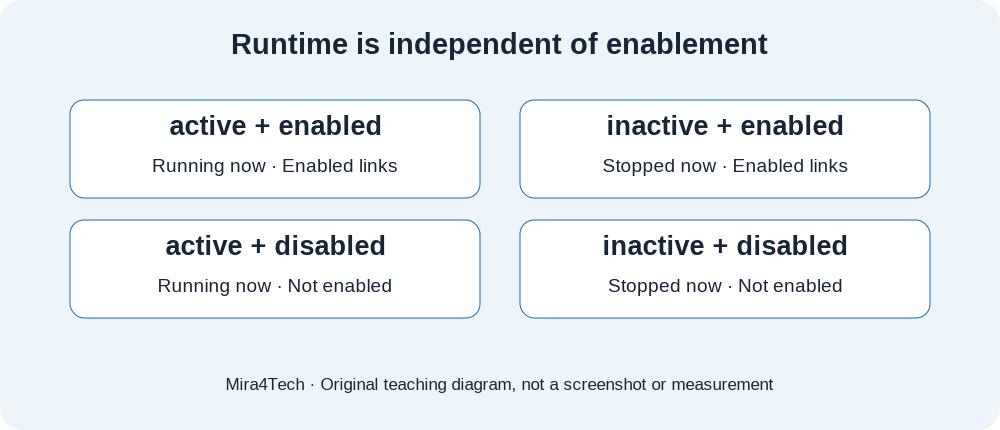
| enabled or disabled | Enablement links, not proof of current execution |
| failed | A failure requiring investigation of reason, time and logs |
A short-lived service can finish successfully and become inactive. An enabled service can fail. Some units are static and do not define an install arrangement suitable for enable; do not try to make every unit enabled. Understand its type, definition and expected task first.
Create a freshly named practice service
Paste this block into the same terminal session. mktemp supplies a fresh directory name, whose basename becomes the unit name. config_dir follows the user configuration location, and unit_file retains the exact file path for later inspection. If STOP appears, do not continue managing the name: an existing file or link needs review instead of being overwritten.
lab_dir=$(mktemp -d "$HOME/mira-service-lab.XXXXXX")
unit_name="$(basename "$lab_dir").service"
config_dir="${XDG_CONFIG_HOME:-$HOME/.config}/systemd/user"
mkdir -p "$config_dir"
unit_file="$config_dir/$unit_name"
if [ -e "$unit_file" ] || [ -L "$unit_file" ]; then
  printf "%s\n" "STOP: choose a new practice unit name."
else
  cat > "$unit_file" <<'UNIT'
[Unit]
Description=Mira4Tech private practice service

[Service]
Type=simple
ExecStart=/usr/bin/sleep 900

[Install]
WantedBy=default.target
UNIT
fi
printf "%s\n" "$unit_file"
The file separates the description in Unit, execution settings in Service and enablement information in Install. Type=simple suits this basic process. sleep 900 waits for 900 seconds and then exits normally. WantedBy=default.target describes the user-manager target linkage; it does not create a machine-wide system service. Retain the variables in the same terminal because a newly opened session does not know them automatically.
Read the definition, start the unit and verify
systemctl --user daemon-reload
systemctl --user start "$unit_name"
systemctl --user status "$unit_name" --no-pager
systemctl --user is-active "$unit_name"
daemon-reload asks the manager to reread unit definitions. start requests this unit’s activation. status reports its state, process and diagnostic information. Inspect the actual unit name, file location and Active line instead of treating a silent start command as sufficient proof. While sleep is waiting, active/running is expected; after 15 minutes, inactive can be a normal outcome.
is-active provides a short result and an exit status. An inactive result during a deliberate stopping exercise is expected, not necessarily a paste error. If status opens a pager because --no-pager was omitted, q exits that viewer without forcibly closing the terminal.
Demonstrate start versus enable
Stop the practice service, then enable it without starting it. is-enabled can report enabled while is-active reports inactive. That demonstrates that enable creates the appropriate activation links rather than starting the process by itself.
systemctl --user stop "$unit_name"
systemctl --user enable "$unit_name"
systemctl --user is-enabled "$unit_name"
systemctl --user is-active "$unit_name"
Now start it and remove enablement alone. Expect disabled while the process remains active, provided its waiting period has not ended. This enablement concerns starting the user-manager target, not a guarantee of machine-wide activation before login. The exercise does not require enabling linger or changing account-session policy.
systemctl --user start "$unit_name"
systemctl --user disable "$unit_name"
systemctl --user is-enabled "$unit_name"
systemctl --user is-active "$unit_name"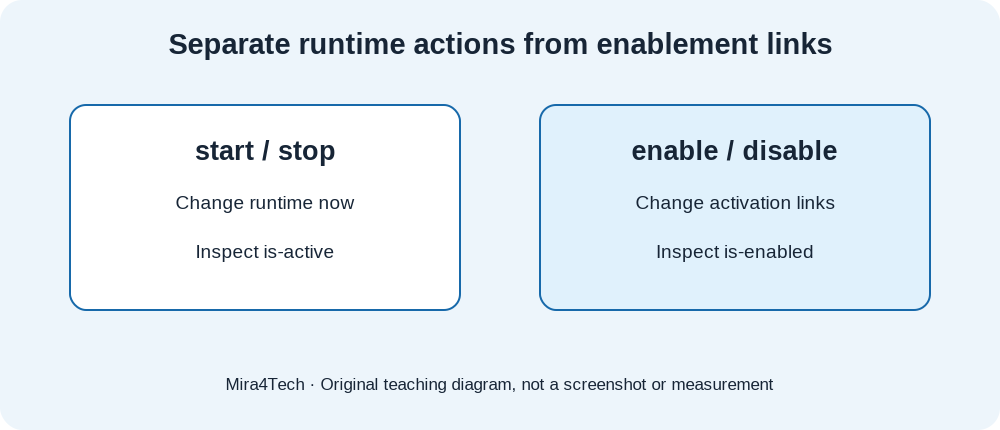
Read a precisely scoped set of records
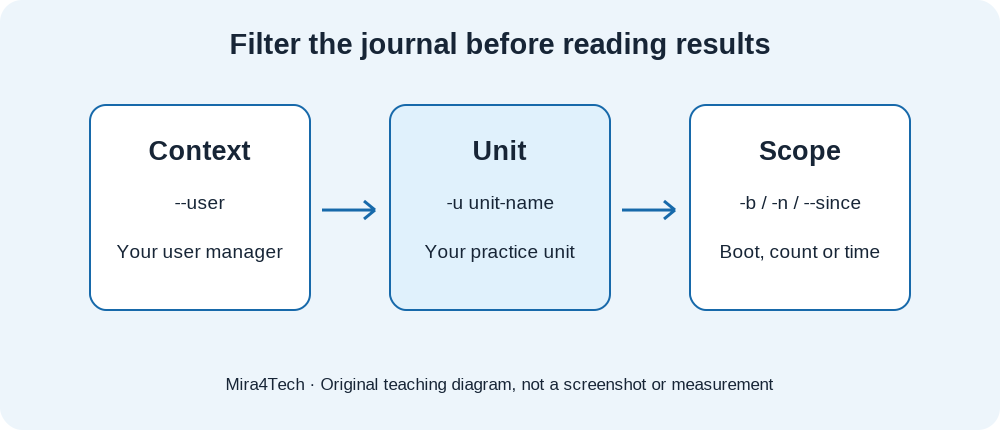
Select your unit and a time or record limit instead of displaying the whole machine journal. --user selects user context, -u selects the unit, -b selects the current boot and -n 30 requests the last 30 matching available records. --no-pager writes directly to the terminal. You can then narrow the time range or follow new entries.
journalctl --user -u "$unit_name" -b -n 30 --no-pager
journalctl --user -u "$unit_name" --since "15 minutes ago" --no-pager
journalctl --user -u "$unit_name" -f
Ctrl + C ends live following, not the service. Manager lifecycle messages may appear, but sleep does not generate detailed application output while waiting. No fixed line count or timestamp is promised. User-journal availability depends on journald configuration; its documentation requires persistent logging for the --user route. Missing records do not establish that the unit failed. Review status, context and storage policy with the administrator instead of changing journal settings blindly.
Optionally practise a failure in this unit only
This optional step applies only to the service you created. Stop it with systemctl --user stop "$unit_name", then print its path with printf "%s\n" "$unit_file" and open that exact file in an available text editor. Change 900 in ExecStart to not-a-duration and save that same file. Do not edit another program’s unit. The invalid interval causes sleep to fail without deleting data or altering a system service.
systemctl --user daemon-reload
systemctl --user start "$unit_name"
systemctl --user status "$unit_name" --no-pager
journalctl --user -u "$unit_name" -b -n 30 --no-pager
Read the actual process result, exit reason and records around the attempt. With Type=simple, failure may become visible after start has returned, which is why status and logs matter. Repair the line to /usr/bin/sleep 900, save, run daemon-reload and start again. reset-failed clears recorded failure state; it does not repair an incorrect ExecStart command.
Three different commands should not be interchanged
| Command | Effect |
|---|---|
| daemon-reload | Rereads unit definitions without automatically restarting the process |
| restart | Stops and starts a unit, potentially interrupting its users |
| reload | Requests application configuration reload if the service supports it |
The sleep practice unit defines no application reload action. Do not assume reload is a universally available lighter replacement. Editing a .service definition requires rereading it and choosing an appropriate start or restart. For a real service, consult its documentation and consider interruption before changing anything.
End the experiment and remove only its named file
Print and inspect the path first. Confirm you remain in the same session and are managing the practice definition. Stop and disable the unit, clear any recorded failure before removing its definition, remove that specific file and reread units. Do not delete the complete systemd/user configuration directory.
printf "%s\n" "$unit_file"
systemctl --user disable --now "$unit_name"
systemctl --user reset-failed "$unit_name"
rm -- "$unit_file"
systemctl --user daemon-reload
Earlier journal records can remain according to retention policy; they do not mean the unit is still running. Inspect and remove the separate mktemp naming directory in the file manager if desired. Recursive deletion is unnecessary. Redact private usernames, paths and other details when sharing diagnostics, and do not stop security or network services to try this tutorial.
Questions before trying the steps
Does enabled mean the service is running?
No. Check enablement and runtime separately. A unit may be enabled while inactive or failed.
Why are no journal lines shown?
Check the unit name, user context, boot, time filters, access and journald storage policy. Missing records alone do not prove start failed.
Is the service name identical across distributions?
Basic systemd commands are shared where systemd is used, but application unit names, locations and configuration differ. Consult list-unit-files and distribution documentation.
Choose a useful next step
Previous step: install and manage software with APT
Understand users, ownership and permissions
Official references and image rights
- systemd: systemctl
- systemd: journalctl and user-journal limitations
- systemd: unit definitions and search paths
- systemd: service options
Prepared by the Mira4Tech Team using official references. Original diagrams are clearly labelled teaching aids; this is not a claim of testing every device or interface. Menu wording can vary with release and system language.