Windows Installer 1638: Another Version Is Already Installed
This installer cannot proceed with the product version already present. Understand the context and follow diagnostic checks and verification, with an original diagram and official references.
This guide explains the message in context, walks through focused checks and verifies the outcome. The website does not run commands on your device; choose an appropriate action after understanding its conditions.

What the message means
This case concerns an installer conflicting with an existing product version; some setups show 0x80070666. Multiple Visual C++ packages are not automatically useless duplicates: different apps can require different packages. Identify the specific product, architecture and version rather than removing similarly named entries together.
Prepare a controlled check
Keep the message, time, app or device name and version. Save work and use a non-sensitive training file when testing. Start with an observable check, change one factor and record the result. On a managed device, follow your authorised access and organisation policies.
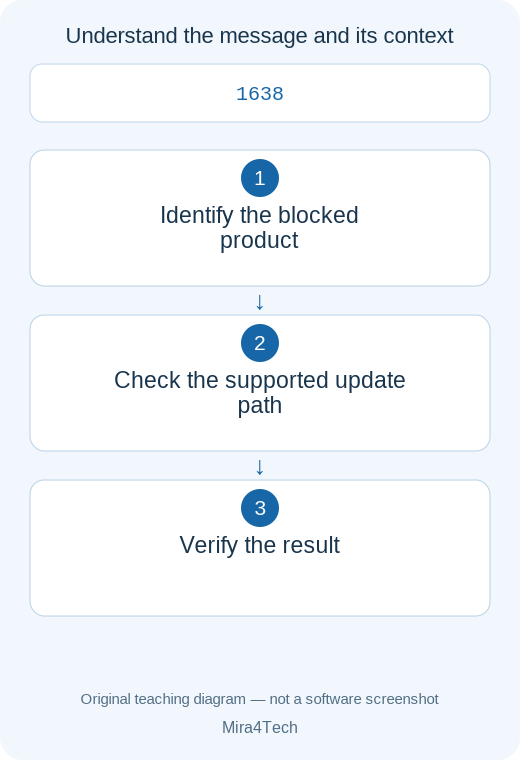
Step 1: Identify the blocked product
Read the component name and record the installer version. Determine whether the conflict concerns the app itself or a prerequisite such as Visual C++. Do not treat an entire app setup as a runtime-package issue without evidence.
Step 2: Compare version and architecture
Find the exact product in Installed apps and compare version and x86, x64 or ARM64 where displayed. A higher number for another product or architecture is not the relevant comparison. Redact personal details from screenshots before sharing.
Step 3: Check the supported update path
Obtain the package recommended by the publisher for the installed version. Some products require in-app updating or a specific upgrade path. Use Repair or Modify only when offered by the product and appropriate to the case.
Step 4: Protect dependent applications
Do not remove every Visual C++ version to experiment. Check the requesting application’s requirements and the supported package architecture. A 32-bit app may need the x86 runtime even on 64-bit Windows.
Step 5: Make one justified change
Try the supported package or repair once. If the publisher requires removing a specific version, first preserve its data and confirm a reinstall plan. Keep the setup log if the conflict persists instead of removing a sequence of components.
Verify the outcome
Check the intended Installed apps version and open the app that requested setup. A newer package alone does not prove the app works; perform a small task. If 1638 changes to another error, investigate that new message in its own context.
When to stop and seek help
Stop before removing shared components with unknown dependants or downgrading to an unsupported version.
Two questions before another change
Is the code alone enough to choose a remedy?
No. The location and circumstances must match this guide. If a new code, message or stage appears, record it and establish its context before another action.
What evidence should I give support?
Provide the product and version, error and time, attempted checks and observed results. Redact passwords, recovery codes, identities and personal files. Verify a support provider before granting remote control.
Related practical guides
Sources and scope
Prepared and edited by the Mira4Tech team. The checking sequence uses documented message meanings and product guidance; it is not a claim of testing your device or proving one cause for every occurrence. Interface labels can vary with version and language.