Windows Installer 1603: Find the Cause Before Running Setup Again
Windows Installer reported a general installation failure. Understand the context and follow diagnostic checks and verification, with an original diagram and official references.
This guide explains the message in context, walks through focused checks and verifies the outcome. The website does not run commands on your device; choose an appropriate action after understanding its conditions.

What the message means
1603 is a general Windows Installer failure, not one specific cause. A more useful message can precede it in the setup log. Some installers report the installation failure as 0x80070643; identify the application and underlying log before choosing a remedy.
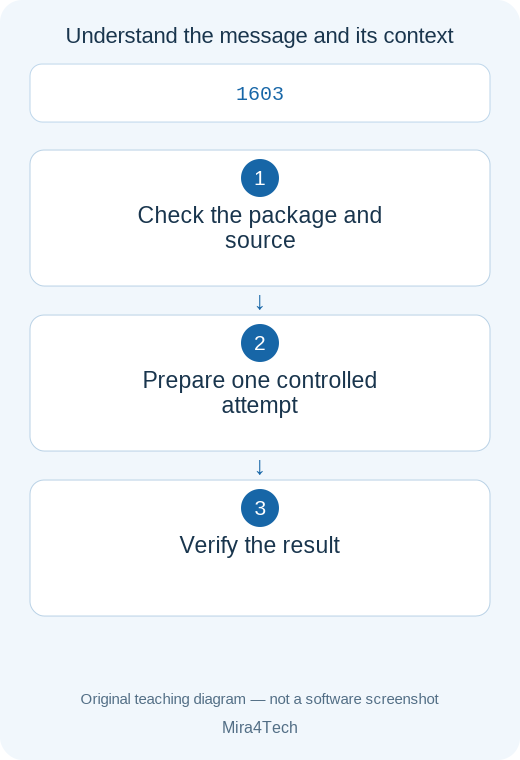
Prepare a controlled check
Keep the message, time, app or device name and version. Save work and use a non-sensitive training file when testing. Start with an observable check, change one factor and record the result. On a managed device, follow your authorised access and organisation policies.
Step 1: Check the package and source
Record the app, version and publisher; obtain a package from the official source that supports your system. Review its digital signature when present. A plausible filename alone does not establish an authentic installer.
Step 2: Check existing installation state
Look in Installed apps before starting another setup. An existing version may need repair or a compatible update. Manually removing its folder can leave inconsistent installer records and is not equivalent to uninstalling it.
Step 3: Prepare one controlled attempt
Save work, close the affected app, complete a pending restart and check free space. Use a publisher-supported installation location. Avoid granting broad permissions to everyone as an experiment.
Step 4: Read the setup log
Use View log or the path shown by the failing setup. If detailed logging is needed, follow the publisher’s method. Inspect the message preceding the final failure, not just 1603. Logs may expose usernames and paths, so review them before sharing.
Step 5: Address the identified cause
Close the relevant app for an in-use file, or obtain a verified missing prerequisite from its publisher. Retry after one justified change and record the result. A generic failure is not a reason to disable protection or run a registry cleaner.
Verify the outcome
Confirm setup completion and the expected Installed apps version, then open the app and perform a small task with a test file. If setup succeeds but launching fails, record that separate error instead of repeatedly reinstalling.
When to stop and seek help
Stop for an untrusted installer, removal of another required product without a plan or changes to workplace security policies.
Two questions before another change
Is the code alone enough to choose a remedy?
No. The location and circumstances must match this guide. If a new code, message or stage appears, record it and establish its context before another action.
What evidence should I give support?
Provide the product and version, error and time, attempted checks and observed results. Redact passwords, recovery codes, identities and personal files. Verify a support provider before granting remote control.
Related practical guides
Sources and scope
Prepared and edited by the Mira4Tech team. The checking sequence uses documented message meanings and product guidance; it is not a claim of testing your device or proving one cause for every occurrence. Interface labels can vary with version and language.