Create and Use a Windows 11 Restore Point: Illustrated Guide
Enable System Protection, create a Windows 11 restore point before driver changes, review affected programs and distinguish system recovery from a file backup.

When is a restore point useful?
A driver installation is followed by a problem, or a system setting changes and you need a considered route back. A restore point records parts of the Windows system state that System Restore can use later. We will enable protection, create a recognisable point and review the recovery workflow without performing an unnecessary rollback on a healthy computer. Opening the wizard and inspecting its list does not start a restoration.
Preparation comes before the change. A point created after the fault does not automatically represent the earlier working state, and it cannot repair physical disk damage. Follow your administrator’s policy on a work or school PC. Connect a laptop to power and allow time for restarting if recovery becomes necessary.
A restore point is different from a backup of your files
System Restore concerns system files, settings, the registry and installed software associated with a previous state. It is not the method for recovering a deleted personal document. File History addresses a different need: versions of protected files. Keep an independent copy of important work even when you intend to restore Windows. Keeping all recovery data on the same physical disk does not protect against that disk failing.
Consider a practice plan: before a driver change, you make a restore point and copy a project to independent storage. A driver-related failure may justify the system point; a missing project copy calls for the file backup. Matching the tool to the problem avoids reinstalling Windows or downloading recovery software without understanding what has actually been lost.
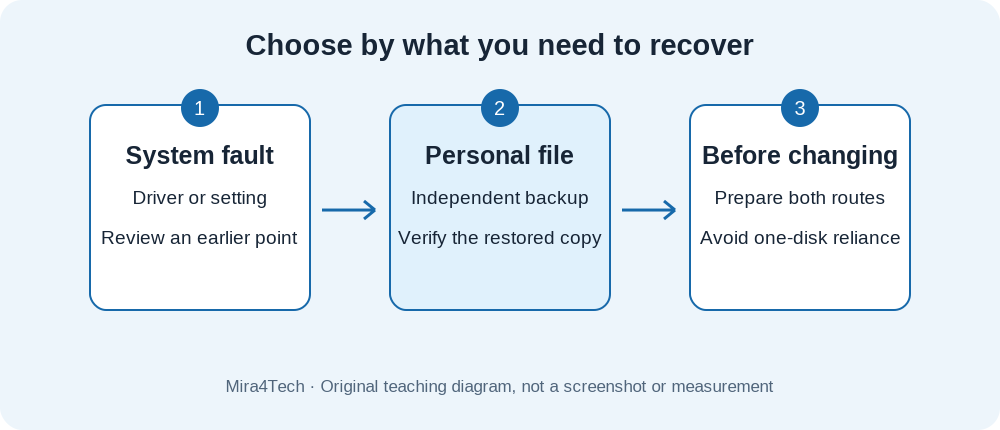
Prepare saved work and access to the recovery key
Save open work, copy irreplaceable files and establish which administrator account manages the computer. If device encryption or BitLocker is enabled, make sure you can obtain its recovery key before entering the recovery environment. Treat that key as private: do not post it in comments or screenshots, or send it to someone offering unsolicited remote assistance.
Write down the fault, the change immediately before it and the approximate time. This gives you a reason to choose a point preceding the problem instead of simply selecting the first date. You do not need to damage the configuration deliberately to test recovery, and deleting earlier points is not a prerequisite for creating one.
Open System Protection and identify the system drive
- Search Start for Create a restore point and open the system-settings result. Alternatively press Win + R and run
systempropertiesprotection.exe. - On System Protection, identify the drive marked as the system drive. It is commonly C:, but read the actual description rather than assuming a fixed letter.
- Select that drive and choose Configure. If an administrator approval appears, review it and approve only the action you initiated.
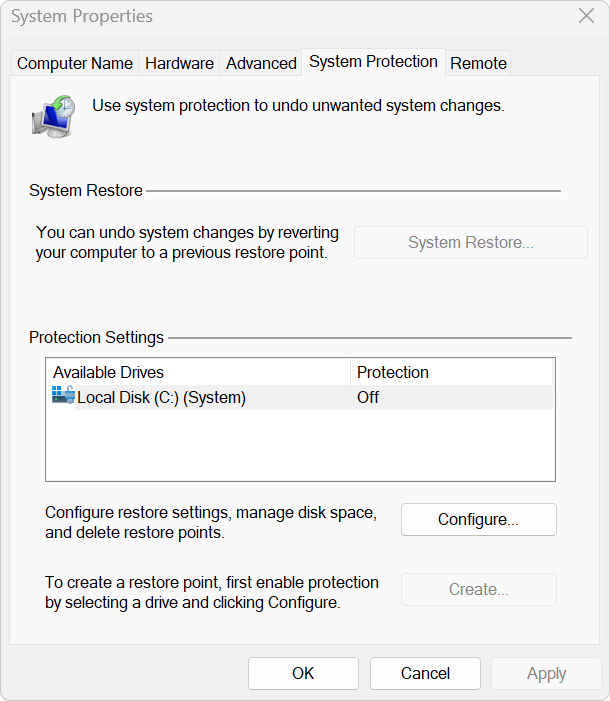
Off means protection is not enabled for that drive; it does not establish that a usable point exists. If controls are unavailable on a managed computer, ask its administrator. Changing organisational policy or promoting an account is not a routine requirement of this tutorial.
Enable protection and choose a suitable storage limit
Select Turn on system protection and inspect Max Usage. This is the maximum storage allowance for restore points. Older points may be removed when space is required for newer ones. There is no single percentage that suits every disk: compare available space and capacity instead of copying the figure in somebody else’s screenshot.
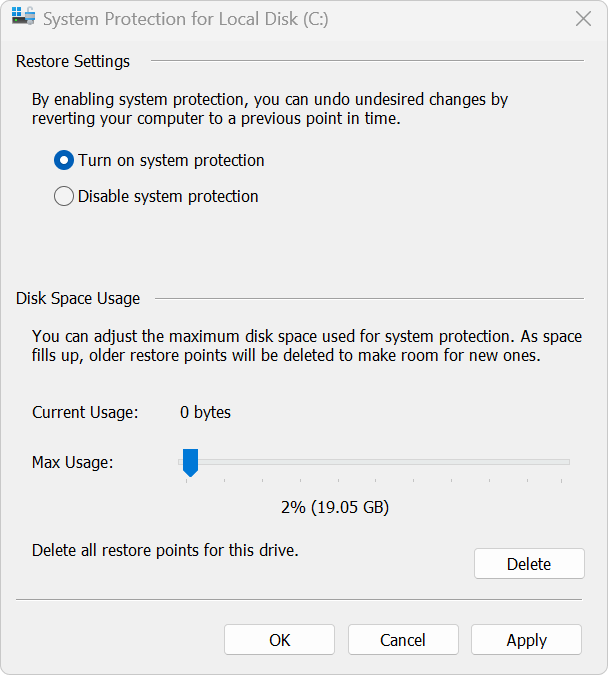
Choose Apply and OK, then confirm that the drive shows On. The Delete control removes that drive’s restore points; it is not needed to create a new one and can remove a useful recovery option. If free space is critically low, address its cause before assigning a large allowance. The screenshot illustrates the control, not a recommended quota.
Create a point with a meaningful description
- Return to System Protection and choose Create.
- Enter a description such as “Before audio driver change”, distinguishing repeated attempts, then choose Create.
- Wait for the completion message. If an error appears, record its wording instead of treating the button press as success.
- Open System Restore to inspect the list and check the description and time. Cancel the wizard if you are only preparing protection.
A description is neither a password nor a place for personal information. Use it to identify the planned change. Do not assume every update will automatically create the particular point you want. For an important change, you can create a point manually and verify its presence beforehand.
Review the point and affected programs before confirming
For a fault linked to a recent change, press Win + R and run rstrui.exe. Choose Next, select a point before that change and use Show more restore points if offered. Review Scan for affected programs. Software installed after the selected point may require installation again, and system settings changed since then may be rolled back.
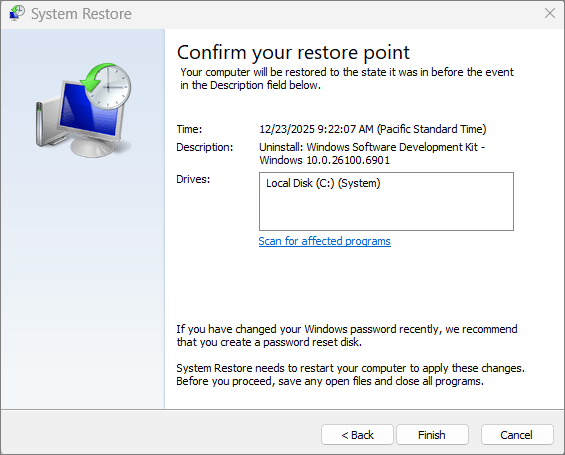
Do not choose Finish merely to experiment. When recovery is justified, save work, connect power and check the drive, description and time again before following the confirmation. The source screenshot’s date and named software are illustrative, not instructions for your selection. Allow the process and automatic restart to finish without disconnecting power.
If Windows cannot start normally
In Windows Recovery Environment, the route is Troubleshoot → Advanced options → System Restore. An encrypted device may require its BitLocker recovery key. Use Microsoft’s documented way to access the recovery environment. Repeated forced shutdowns should not be your first action when normal recovery settings or trusted recovery media are available.
If no suitable restore point exists, this feature cannot manufacture an earlier state. Do not treat Reset this PC as another name for a restore point; it is a different recovery operation with different consequences. Review the available recovery options and the kind of backup you actually have before taking a broader step.
Verify the original task after recovery
When Windows returns, read its final result message and repeat the task that was failing, such as opening the application or playing audio. Check important files and the drivers or applications identified as affected. A successful restoration message does not prove that every fault has been fixed. Compare the result with the specific symptom you recorded before starting.
If the symptom remains, repeating the same restoration without new evidence is unlikely to improve diagnosis. Reconsider its timing, a different driver or a hardware fault. Keep a short record of completed steps without publishing encryption keys or private filenames.
Questions before trying the steps
Can a restore point recover a deleted document?
It is not a document-backup tool. Use an appropriate file copy or version history, and maintain an independent backup beforehand.
Should I restore immediately to test the point?
For preparation, check the completion message and the entry in the list. A rollback changes system and application state; perform it only for a justified recovery need.
Why has an older point disappeared?
Review protection and storage settings. Restore points are not a permanent archive; older entries may be removed when the allocated space is needed.
Choose a useful next step
Back up files and practise restoring them with File History
Set up Windows updates, drivers and recovery after installation
Official references and image rights
- Microsoft: System Protection
- Microsoft: System Restore
- Microsoft: Recovery options
- Microsoft: screenshot-use conditions
Prepared by the Mira4Tech Team using official references. Original diagrams are clearly labelled teaching aids; this is not a claim of testing every device or interface. Menu wording can vary with release and system language.