Download, Install, and Remove Windows Software Safely
Before installing software, know what it does, where it comes from, and what access it needs. Learn to verify a source, choose setup options, and uninstall through supported Windows tools rather than deleting system files.
Use these steps only on a device or network you own or are authorized to inspect. Record original values, and stop before any action that could erase data or interrupt a service if its impact is unclear.
Key terms in plain language
- Installer: a setup file that copies an app and configures its components.
- Publisher: the organization that signed or released a file; verify its name and context.
- UAC: a Windows prompt asking approval for an elevated change.
- Uninstaller: a supported tool that removes an app and its components.
Prerequisites
- An administrator account if installation requires it.
- The app name, publisher, and required Windows version.
- Enough storage and a backup of files the app may modify.
Confirm the need, source, and publisher
Start at the publisher's official website or Microsoft Store. Check the domain carefully, system requirements, and update policy. Avoid cracked copies and activators; they may steal data and block updates.
- Verify publisher, update date, and requirements. For a downloaded file, open Properties > Digital Signatures when available and compare the signer with the official source.
You have a reason to install, a known source, and compatible requirements.
Common issue at this step
A digital signature alone is not a complete guarantee. Stop if the publisher is unclear and check its official site.
Download the right build and read setup choices
Choose the Windows version and architecture your device supports. Run the installer you downloaded and read each screen. Decline bundled offers or search changes you did not request; do not click Next blindly.
- Check the filename. Review license, install path, and optional components. Approve UAC only for software you recognize and expected.
Setup completed without unrequested bundled apps or changes.
Common issue at this step
If the publisher differs from the official page, cancel, remove the file, and scan with trusted security software.
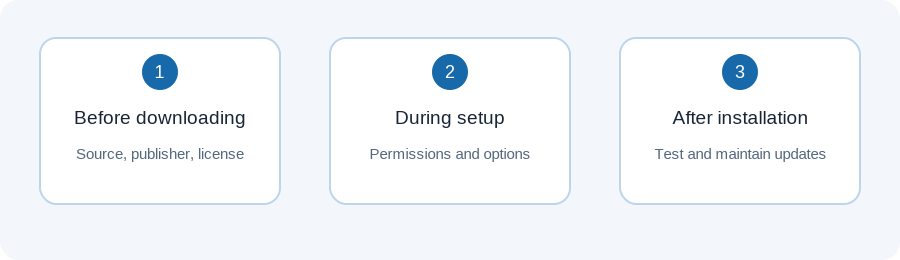
Test the app and update it
Open the app from Start, confirm the correct account and settings, and check for updates inside the app or official store. Never install an update from an ad pop-up.
- Open a test project or unimportant file. Check where the app saves data. Restart if asked.
The app performs the task you need and opens a test file.
Common issue at this step
If the app requests access unrelated to its purpose, deny it and research before granting it.
Uninstall through supported settings
In Settings, open Apps > Installed apps, select the app, and choose Uninstall. Read whether user data will be removed before confirming. Back up projects you want to keep.
- Close the app. Use its official uninstaller or Windows Settings. Restart if asked and verify that it no longer appears.
The app is removed and files you chose to keep remain available.
Common issue at this step
Do not manually delete Program Files; services and startup tasks may remain registered.
Troubleshooting
Installer will not start
Check version, storage, and source. Delete the damaged copy and download again from the official site.
Windows SmartScreen shows a warning
Do not bypass it without verification. Check source, publisher, and signature; use a trusted alternative if you cannot confirm it.
App opens and immediately closes
Restart, check the publisher's support page or error log, and install an official update. Do not disable protection to run it.
Security and privacy
- Avoid cracked software and unknown activation keys.
- Use administrator privileges only when needed and review UAC prompts.
- Get updates in the app or from an official store/publisher; save work before uninstalling.
- You have a reason to install, a known source, and compatible requirements.
- Setup completed without unrequested bundled apps or changes.
- The app performs the task you need and opens a test file.
- The app is removed and files you chose to keep remain available.
Official references
To identify the architecture, open Settings, System, About and read System type. Match x64 or ARM64 to the publisher’s package; the Windows 11 name alone does not identify architecture.
Practice: check a program before granting permission
Suppose you need an archive utility. Find its publisher’s actual site or follow a trusted official link, and inspect the domain. A large Download label may belong to an advertisement. Read the license and Windows requirements, including processor architecture. A simple tool should not require disabling protection because it promises extra speed.
- Save the installer rather than automatically running it. Open file Properties and inspect Digital Signatures if available, including certificate details and status. An absent signature is not proof of malware, while a present signature is not a universal safety guarantee. Combine it with source and context checks.
- Scan the file with system protection. If the developer publishes a SHA-256 digest, use PowerShell
Get-FileHashand compare the entire value with that official source, not a value reposted by an unknown distributor. - Read permission prompts and setup options such as file associations or startup entries. After installation, test with a disposable sample rather than important private data. Remove a trial installation you no longer need.
When a warning appears, record it and verify the publisher and version. Do not make bypassing the warning a routine instruction, and do not treat a crack as a software update. If the application fails, inspect its requirements and error log before installing random repair tools or downloaded DLL files.