Everything Guide: Fast File Search and Index Setup
Find a file from part of its name, narrow results by type and folder, and understand missing drives and why checking the full path matters before opening a result.

Understand the search index
Everything by voidtools is a Windows search tool focused on file and folder names. An index is a database that makes names available quickly without reading every file’s contents after each keystroke. Typing part of a filename filters the results as you type. The index is not a backup: knowing a deleted filename cannot restore its contents.
A filename search differs from finding a sentence within a document. The content: function can search contents in supported situations, but it is slower because content is not part of the default filename index. Start with names, extensions and paths and narrow the scope before searching inside files. A scanned image does not automatically become searchable text.
Choose an official download
Open voidtools downloads and choose a stable installer for the Windows architecture shown in Settings, System, About. Installer and Portable builds serve different setup preferences. Beta releases are for testing and are unnecessary for basic everyday searches.
The installer guides service and shortcut setup. A portable executable runs from an extracted folder but does not remove indexing privilege requirements. Choose Multilingual if you need additional interface languages. Read the Lite description before selecting it: removed features can affect integrations and accessibility tools you may use.
Install the service and application
- Save the installer from the official site, choose a language and review the license and installation folder. The website also publishes SHA256 values for download comparison.
- Keep data and settings in an appropriate user profile location such as AppData. Do not place the index in a shared folder simply for convenience.
- For NTFS indexing, the recommended Everything Service performs the indexing work while the search window runs as a standard user. Installing the service needs the computer administrator’s approval.
- Review sign-in startup and folder context menu options before completing setup. Automatic startup makes the search window ready earlier but remains a usage preference.
- Open Everything and wait for its initial index. Time varies with file counts, drives and performance; there is no fixed duration for every computer.
Find a test file and inspect its path
Create a text file called Mira-search-test.txt in Documents, then enter Mira-search-test in Everything. Read the Path column when it appears. Downloads, backups and other folders can contain files with the same name; the name alone does not identify the right copy.
Right-click and use Open Path or your version’s equivalent containing-folder command. Inspect it in Explorer and open the expected test document. Rename it in Explorer, then search for the new name to observe the index update. Use a file you own for this exercise.
Results refer to real files. Opening launches their associated applications; renaming, moving or deleting changes the files on disk. This is not a disposable suggestion list. Investigate an unexpected executable or unusual path before opening it.
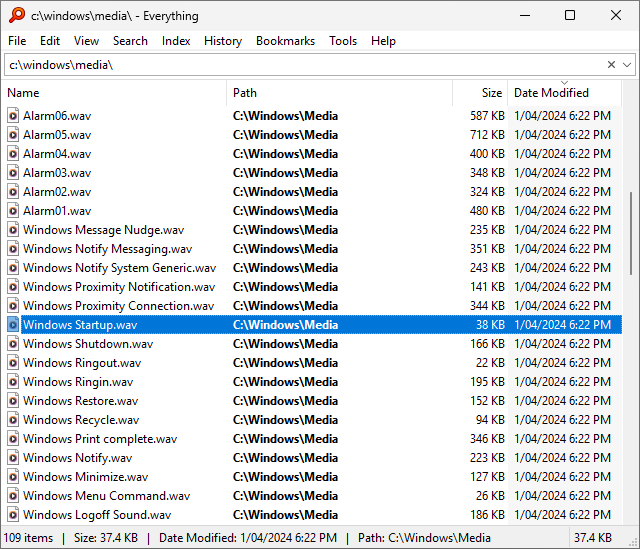
Narrow results with clear searches
Begin with a remembered name fragment and add one restriction at a time. These examples use normal search with Regular Expressions disabled. Enabling that mode changes how symbols are interpreted.
| Search | Meaning |
|---|---|
invoice | Names containing invoice. |
invoice *.pdf | PDF files whose names contain invoice. |
*.jpg|*.png | JPG or PNG images. |
invoice !draft | Include invoice and exclude draft. |
D: | Limit to indexed items on D:. |
"C:\Users\Public\Documents\" *.pdf | PDF files inside that folder; replace it with your actual path. |
A space combines conditions, a vertical bar means either, and an exclamation mark excludes a condition. Quote a path containing spaces and use a final backslash to identify a folder. Replace the example path with the location you want. Search, Advanced Search provides fields for building a query when you do not remember the syntax.
Include USB or network folders
Indexing differs by file system and release. Fast NTFS indexing uses file system information. For folders on FAT, exFAT or a network share, use Tools, Options, Folders, Add. Select the required folder, review monitoring or rescan settings and wait for indexing. Converting a drive’s file system is unnecessary simply because a search missed it.
An external drive must be connected, and a network location needs a working connection and permission for your account. The service does not grant access to files you cannot otherwise open. Cloud-only files may not appear as expected when their local names or data are unavailable; check synchronization status and the cloud service’s behavior first.
Diagnose empty or unexpected results
- No results: clear the query and choose the Everything filter instead of a media filter. Disable Match Case, Match Whole Word and Regex unless intended.
- A known file is missing: locate it in Explorer, check that its drive and folder are indexed and review exclusions and the service. A wrong folder restriction hides otherwise valid results.
- A result will not open: check drive availability and permissions. The file may have changed or the location become unavailable; the index does not hold its contents.
- Content search is slow: limit the type and folder first or use the document application’s search. Avoid scanning every drive’s contents as a first step.
- Similar results: compare Path, size and date and inspect the known copy. A matching name or size alone does not establish identical contents, so do not delete files on that basis.
Privacy, license, and updates
Everything is free to use under its published license, with notices for other components. Review License.txt before redistribution. Basic searching needs no paid activation key. An unrelated extension using a similar name is not automatically an official voidtools component.
Filenames and paths can reveal private information. Review index exclusions and search history on a shared computer or before sharing a screenshot. Do not enable HTTP or ETP servers or network publishing without a need and a clear understanding of their settings. Local searching does not require exposing results to other people. Update through the official site and follow your release’s documentation; some documentation features are explicitly marked for newer or beta releases.
Worked example: find PDF invoices among similar names
Create a practice folder named Mira Search Lab. Show file extensions in File Explorer and put samples named invoice-2026.pdf, invoice-copy.PDF, invoice-2026.docx and receipt.pdf inside it. Add a folder named invoice-folder.pdf if you want to test how the search treats folders. This exercise uses names only, so there’s no need to open the samples or rename real documents.
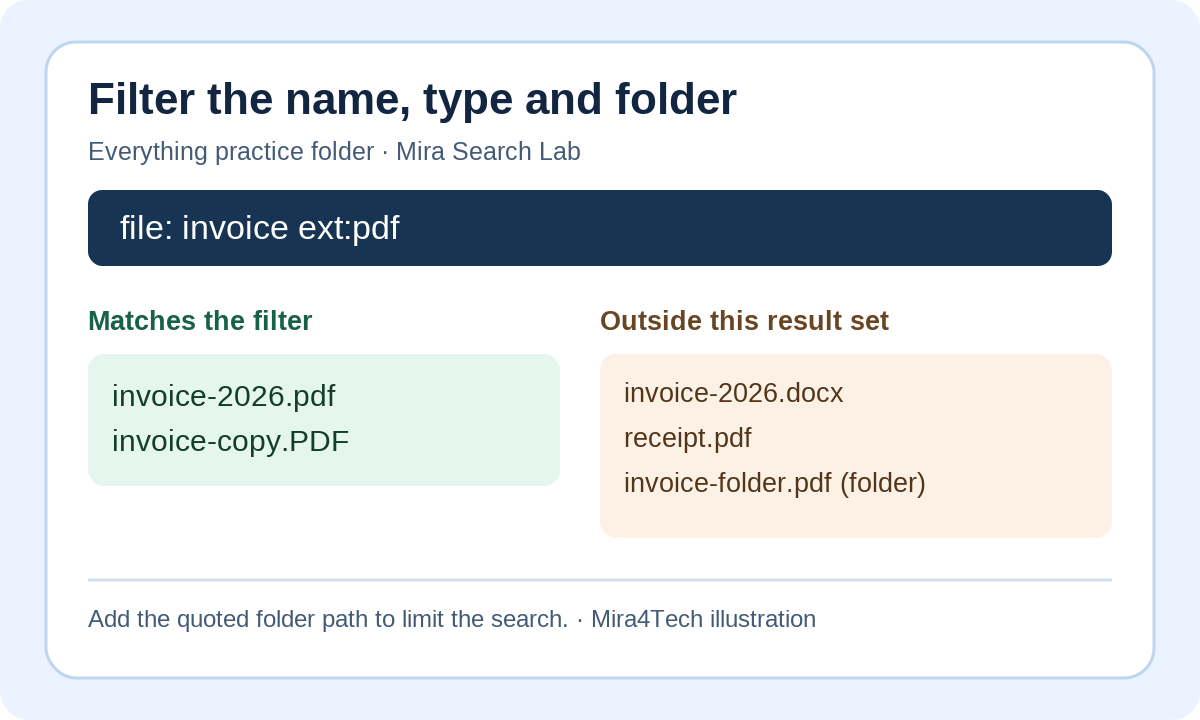
- Select the Everything filter in the Search menu. Turn off Match Case, Match Whole Word, Match Path and Regex if enabled. Try
file: invoice ext:pdf. The three conditions limit results to files, names containing invoice and the PDF extension. - Place the practice folder’s path in double quotes before the query, with a trailing backslash inside the quotes. Replace the sample path below with the path shown in File Explorer.
"D:\Mira Search Lab\" file: invoice ext:pdfIf the practice folder is indexed, expect invoice-2026.pdf and invoice-copy.PDF. The receipt matches only the extension and the Word document only the name. The file: modifier excludes the folder. Check the Path column if a second copy may be stored elsewhere. We checked the sample names, extensions and folder scope on Windows. The Everything result shown here follows the documented search rules.
When a name ends in .pdf.exe, inspect the final suffix and check the source before opening it. Use the file extension reference to identify the format and choose a safe next step.
The file opens in File Explorer but Everything misses it
- Confirm the real path. Open the location in File Explorer. If the USB drive now has a different letter, update the query. If Explorer can’t open the folder, first check the drive connection or your access to the share.
- Search for one known name before changing the index. If you can write to the folder, create a small test file with a distinctive name such as mira-probe-84.txt. Clear the filters and search by name only. If the file appears, reapply the original query conditions one at a time. If the file is visible in Explorer but absent in Everything, check whether its location is indexed or excluded.
- Choose the index setting for that location. Check File system in the drive properties in File Explorer. For an NTFS drive, check that it is included under Tools → Options → NTFS. For an exFAT USB drive or a network share, add the required folder under Tools → Options → Folders, wait for indexing, then repeat the name search. If the folder is already listed, check exclusions and use Rescan Now on that folder if available.
See the official voidtools guides to searching, drive indexes and folder indexing.