VCRUNTIME140.dll Missing: Check the App’s Runtime Requirements Safely
The application cannot open because a required runtime library was not found. Understand the context and follow diagnostic checks and verification, with an original diagram and official references.
This guide explains the message in context, walks through focused checks and verifies the outcome. The website does not run commands on your device; choose an appropriate action after understanding its conditions.

What the message means
A runtime-library name points toward the app’s prerequisites; it does not justify downloading a standalone DLL from an arbitrary website. The runtime package must match the app and architecture. A damaged app installation or quarantined file can also need investigation. Start with the app publisher’s instructions.
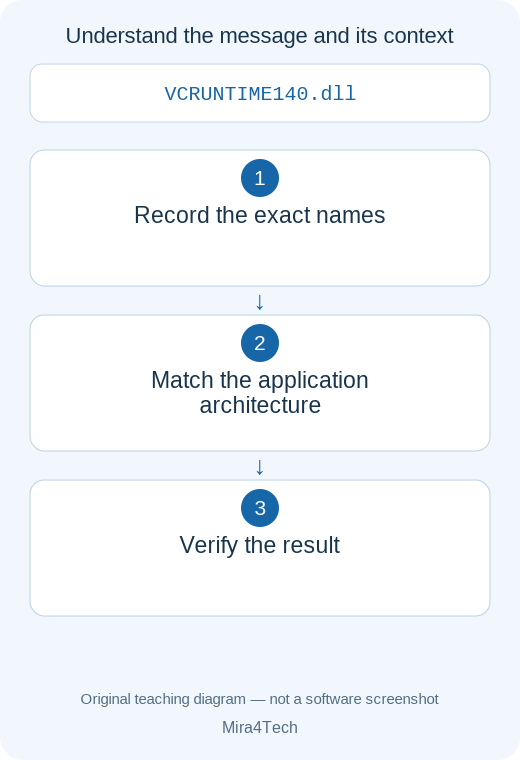
Prepare a controlled check
Keep the message, time, app or device name and version. Save work and use a non-sensitive training file when testing. Start with an observable check, change one factor and record the result. On a managed device, follow your authorised access and organisation policies.
Step 1: Record the exact names
Note the complete library filename and app version. Distinguish VCRUNTIME140.dll from variants with other suffixes. A similarly named replacement is not sufficient. Record whether failure followed installation, updating or manually moving the app folder.
Step 2: Consult the app publisher
Check official Windows and Visual C++ requirements. Some apps provide prerequisites through their official setup. Follow the publisher’s recommendation instead of installing many packages by guesswork, and confirm that the app supports your Windows version.
Step 3: Match the application architecture
The application’s target architecture matters: an x86 app needs matching components even on x64 Windows. Use Microsoft’s official page for the required package and review supported systems. Do not copy libraries between System32 and SysWOW64.
Step 4: Inspect setup and protection history
If the required runtime is installed, repair or reinstall the app from its official source after preserving data. Review any quarantine event and verify the publisher before restoration. Do not automatically disable protection or create broad exclusions.
Step 5: Launch after the supported change
Complete a requested restart and launch normally. If a different library or architecture error appears, record it for support. Do not download collections of outdated DLLs simply to silence messages one at a time.
Verify the outcome
Verify by opening the app, completing a small task, saving it and reopening the result, not merely completing runtime setup. Keep the successful version details for another installation that follows the publisher’s requirements and licensing.
When to stop and seek help
Stop for an untrusted app source or instructions to manually replace Windows libraries. Standalone DLL sites are not a substitute for the official publisher.
Two questions before another change
Is the code alone enough to choose a remedy?
No. The location and circumstances must match this guide. If a new code, message or stage appears, record it and establish its context before another action.
What evidence should I give support?
Provide the product and version, error and time, attempted checks and observed results. Redact passwords, recovery codes, identities and personal files. Verify a support provider before granting remote control.
Worked case: 64-bit Windows with a 32-bit application
Suppose an older application reports the error after a fresh Windows install. Its download page identifies the build as x86 and the vendor specifies the Visual C++ v14 runtime. Use the vendor-recommended x86 package even though Windows is x64. If the app has a launcher and a separate component, ask the vendor which architecture the failing component uses. The installer filename or application directory does not settle that question.
To demonstrate the distinction, we read the Machine field in the headers of two installed Windows PowerShell binaries on the same PC. The check read bytes from disk without launching either binary.
| Windows sample path | Observed value | Architecture |
|---|---|---|
System32\WindowsPowerShell\v1.0\powershell.exe | 0x8664 | x64 |
SysWOW64\WindowsPowerShell\v1.0\powershell.exe | 0x014C | x86 |
The two binaries illustrate how different architectures can coexist on one PC. The header identifies the architecture of the file you read. The app vendor still determines the required runtime family and version. Once you have followed the vendor's instructions, repeat the exact task that failed. If the main window opens but a particular feature still triggers the error, record the feature and when the message appeared for support.
Microsoft PE header and machine type reference · Microsoft Visual C++ packages and architecture guidance
Related practical guides
Sources and scope
Prepared and edited by the Mira4Tech team. The checking sequence uses documented message meanings and product guidance; it is not a claim of testing your device or proving one cause for every occurrence. Interface labels can vary with version and language.