SFC and DISM in Windows 11: Repair System Files and Read the Results
Know when SFC and DISM are appropriate, distinguish checking from repairing, follow the sequence and verify the original symptom afterwards.

Decide whether system-file repair fits the symptom
A Windows 11 feature that will not open, or an error suggesting missing or damaged system files, may justify built-in checking and repair tools. A slow browser, poor internet connection or full drive alone does not establish system-file corruption. We will define the symptom, distinguish checks from changes and interpret the final message before judging success.
This lesson assumes Windows starts and stays stable enough to run diagnostics. If it cannot boot, use the recovery-environment lesson instead. Pasting an /Online command there does not automatically target the installed Windows system. We do not deliberately damage a computer for practice or promise that one command fixes every fault.
1. Distinguish SFC from DISM
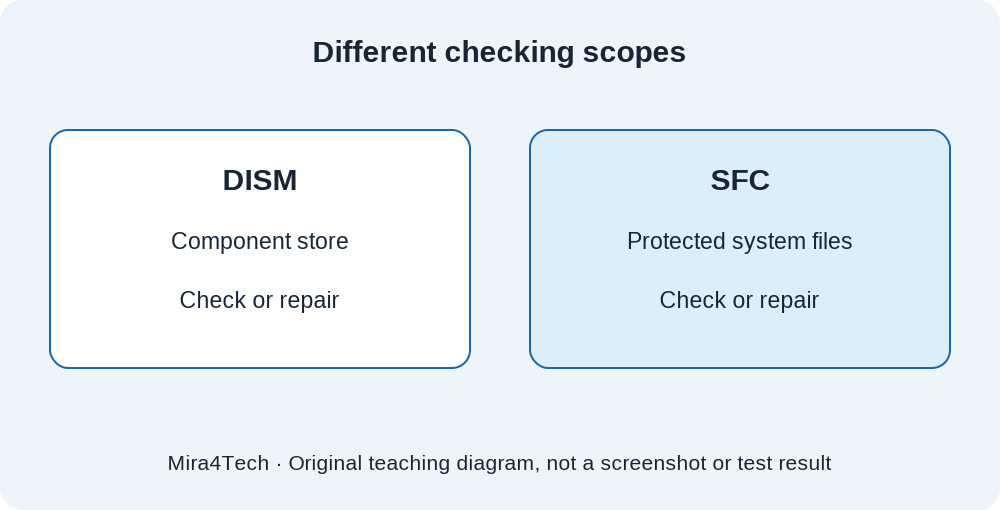
SFC checks protected system files and can attempt repairs depending on the selected option. DISM is a broader Windows image-servicing tool with options for checking and repairing the component store. The store helps supply components used by Windows. Neither tool replaces personal-file backups, hardware diagnosis or investigation of an individual crashing application.
| Option | Role in this lesson |
|---|---|
| DISM /CheckHealth | Read a previously recorded corruption state, not a fresh full scan |
| DISM /ScanHealth | Scan the component store for corruption |
| DISM /RestoreHealth | Scan and attempt component repairs |
| sfc /verifyonly | Check protected files without repairing them |
| sfc /scannow | Check protected files and attempt repairs |
2. Prepare a clear case before changing anything
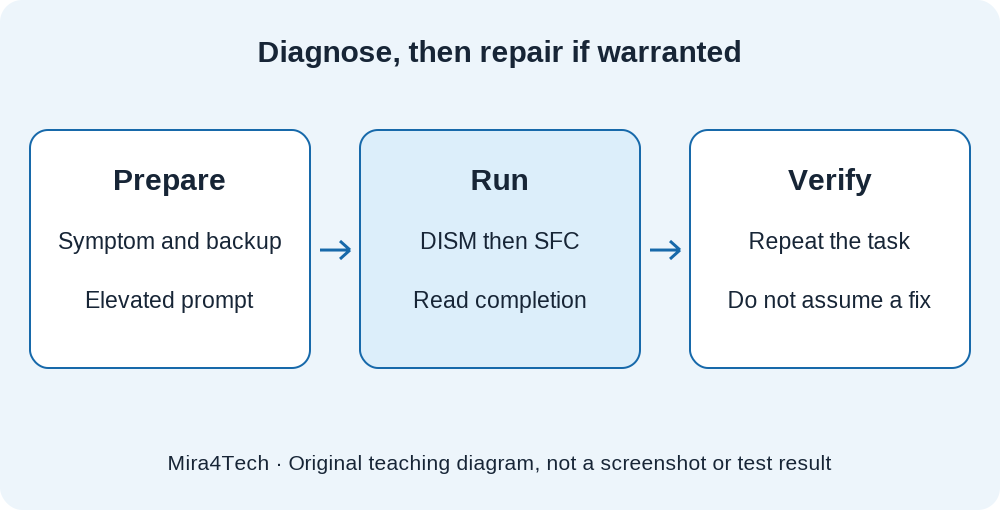
- Record the exact feature, trigger and error message. Repeat the same task once so you know what to compare afterwards.
- Save open work and verify a usable backup of important files. Arrange stable power and suitable connectivity if repair material must come from Windows Update.
- Review pending updates and complete a requested restart at a suitable time. Do not run competing repair operations in several windows.
- Open Command Prompt as administrator through Windows search. Review the approval prompt and use only a computer you are authorised to administer.
The examples are for Command Prompt inside a running Windows installation. No third-party repair bundle is required. Repeated drive disconnections, unusual mechanical noises or abrupt restarts call for protecting data and appropriate hardware investigation rather than repeatedly stressing the storage with repairs.
3. Understand what a checking-only operation establishes
DISM.exe /Online /Cleanup-Image /CheckHealth
DISM.exe /Online /Cleanup-Image /ScanHealth
Run each command separately and wait for the prompt before continuing. /Online means the currently running Windows image; it does not mean that every operation always needs internet access. CheckHealth reads a recorded state, so a healthy result is not a substitute for a deeper scan when one is warranted. ScanHealth checks components without performing the RestoreHealth repair operation.
sfc /verifyonly is another option when the aim is to inspect protected files without repairing them. Checking should help a decision rather than become a ritual of every available scan. Record the final message. A progress percentage or an open terminal window alone does not demonstrate either success or failure.
4. When repair is warranted, complete DISM first
DISM.exe /Online /Cleanup-Image /RestoreHealthMicrosoft Support’s system-file repair workflow completes DISM before SFC. RestoreHealth can require repair material from Windows Update or another suitable source. Let it finish and read the result. There is no universal completion time, and a temporarily unchanged progress figure is not a reason to terminate the process forcibly.
If a source is requested or repair files cannot be found, retain the exact code and message. Do not supply an arbitrary ISO location from an old tutorial. The repair source must suit the installed system and its relevant release, language and component details. /Source and /LimitAccess have specific purposes; they are not mandatory enhancements for every repair.
5. Run SFC and read its completion message
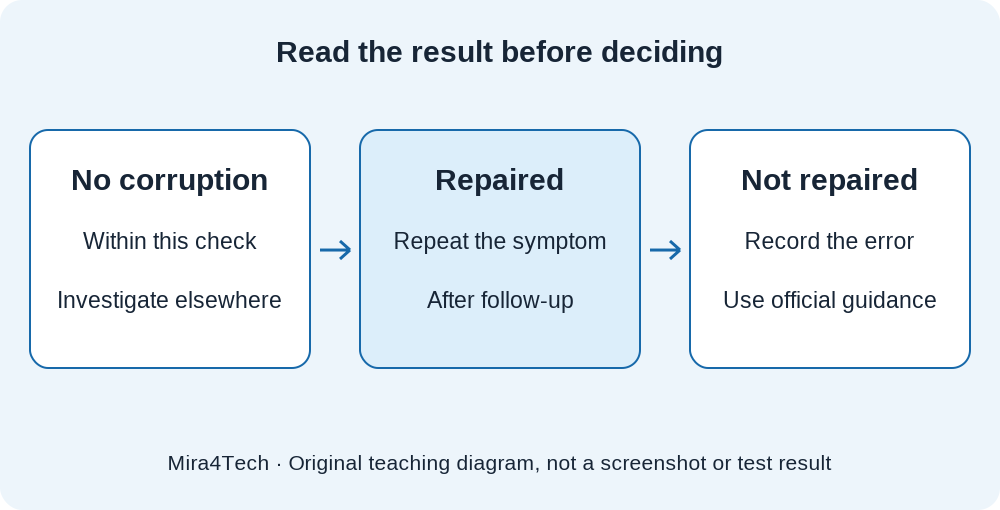
sfc /scannowRun the command in the administrator window after completing the appropriate DISM step. Wait for verification to finish and the prompt to return. Possible outcomes include no integrity violations, repaired files, files that could not be repaired or an operation that could not be performed. This article does not present a fabricated success screenshot: your actual message determines the next decision.
An absence of detected integrity violations applies only to the scope of that check; it does not certify every application, device or network connection. If files were repaired, save work and restart if required, then repeat the original failing task. An acknowledged repair alone does not prove it resolved the symptom that motivated it.
6. Turn the result into an appropriate next step
| Broad outcome | Practical decision |
|---|---|
| No corruption detected | Return to application, driver or other diagnosis |
| Repair completed | Repeat the task after completing required follow-up |
| Some files not repaired | Retain the message and consult logs and official support |
| Scan could not run | Inspect authority, environment and error rather than repeating blindly |
CBS and DISM logs can support advanced diagnosis, but can also contain system paths and other information. Do not post an entire log publicly. Begin with the final message and error code after redacting private details. Do not manually delete WinSxS, Windows components or log files because of a line whose meaning is unclear.
7. Compare the same symptom before and after
For an educational example, suppose a specific settings page immediately closed. Record the route to that page, then repeat it after maintenance. Do not simultaneously change drivers, install a cleaner and edit registry values before attributing improvement to one command. A meaningful comparison uses a defined task, similar conditions and a record of actual changes.
- Open the same feature or practice document used to establish the problem.
- Record whether the error disappeared, changed or remained, including its current wording.
- If it persists, investigate another evidence-based cause instead of repeating repair every day.
- Keep the backup: protected-system-file integrity does not protect every personal document.
Know when another recovery route is needed
Failure to boot, an undetected drive or an encryption-key prompt are not resolved by adding more /Online commands. Review the WinRE lesson and the relevant recovery choice. Servicing the running environment is different from servicing an offline installation. Offline commands require correctly identifying partitions and paths, which is outside this beginner exercise.
Disabling security or downloading individual DLL files from unknown sites is not the next normal step. If corruption repeatedly returns, protect data and investigate the underlying cause rather than hiding the symptom. A useful repair follows a diagnosis and ends with verification instead of becoming unexplained routine maintenance.
Questions before trying the steps
Will SFC automatically speed up my PC?
No. It addresses a particular scope of system files. Slow performance can come from applications, memory, storage or other causes.
Can I paste the same commands into WinRE?
Do not assume so. /Online targets the running environment; offline repair has different requirements and paths. Use the appropriate recovery guide.
Choose a useful next step
Start with a repeatable diagnosis
Official references and preparation
- Microsoft Support: DISM followed by System File Checker
- Microsoft Learn: sfc options
- Repair a Windows image
- CheckHealth, ScanHealth and RestoreHealth
- Windows recovery options
Prepared by the Mira4Tech Team using official documentation. Examples and original diagrams are educational, not a claim of running every command on every device or release. Menu wording can vary. Practise on sample files in an environment you may administer, and read each result before continuing.