Windows Update 0x80070005: Check Permissions and Context
Access was denied while Windows was downloading or installing an update. Understand the context and follow diagnostic checks and verification, with an original diagram and official references.
This guide explains the message in context, walks through focused checks and verifies the outcome. The website does not run commands on your device; choose an appropriate action after understanding its conditions.

What the message means
This code indicates denied access without identifying the blocked file, account or policy. This guide concerns Windows Update; a network-share error belongs to the sharing case in the reference. Changing permissions across the system drive can create a larger problem.
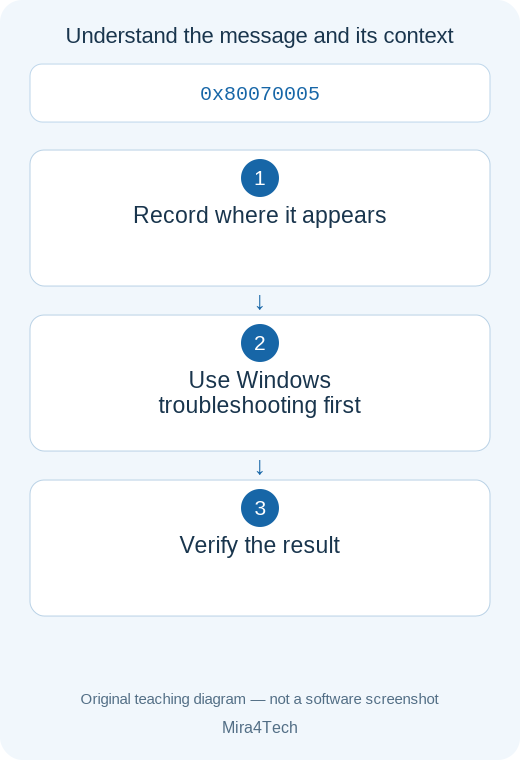
Prepare a controlled check
Keep the message, time, app or device name and version. Save work and use a non-sensitive training file when testing. Start with an observable check, change one factor and record the result. On a managed device, follow your authorised access and organisation policies.
Step 1: Record where it appears
Note the KB number and whether failure occurs during download, installation or restart. Record recent account, security-app or workplace-policy changes and the approximate time, which helps locate the corresponding event later.
Step 2: Identify device management
Review your account in Settings, Accounts and any organisation-management notices in Windows Update. On a work device, give the code to IT. Being a device user does not automatically authorise changes to update policies.
Step 3: Use Windows troubleshooting first
Save work, complete a pending restart and run the Windows Update troubleshooter from Settings or Get Help. Record what it reports as fixed and what remains unresolved rather than assuming that simply launching it solved the issue.
Step 4: Inspect protection without disabling it
If security software reports a block or quarantine, compare its time, file name and publisher with the update failure. Follow that product’s support guidance or IT instructions. Avoid a drive-wide exclusion or routinely disabling protection.
Step 5: Retry and prepare focused evidence
Retry after the specific corrective action. If the code persists, collect the KB, troubleshooter result, account context and related events for official support. Review logs for names and paths before sharing them publicly.
Verify the outcome
Success means the intended update is installed in update history after any required restart. If an authorised account succeeds and another fails, that is contextual evidence, not a reason to make every account an administrator.
When to stop and seek help
Stop before changing Windows ownership or security policies on an organisation-managed device. Do not apply network-share fixes to an update error.
Two questions before another change
Is the code alone enough to choose a remedy?
No. The location and circumstances must match this guide. If a new code, message or stage appears, record it and establish its context before another action.
What evidence should I give support?
Provide the product and version, error and time, attempted checks and observed results. Redact passwords, recovery codes, identities and personal files. Verify a support provider before granting remote control.
Related practical guides
Sources and scope
Prepared and edited by the Mira4Tech team. The checking sequence uses documented message meanings and product guidance; it is not a claim of testing your device or proving one cause for every occurrence. Interface labels can vary with version and language.