Printer connected but not printing in Windows 11? Check Offline and the print queue
Choose the symptom you see, then check for a missing printer, an Offline status or a stuck print job. Verify each fix with a one-page test.
Start with the Windows printer list
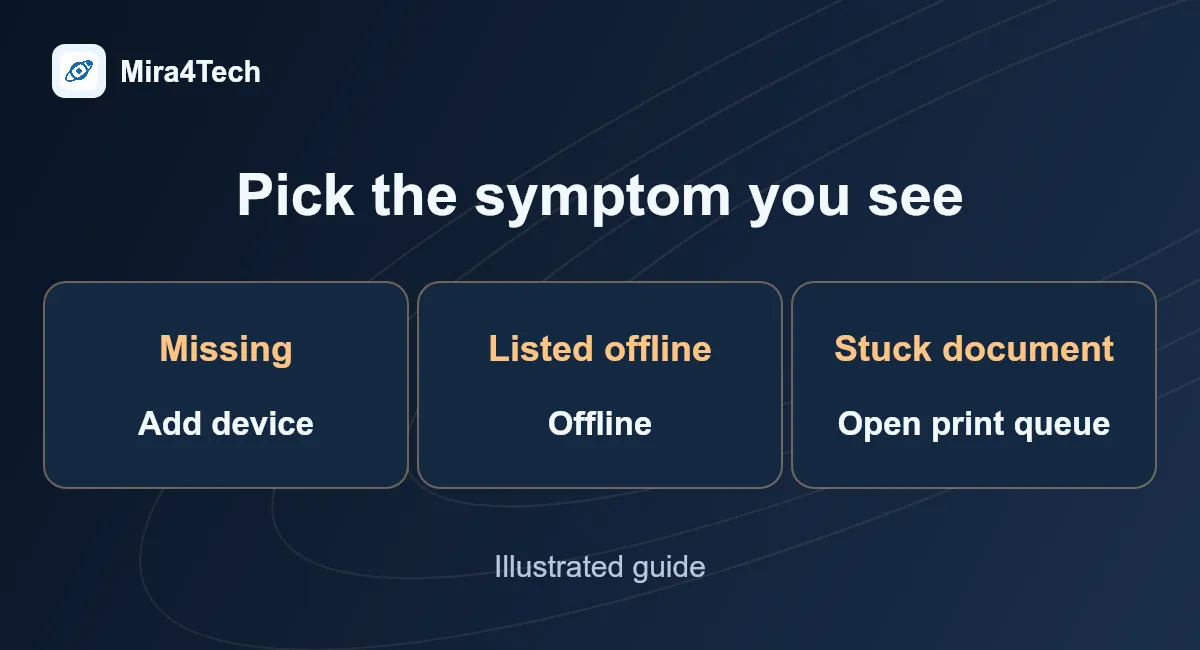
When a document produces no output, open Settings → Bluetooth & devices → Printers & scanners and look for the printer you intended to use. An app may suggest Microsoft Print to PDF or a similarly named device. Check the printer's own display for a paper jam or open cover, then pick the symptom that matches what you see.
Choose your printer symptom
The printer is missing from the list
For USB, connect the data cable directly to another port on the PC. For Wi‑Fi, use the printer's screen or network status page to confirm the printer and PC are on the same local network. A guest network may isolate devices. Return to Printers & scanners and select Add device once the connection is ready. If adding the printer fails, note the message and check the manufacturer's guide for that model.
The printer is listed as Offline
Print a status page from the printer's own controls if supported. If that works, the printer can physically print and you can focus on its connection to Windows. Check that it is awake and on the intended network, or verify the USB cable. If it still shows Offline, use the printer troubleshooter in Get Help.
The printer is listed but my job is stuck
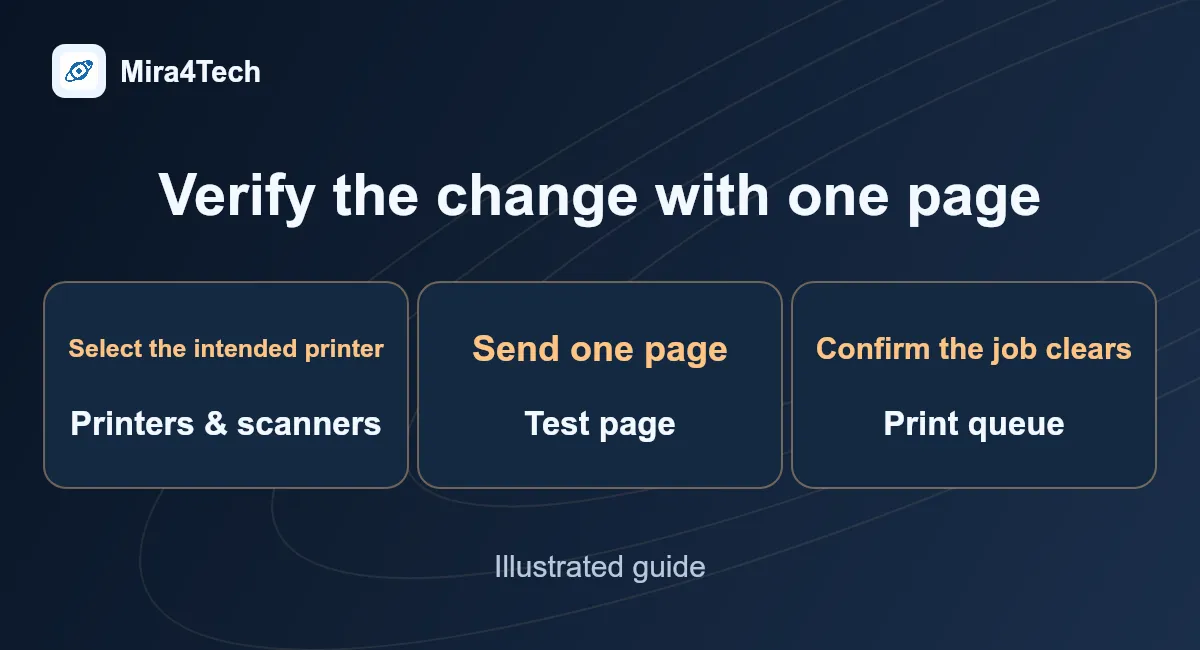
Select the printer and open Open print queue. Inspect the first job. Cancel your own stuck job if you can resend it. On a shared printer, ask the administrator before cancelling anyone else's work. Send a one-page test. If it sticks again on a device you manage, use Services to restart Print Spooler when no active work needs to be preserved.
Verify with one page
After each change, print a test page from the printer settings if available, or use one page from a simple file. Confirm the job enters and clears the queue and that paper comes out of the intended printer. If only one document fails after the test page succeeds, try it in another app or export to PDF and print a single page. If multiple devices fail, return to the printer's own status and connection.
When to check the driver or ask for help
If the printer is detected but adding it or printing a test repeatedly fails, record the model, connection and error. Check Windows Update or the official support page for a driver that fits your Windows 11 device and processor architecture. On a work network, give the administrator the printer name, the failed step and whether another device has the same symptom.