Windows Update 0x80070070: Check Storage Before Retrying
There is not enough storage for the update download or preparation. Understand the context and follow diagnostic checks and verification, with an original diagram and official references.
This guide explains the message in context, walks through focused checks and verifies the outcome. The website does not run commands on your device; choose an appropriate action after understanding its conditions.

What the message means
In Windows Update, this code commonly points to insufficient storage. It does not identify disposable files or prove that the recovery partition is responsible. Start by measuring free space on the system drive and identifying what occupies it, then retry the same update.
Prepare a controlled check
Keep the message, time, app or device name and version. Save work and use a non-sensitive training file when testing. Start with an observable check, change one factor and record the result. On a managed device, follow your authorised access and organisation policies.
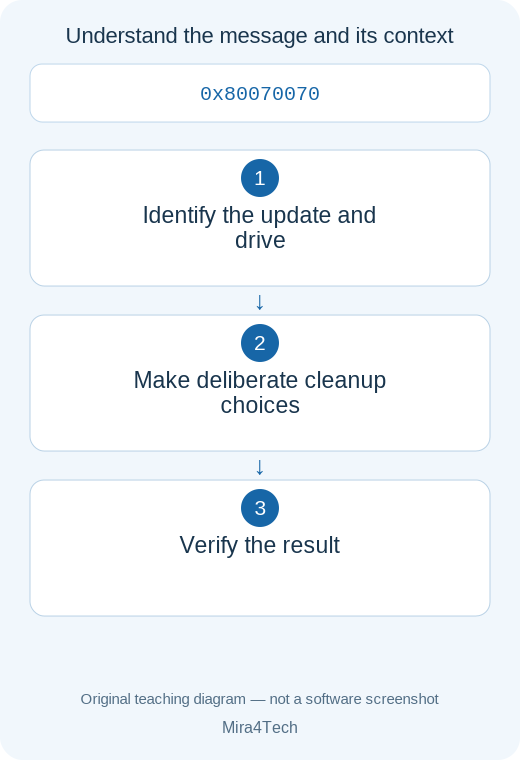
Step 1: Identify the update and drive
Record the KB number and complete message in Windows Update. In This PC, inspect free space on the Windows drive, commonly C. Attaching a USB drive does not automatically provide additional working space on that drive.
Step 2: Inspect the storage breakdown
Open Settings, System, Storage and let the size calculation finish. Compare apps, personal files and temporary files. Keep the figures for a later comparison; an unfamiliar large folder is not automatically safe to remove.
Step 3: Make deliberate cleanup choices
Begin with files you recognise and unused apps. Review each Temporary files option, particularly Downloads or previous Windows installations when offered. If moving a file, open the destination copy successfully before considering removal of the original.
Step 4: Measure again and retry
Check free space after cleanup finishes, restart if requested, connect laptop power and retry Windows Update. Change one factor at a time so that you can see whether the additional space affected the result.
Step 5: Use external storage only when offered
Some update workflows offer an external-storage option; follow the Windows prompt for that workflow. Do not move the Windows folder or repartition as an experiment. If capacity remains inadequate, plan a backup or suitable storage upgrade.
Verify the outcome
Check Update history for the intended KB and any restart requirement. A dismissed dialog is not proof of installation. If a different error appears, record it as a new diagnostic stage rather than repeatedly cleaning storage.
When to stop and seek help
Stop before deleting system or recovery partitions, or if important files have no verified backup.
Two questions before another change
Is the code alone enough to choose a remedy?
No. The location and circumstances must match this guide. If a new code, message or stage appears, record it and establish its context before another action.
What evidence should I give support?
Provide the product and version, error and time, attempted checks and observed results. Redact passwords, recovery codes, identities and personal files. Verify a support provider before granting remote control.
Related practical guides
Sources and scope
Prepared and edited by the Mira4Tech team. The checking sequence uses documented message meanings and product guidance; it is not a claim of testing your device or proving one cause for every occurrence. Interface labels can vary with version and language.