Device Manager Code 10: This Device Cannot Start
Windows could not start the selected device. Understand the context and follow diagnostic checks and verification, with an original diagram and official references.
This guide explains the message in context, walks through focused checks and verifies the outcome. The website does not run commands on your device; choose an appropriate action after understanding its conditions.

What the message means
Code 10 describes a device-start failure and properties may include an additional manufacturer-specific reason. It does not establish that the newest driver is always the fix or that the hardware has failed permanently. Record the exact model, OS and preceding changes.
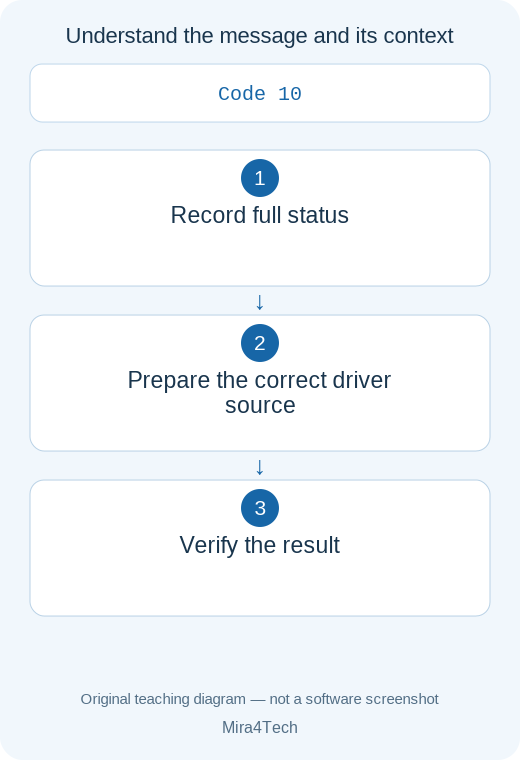
Prepare a controlled check
Keep the message, time, app or device name and version. Save work and use a non-sensitive training file when testing. Start with an observable check, change one factor and record the result. On a managed device, follow your authorised access and organisation policies.
Step 1: Record full status
Read the complete Device status and note driver version and provider. Identify whether this is network, audio or other hardware: removing a network driver during remote support can cut off the connection.
Step 2: Relate the timing to changes
Review recent OS and driver changes. If the device worked before a specific update, retain both version details and consult manufacturer repair or rollback guidance. Avoid undoing a collection of updates indiscriminately.
Step 3: Prepare the correct driver source
Match the computer or device model and Windows architecture using Windows Update or manufacturer support. Obtain needed packages before a change that can remove connectivity. A similarly named download elsewhere does not establish compatibility.
Step 4: Apply the supported action
Follow the model-specific authorised update, repair or rollback procedure and record its result. Do not run registry cleaners or change device-filter settings without a specific diagnosis. Consult IT before changing drivers on managed devices.
Step 5: Escalate persistent failures
For external devices, check vendor-supported power and connections without experimenting on internal components. If the code persists after the supported driver action and restart, give official support the status, model, Windows build and attempted checks.
Verify the outcome
Inspect status after the change and test the actual audio, connectivity or other intended function. Compare a normal restart if that previously triggered the issue. A completed driver installer is insufficient when the device still cannot perform its task.
When to stop and seek help
Stop for changes affecting storage or boot, loss of remote support without recovery arrangements or evidence of physical damage.
Two questions before another change
Is the code alone enough to choose a remedy?
No. The location and circumstances must match this guide. If a new code, message or stage appears, record it and establish its context before another action.
What evidence should I give support?
Provide the product and version, error and time, attempted checks and observed results. Redact passwords, recovery codes, identities and personal files. Verify a support provider before granting remote control.
Related practical guides
Sources and scope
Prepared and edited by the Mira4Tech team. The checking sequence uses documented message meanings and product guidance; it is not a claim of testing your device or proving one cause for every occurrence. Interface labels can vary with version and language.