Device Manager Code 43: Separate Device, Connection and Driver Checks
Windows stopped the device after a controlling driver reported a problem. Understand the context and follow diagnostic checks and verification, with an original diagram and official references.
This guide explains the message in context, walks through focused checks and verifies the outcome. The website does not run commands on your device; choose an appropriate action after understanding its conditions.

What the message means
Code 43 means a controlling driver reported a device problem. It does not conclusively establish failed hardware or guarantee that removing the driver will fix it. USB devices and graphics hardware can show it. Identify the exact device and do not apply USB unplugging steps to internal hardware while powered on.
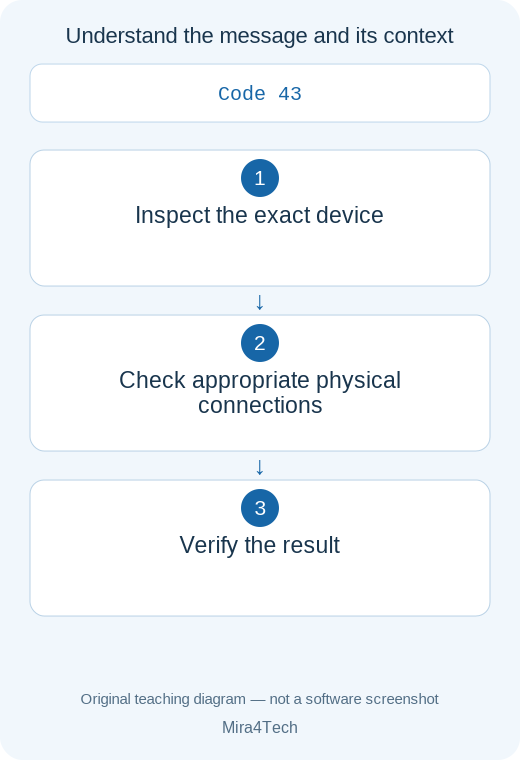
Prepare a controlled check
Keep the message, time, app or device name and version. Save work and use a non-sensitive training file when testing. Start with an observable check, change one factor and record the result. On a managed device, follow your authorised access and organisation policies.
Step 1: Inspect the exact device
Open the affected Device Manager entry and record its name, model, Device status and any additional descriptor message. A generic unrecognised-USB notification needs more detail; phone-USB advice cannot diagnose a graphics card.
Step 2: Record recent changes
Note driver updates, cable changes or OS upgrades and record the driver version and vendor before modifying it. Save work and restart once when appropriate, avoiding interruption of an active update.
Step 3: Check appropriate physical connections
For external USB hardware, inspect a suitable data cable, power and another supported port according to vendor guidance. Safely eject storage and stop for overheating, smell or damage. Internal hardware requires proper servicing procedures rather than hot unplugging.
Step 4: Review the correct driver
Use Windows Update or the model manufacturer’s support page and check compatibility and signing. Before reinstalling a device or driver, prepare the correct package and recovery plan, especially for storage, networking or display hardware. Avoid unknown driver bundles.
Step 5: Compare supported combinations
Where appropriate, compare an external accessory with another compatible host or known-good cable. Record working and failing combinations. One successful connection does not settle a recurring issue; escalate persistent Code 43 with evidence to the manufacturer.
Verify the outcome
Check Device status and then the real task: transfer and reopen a training file, test audio or inspect display output as appropriate. A missing warning icon does not prove every device function works. Record any replacement error code.
When to stop and seek help
Stop for overheating, physical damage, possible storage-data loss or removal of an essential connectivity or display driver without recovery planning.
Two questions before another change
Is the code alone enough to choose a remedy?
No. The location and circumstances must match this guide. If a new code, message or stage appears, record it and establish its context before another action.
What evidence should I give support?
Provide the product and version, error and time, attempted checks and observed results. Redact passwords, recovery codes, identities and personal files. Verify a support provider before granting remote control.
Related practical guides
Sources and scope
Prepared and edited by the Mira4Tech team. The checking sequence uses documented message meanings and product guidance; it is not a claim of testing your device or proving one cause for every occurrence. Interface labels can vary with version and language.