Choose a compatible SSD: SATA, NVMe and M.2 explained with diagrams
Separate SSD form factor from interface, check the exact drive and system specifications, and plan backups before an upgrade.
An SSD advertisement can show a small, fast product without answering the essential question: does your computer actually support it? M.2 drives can look similar while using different interfaces and lengths. Working in an external enclosure does not establish internal compatibility. This guide separates form factor from interface, gathers system evidence and creates a reviewable specification before purchase. It does not initialize drives, alter partitions or automatically move your operating system.

Define what the upgrade should change
Do you need more capacity, a replacement for a slow drive, or an additional drive while retaining the original? Each objective requires a different plan. An SSD stores files; it does not add RAM. If the problem is working-memory pressure, consult choosing compatible RAM rather than replacing storage for the wrong symptom.
Record your file sizes, expected growth and the task you want to improve. For a full C drive, first review storage use safely. General slowness requires diagnosis during the task; the highest advertised drive speed is not a promise to improve your internet connection or processor.
Form factor, interface and protocol are different questions
- Form factor: the physical format, dimensions and mounting arrangement, such as 2.5-inch or M.2.
- SATA and PCIe: connection technologies that both the system and drive must support, not merely descriptions of an outside shape.
- NVMe: a protocol used by many PCIe SSDs. M.2 alone does not establish that a slot or drive supports NVMe.
- Capacity: storage space. Compare it with your requirements rather than confusing it with transfer rate.
Other SSD formats exist beyond the two emphasized here. Even among M.2 devices, a similar image or connector key is insufficient evidence. System documentation identifies the slot’s function and supported technology.
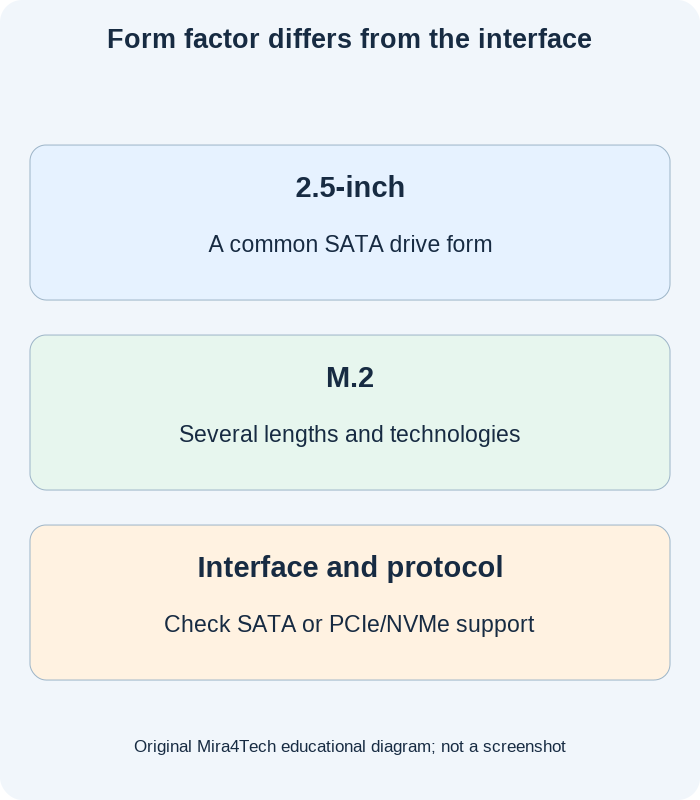
Compare 2.5-inch SATA, M.2 SATA and M.2 NVMe
2.5-inch SATA is a common replacement option in a system supporting the appropriate SATA drive. A desktop may require data and power connections plus suitable mounting. A laptop can require a model-specific cable or bracket. An empty physical bay does not prove that all connections are present.
M.2 SATA has an M.2 form factor but uses SATA. M.2 NVMe uses PCIe/NVMe. Depending on the board, a slot can support one technology or both. An NVMe drive in a SATA-only slot does not become a faster SATA device; it may not be detected at all. mSATA is another format; a similar size does not make it compatible with an M.2 socket.
The practical consequence is to check the physical format and connection separately. Do not use M.2 as shorthand for a complete specification or rely on an unknown adapter to override documented incompatibility.
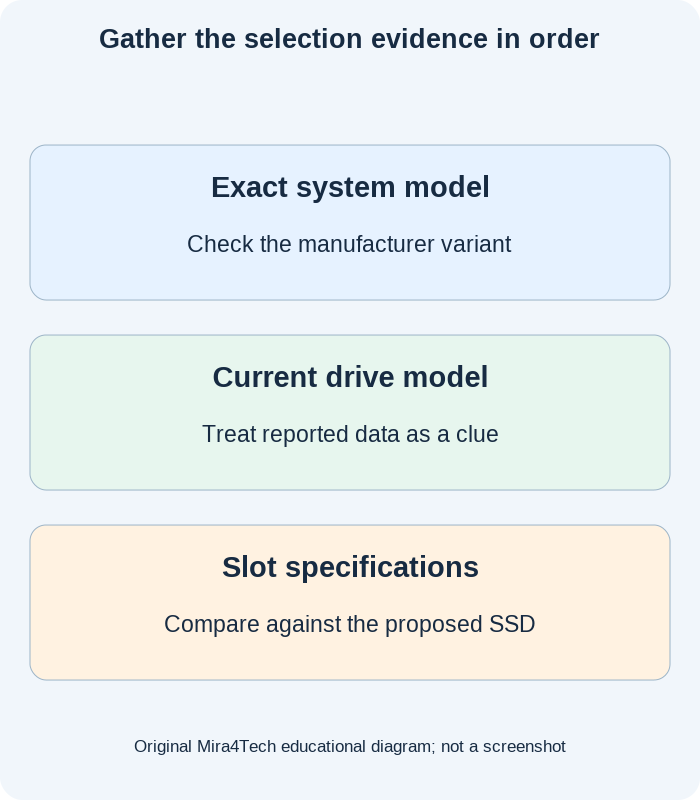
1. Identify the system and current drive
- Open System Information with Windows + R and
msinfo32. Note the exact manufacturer and model. A custom desktop also needs the motherboard model and revision. - In Task Manager → Performance, review the drive entry showing C: when available and record the displayed model. Disk 0 is not universally the operating-system drive.
- Device Manager → Disk drives can show the installed drive names. This lists devices; it does not establish that every listed drive contains C.
- Find the current drive’s manufacturer specification, then the storage section of your system manual. The existing drive is a clue, not a description of every other slot’s capabilities.
If names conflict or are generic, do not guess. A RAID controller, USB bridge or another storage layer can expose different information. A public compatibility question does not require posting a serial number or complete system report.
An optional PowerShell reading and its limits
Where PowerShell is available, this query reads disks visible to storage-management providers. It is not an initialization or partitioning command:
Get-PhysicalDisk |
  Select-Object FriendlyName, MediaType, BusType, Size
FriendlyName comes from the storage provider, MediaType is the reported medium, BusType is the exposed connection and Size is in bytes. USB can describe an external enclosure’s connection, while RAID can reflect a controller. Those fields alone do not establish the drive’s internal connector or the support of an empty slot.
The query reports devices visible to the provider. It does not independently identify which row contains C or what an unused socket accepts. If information is unavailable, do not run Reset, Initialize or Clear commands to obtain it. Consult the model documentation or official support instead.
2. Check the slot and mounting requirements
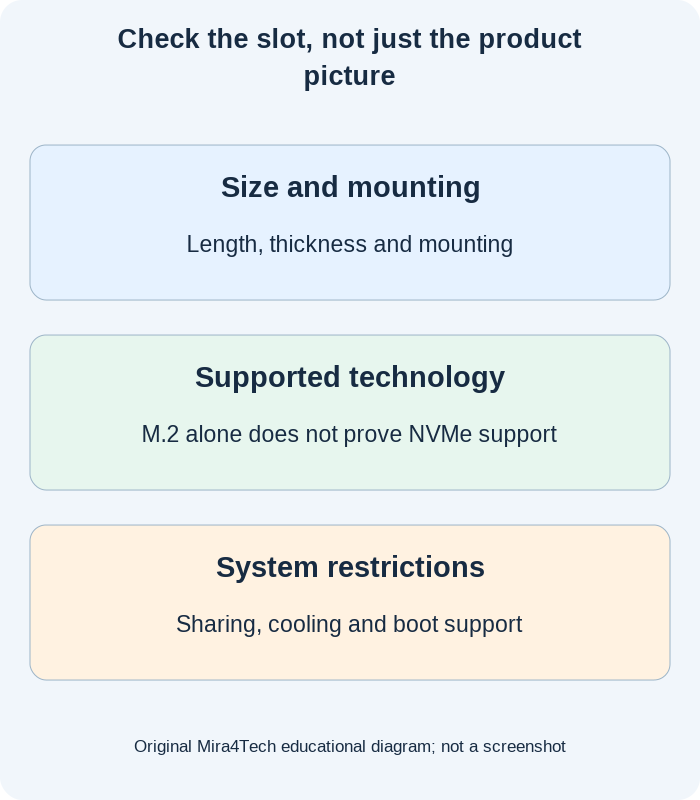
Find documentation associating the storage-slot identifier with its supported connection. Review these points before choosing a product:
- Dimensions: in M.2 designations such as 2230 and 2280, the first part indicates width and the second length in millimetres. Check supported lengths and the mounting point.
- Physical clearance: check thickness, any single-sided or double-sided restriction, and room for the required heatsink or cover. A photograph of a similar machine is not enough.
- Technology: match SATA or PCIe/NVMe support. A mechanically matching key is not a guarantee of protocol support.
- Sharing: a socket may share ports or lanes with other devices. Read the board manual before responding to a disabled port by changing unrelated settings.
- Boot support: detecting a drive for storage does not automatically establish that the system can boot from it. Check model and firmware limitations.
Use documentation for the correct model and variant. If confirmation remains unclear, ask the manufacturer or seller to confirm the exact part and configuration. Do not install an unknown BIOS update based on a promise that it makes any SSD work.
3. Choose capacity and performance for the task
Peak transfer specifications do not measure every workload. Opening small files, starting an application and copying a large project are different operations. The processor, connection, other drive and data affect the result. Where a drive can operate on a slower supported PCIe link, a higher generation number on its box does not remove the system’s limit.
Allow capacity for your files, growth and temporary work. Review the exact product’s endurance and warranty conditions. An endurance rating is not a predicted failure date and does not replace a backup. This guide does not freeze changing prices or product rankings; it identifies requirements before comparing offers.
For external use, the enclosure must support the drive’s interface and dimensions, and the computer connection limits actual transfers. An M.2 enclosure labelled SATA is not necessarily suitable for NVMe. Check the enclosure specification rather than its outside connector alone.
4. Write a short selection sheet
Record the system model, upgrade objective, slot identifier, supported form and length, connection technology, mounting and cooling limits, boot support if required, and the proposed capacity and part number. Add links to the system manual and product specification.
“I want a one-terabyte M.2” is incomplete. A useful inquiry states whether you are adding storage or replacing the system drive, the supported socket and any restrictions. A store image cannot resolve an unknown field. Complete the sheet before comparing products instead of adapting your system requirements to a convenient offer.
5. Plan files and the operating system before opening the PC
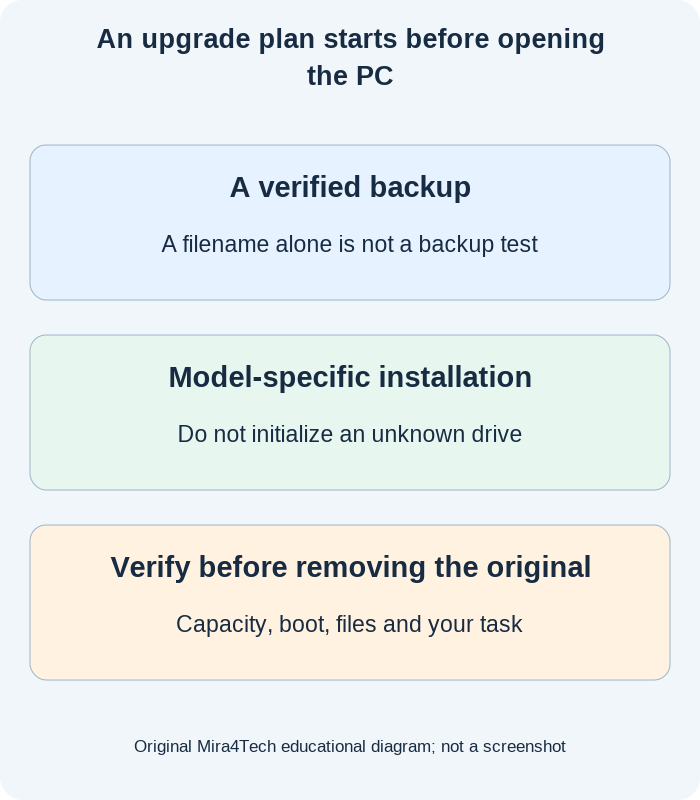
Make and open an independent copy of important files, following the backup and restore guide. Copying ordinary C folders does not by itself transfer a bootable operating system. A personal-file backup is not necessarily a complete disk image. Decide whether you will use a migration tool supporting your configuration, a fresh installation or the drive only for additional files.
If BitLocker or device encryption is active, confirm that you can access the recovery key securely outside the drive being replaced. Hardware changes can trigger a recovery prompt. Do not publish the key with specification screenshots, and do not make disabling protection an automatic SSD-selection step.
Follow the model’s service procedure for power, internal-battery handling and electrostatic precautions. Use appropriate service help if the work is unfamiliar. Retain the original drive without erasing it until the new setup and files are verified. Never initialize a drive whose identity and contents you have not established merely because a dialog suggests doing so.
6. Verify the result against your objective
- Check the detected model and capacity in system settings and Windows. For an operating-system replacement, establish that the computer boots from the intended destination rather than the still-connected original.
- Open familiar files and a project from the new location. Check the applications and permissions required for work; a capacity figure does not prove that content was transferred.
- Use Windows updates and the manufacturer’s official tool for the exact drive when appropriate. Do not apply another model’s firmware or disable security to chase a speed figure.
- Repeat the original task under comparable conditions. Record the outcome and any error before changing something else.
Displayed capacity can differ because of unit presentation, partitions and reserved data. Compare the model and its specification, not the letter C alone. One successful startup is not a reason to erase your old copy or stop making backups.
When the drive is not detected
Review the exact model, socket, technology, dimensions and installation against the manual. An NVMe drive in a SATA-only socket is a compatibility issue, not an invitation to install a random driver. Check documented port sharing and other manufacturer restrictions. An unknown device does not automatically require initialization.
If the drive contains data or migration was interrupted, stop unfamiliar repair and write operations and obtain appropriate assistance. This article supplies no erase commands, partition-style conversion or storage-controller switching procedure because these actions can affect booting and data.
Questions before buying an SSD
Is every M.2 drive NVMe?
No. M.2 is a physical format with different applications and technologies. Check both the device and socket specifications.
Will the fastest SSD solve any slowdown?
No. Improvement depends on the actual bottleneck. Network delay, processor load and memory pressure do not automatically become drive problems because a faster SSD is available.
Does working in a USB enclosure prove internal compatibility?
No. The enclosure uses its own controller and connection. Check the internal socket, mounting and boot support separately.
Does this lesson extend the C partition?
No. Selecting hardware comes before migration or partition changes. A plan that changes partitions needs review of the actual layout, backups and device state.
Sources and the nature of the diagrams
- Kingston: SATA and M.2 compatibility, sizes and port sharing.
- Kingston: SSD form factors and M.2 versus mSATA.
- Kingston: M.2 SATA and NVMe.
- Microsoft Learn: Get-PhysicalDisk and physical-disk data properties.
- Microsoft: Windows information tools.
- Microsoft: accessing a BitLocker recovery key.
Sources reviewed on 25 October 2026. Illustrations are original educational diagrams, not dimensioned product drawings, software screenshots or benchmark measurements. This article tests no specific drive on your computer; a final compatibility decision requires the correct model documentation.