How to test a USB flash drive or memory card’s real capacity with H2testw
Understand the capacity Windows displays, verify write and read capacity on an empty USB drive or memory card, and interpret H2testw results.
Understand the number on the packaging first
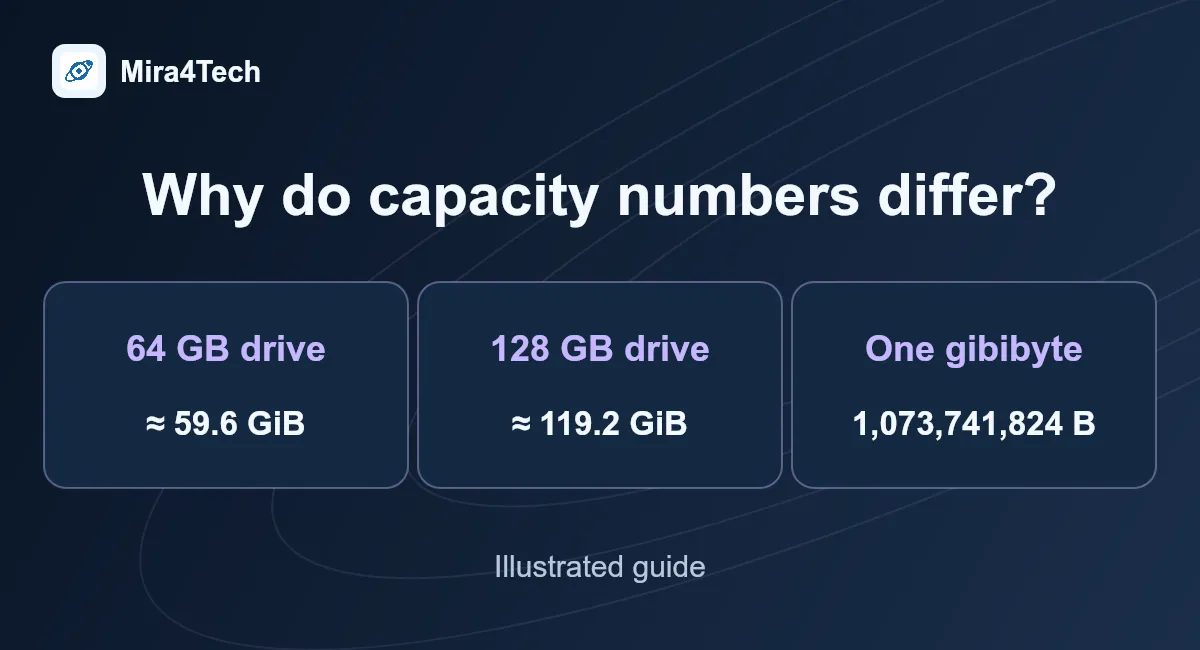
Manufacturers usually quote decimal capacity. A 64 GB drive contains 64 billion bytes, or about 59.6 GiB in binary units. A 128 GB drive is about 119.2 GiB before filesystem overhead. Windows can display the lower binary number with a GB label. A symptom worth testing is a copy that seems to succeed, followed by missing or unreadable files after more of the drive fills up.
1. Prepare an empty device and confirm its letter
Copy any important files elsewhere and open the backup to check it. Use an empty drive or memory card dedicated to the test. This test writes to available space, and existing data may be corrupted if a controller falsely reports its capacity. Connect one removable device if practical, open This PC and note the target's drive letter and name. Use a suitable card reader for an SD card. Check that you have selected the removable test device before any write.
2. Write and verify the available space
- Download H2testw from Heise, extract the archive and start the program. Select English if the interface opens in German.
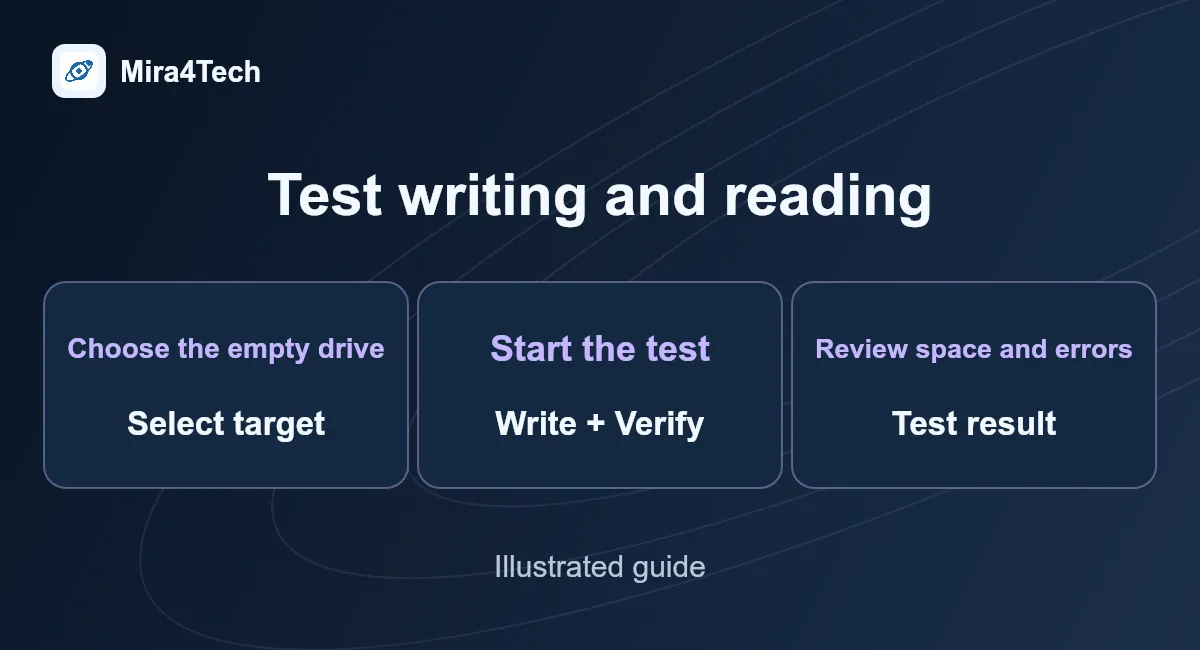
- Choose Select target, then select the USB or card letter you just checked. Verify the letter again before you start.
- Choose all available space, then Write + Verify. H2testw creates test files, reads them back and compares them with the expected data. The time depends on capacity and speed. Keep the PC on power and the device connected until the test ends.
3. Interpret the result before trusting the drive
If you see Test finished without errors, check how much space was tested. A pass on a small portion only covers that portion. Use an empty device to check most of its available space. If the tool reports lost data or read or write errors, keep the result. Recheck the port or reader and retry once with the empty device. Persistent failures mean it is unsuitable for the only copy of important files. Errors can arise from damaged media or a false capacity report.
After the test
Remove the test files H2testw created on the tested device if you want to reclaim the space. Copy one known test file, eject the drive safely, reconnect it and open the file to verify ordinary use. If you contact the seller, keep the model, advertised capacity and test result. Keep an independent backup of any important files even after a successful test.