WinRAR Guide: Installation, Extraction, and Official Licensing
Open RAR and ZIP files, create an archive you can check and share, and understand split volumes, passwords, repair limitations, and the trial license.

When WinRAR is useful
WinRAR is an archive manager for Windows. It creates RAR and ZIP archives and extracts additional formats such as 7z and TAR. An archive is a container, while compression attempts to reduce its size. Video and already compressed images may barely shrink. ZIP is often easier when the recipient uses different software; RAR provides options such as recovery records and split volumes but requires compatible extraction software.
WinRAR is commercial software with a limited trial. A freely downloadable installer does not provide an unlimited usage license. You can follow this exercise using copies of your own files during the permitted trial and decide whether the program’s features justify a purchase.
Prepare and choose a download
Open Windows Settings, System, About to identify your system architecture, then choose an installer the publisher lists as compatible. Use the official RARLAB downloads and select a stable release in your language. A beta is a test release and is unnecessary for this everyday exercise. Refer to the live download page rather than relying on a version number in an old filename.
Prepare a small test folder and enough space for extracted contents. Gather every part of a split download before starting. Keep the original archive unchanged, especially when it is the only copy of a project or document.
Install and choose Windows integration
- Download from RARLAB or the publisher’s win-rar.com website. Review the address and download origin and keep system protection enabled.
- Run the installer, review the target folder and select Install. In the integration settings, select the archive types you want WinRAR to open by default.
- Review shortcut and context menu options before finishing. On Windows 11 some archive commands may be under Show more options, depending on the version and configuration.
- Open WinRAR from Start and use Help, About to check the installed version. If double-clicking an archive uses another application, browse to it within WinRAR or use Open with.
Button names vary by interface language. Remember the task behind each command: Add creates an archive, Extract To restores its files to a folder, and Test checks archive integrity. You do not need to master every setting to use these tasks.
Open and extract an archive
- Open the archive and inspect the contents without launching an executable inside it. Look for unexpected filenames, folders, installers or shortcuts.
- Choose Extract To and select a separate destination folder. Check the full path so you know where the results will appear.
- Obtain any password from the trusted sender. Check keyboard language and accidental spaces if it is rejected. Updating the app does not bypass an unknown password.
- Do not approve every overwrite automatically. Choose an empty destination when you cannot identify which existing copy should be kept.
- Wait for extraction to finish without errors. Inspect the destination and open an expected test document before depending on the result.
Create RAR or ZIP and protect its contents
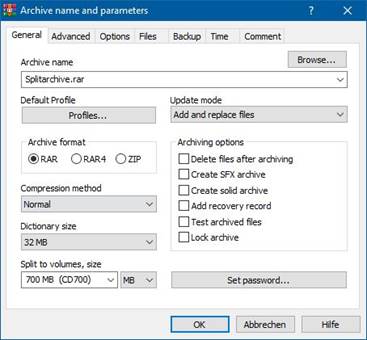
Browse to your files in WinRAR, select them and choose Add. Enter a descriptive archive name and destination, then select RAR or ZIP for the recipient’s software. Begin with the default compression level. Higher levels take longer and may provide little benefit for media files; compare a sample before processing a large collection.
Use Set password for sensitive data and choose a long, unique password. For RAR, review Encrypt file names if names also need to be hidden. Confirm that the recipient supports both the format and encryption selected. Store the password securely and send it through a separate channel. Strong encryption does not compensate for a weak password or publishing the password beside the archive.
A Recovery record adds information that can help in some damaged RAR archives and increases the size. It cannot guarantee recovery or replace an independent backup. Keep the originals until the new archive has passed your checks.
Work with split volumes
When a transfer service limits individual file size, use Split to volumes in the Add dialog and choose an appropriate size. The result is a sequence such as project.part001.rar and project.part002.rar. The last part may be smaller. Send the entire set and tell the recipient how many parts to expect.
To extract, place all volumes in one folder and start with the first. A request for the next volume usually indicates that a part is missing or named differently. Do not extract each volume separately or combine parts from different archives. Recreating a correctly sized volume set is safer than manually changing existing parts.
Verify and troubleshoot
Select the archive and use Test, then extract a copy into another folder and open sample contents. Test checks archive integrity; it does not verify copyright permissions or detect every malicious file. If the download owner publishes a trusted checksum, compare it before using important contents.
- Checksum error or Unexpected end: check download completion, every volume and the password. Retrieve damaged parts again before attempting repair.
- Next volume is required: check the sequence of names and the folder containing the parts. A similarly named part from another set is not a substitute.
- Access denied: choose a writable folder, close apps using the target file and check free space.
- Damaged archive: work on a copy and try Tools, Repair archive when applicable. Results depend on the damage and available recovery information; success is not assured.
Trial, registration, and safe use
The WinRAR EULA permits a trial of up to 40 days; continued use requires a license. Purchase and registration through the publisher are the supported route. Follow the registration email, then check the license details under Help, About and keep a secure backup of the key file. Do not share a license key or use unknown activation tools.
Update through the official site and consult release notes when relevant. A self-extracting EXE is still executable software and may request privileges. Use a trusted archive application to extract when appropriate, keep protection enabled and be cautious with unexpected attachments. The rights to files inside an archive are separate from the WinRAR license.