SumatraPDF tutorial: read PDFs, find text, and set a print range
SumatraPDF is a reader for opening PDFs, navigating pages, finding text, and reviewing printing. This tutorial starts with the official download and the installer-versus-portable choice, then uses a known document to check page navigation, text search, and the print range. A scanned PDF may contain page images without searchable text.

Before relying on a search or print result
- Open a document you recognize and check its filename and page count.
- Search for a word visible on a page and inspect the match in that document.
- If it is not found, try selecting the text. A scan without a text layer may explain why searching fails.
- Review file page order, the print range, and the selected printer before sending a job.
To locate your document folder, see Everything file search. For a separate copy of important documents, continue with the Windows backup guide.
What does the reader do?
SumatraPDF is a free, open-source viewer for PDF and other formats on Windows. A PDF generally preserves the pages, fonts, and images arranged by its author, which is why manuals, invoices, and forms often use it. This lesson covers reading, searching, and printing. Changing the original words or redesigning a document is a separate task that needs a suitable tool and a backup copy.
Zoom changes how large a page looks on screen; it does not set the paper size for printing. A page range determines which pages go to the printer. A page’s position in the file can also differ from the number printed in its footer: book covers and introductory pages are common examples. Check the page itself, especially before printing a long document.
Before downloading: system and architecture
Open the official download page and check the domain, sumatrapdfreader.org. When reviewed on 18 October 2026, it offered stable version 3.6.1: 64-bit and 32-bit builds for Windows 7–11, and ARM64 for Windows 10 or 11. Application compatibility with an old system does not mean that the system still receives security updates; use an updated system supported by your organization. Choose the stable release for this lesson. The Pre-release page offers experimental features that can change.
To identify your architecture in Windows 10 or 11, open Settings, System, then About, and find System type. Choose 64-bit for an x64 computer running 64-bit Windows, ARM64 for an ARM64 computer, or 32-bit for 32-bit Windows. A large number in a processor’s name does not identify its architecture. If Windows says the app cannot run on your computer, recheck System type and the download source before trying again.
Save your work and prepare a writable folder with room for the application and documents. Reading does not require an account or activation key. Follow your organization’s installation policy on a managed device. If Windows protection blocks a file, check the warning and source before proceeding.
Installer or portable?
The Installer installs the application and enables Windows integration, such as registering the reader for files and optional document previews. It suits regular use on your own computer. Portable is downloaded as a ZIP archive and runs after extraction without an installation wizard; it suits trying the reader or keeping it in a chosen folder. Portable does not mean it leaves no data: it normally stores settings, history, and a thumbnail cache beside its executable. Use a trusted, writable folder and consider this before using a shared USB drive.
- On the download page, select the architecture you identified, then Installer or Portable, and save it in Downloads. Check the filename, extension, and source before opening it. Avoid advertising links or copies that request an activation tool.
- For Installer, run the downloaded file and read the destination and displayed options. Keep optional integrations only if you need them, complete Install, and open the reader. If Windows requests administrator permission, review the publisher and purpose. Everyday reading does not require running the reader as administrator.
- For Portable, right-click the ZIP and choose Extract All, then select a folder such as Documents\SumatraPDF. Open the extracted folder and run the EXE there. Running it from inside the ZIP makes the settings location and later updates confusing.
- Open the application menu, then Help and About, and check the version. This lesson uses English option names verified against the 3.6.1 source; your interface may translate them. Settings, then Change Language lets you match the names if needed. A reader window and version number confirm that it has started.
If double-clicking a PDF starts the installer again, Windows may have associated PDFs with the installer in Downloads. First open the reader and follow the next section, then correct the default application in Windows if needed. The installer file should not be the default reader.
Open a known document and check its pages
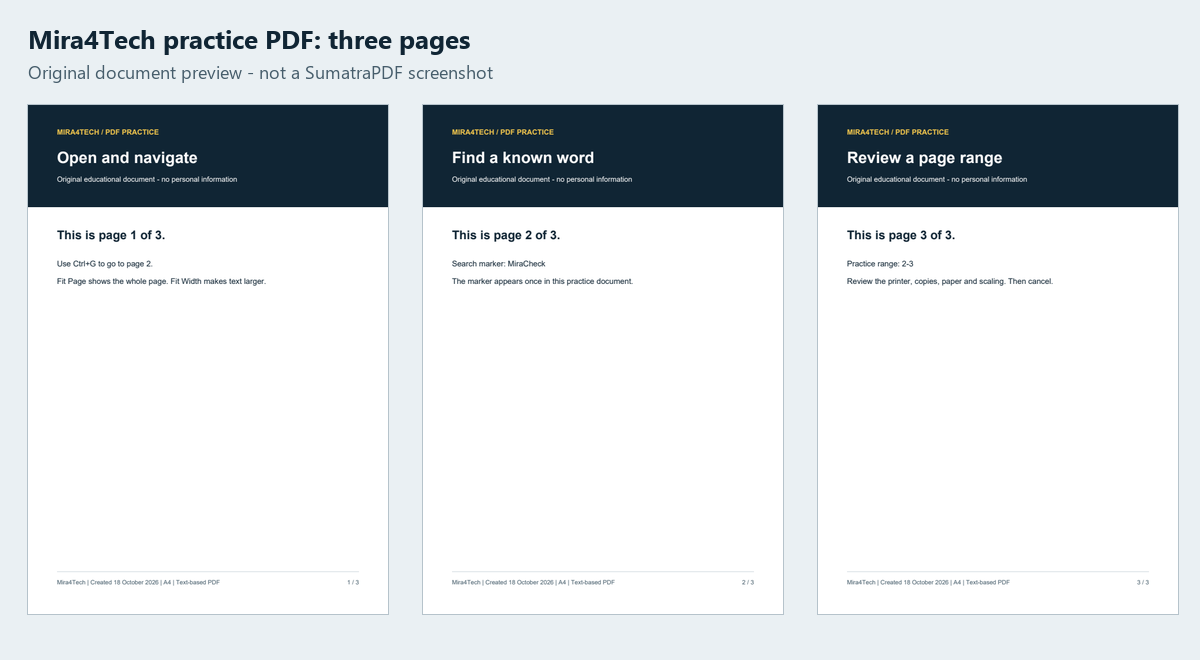
Use the Mira4Tech practice PDF, or a document you own and trust. The practice file deliberately uses English text and contains three A4 pages. The marker MiraCheck appears once, on page 2. Saving the file locally helps distinguish SumatraPDF from a browser’s built-in PDF viewer.
- Save the practice file in Downloads or a folder you choose. Open SumatraPDF and press Ctrl + O, select mira4tech-practice.pdf, and choose Open. This explicitly selects both the file and application without changing defaults.
- Check the document name on the tab and the page count in the toolbar. The practice file should have three pages, with Open and navigate at the start of page 1. This confirms that you opened the intended file; it does not prove other files are safe.
- If you want PDFs to open in this reader by default, follow the default viewer instructions after the exercise works. Changing the default is optional.
A PDF extension alone is no reason to trust an unexpected attachment. Review a document link’s destination before following it. For an encrypted document, obtain the password from its owner through a suitable channel; avoid uploading private files to an unknown unlocking website. If only one file fails to open, obtain a fresh copy from its owner and inspect it before making broad system changes.
Find text and understand the result
- Return to page 1, press Ctrl + F, and type MiraCheck without extra spaces. Use Enter or the next-result button if needed. Search should jump to the highlighted marker on page 2.
- Use Enter for the next result while the find box has focus, or click the document and press F3. Go back with Shift + Enter in the box or Shift + F3 in the document. If F3 controls a laptop’s volume, try Fn + F3 or the search buttons.
- Try an absent term such as NoMatch987 and observe the not-found message, then search for the known marker again. Comparing these cases confirms that you are searching the intended document. This lesson does not depend on a match counter or floating search window; search interfaces differ between releases.
If a visible word cannot be found, check its spelling, keyboard language, and Match case if enabled. Try selecting a word and copying it into a local text editor. A scanned PDF may contain only page images, or its text encoding may be faulty. Find does not itself perform optical character recognition, or OCR. Ask for a searchable copy or use a trusted OCR tool on a copy of the file. Avoid uploading a sensitive document to an OCR service simply to solve a search problem.
Review the print range before sending a job
Printing sends pages to a physical device or a virtual printer that produces a file. Here you review the settings and cancel the dialog; opening it need not use paper. The printer, its driver, and the Windows version determine the dialog’s appearance and available labels. A detailed preview may be absent.
- Open page 2 and check its heading, then review page 3. Press Ctrl + P or choose File, then Print. Confirm that the practice document is active; checking the name matters when several tabs are open.
- Review the printer name and set Copies to 1 for the exercise. The default printer may differ from the one you intend. A shared printer can leave sensitive pages where others can collect them.
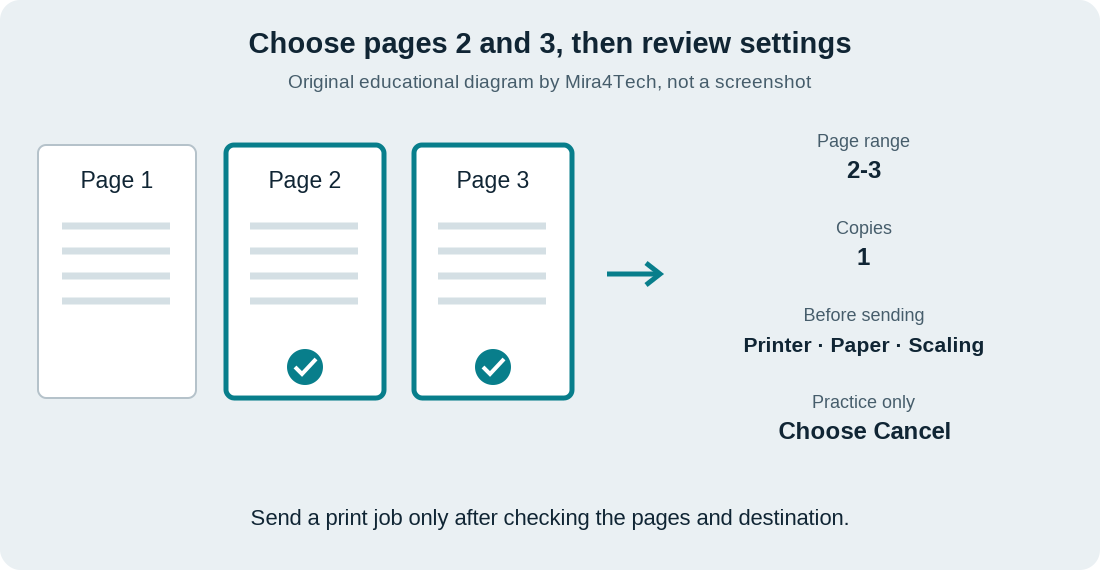
- Choose Pages or the page-range option instead of All pages. Enter 2-3 in a single range box, or 2 and 3 if separate From and To boxes appear. This means pages 2 and 3 only, not three copies or page 1. Check that the range is within the document’s page count.
- Review A4 paper and portrait orientation in printer settings or Preferences where available. In 3.6.1’s classic Advanced tab, Page scaling offers Shrink pages to printable area (if necessary), which reduces oversized pages only; Fit pages to printable area, which enlarges or reduces pages to fit; and Use original page sizes, which keeps the original size. The last suits a precise size requirement, but content can be clipped if it exceeds the paper or printable margins. Screen zoom is independent of these choices.
- If Advanced offers Odd pages only or Even pages only, leave All selected pages selected so that the exercise includes both pages. Check one-sided or two-sided printing in printer properties; support and the binding edge depend on the device. If Windows 11 hides the Advanced tab, review the settings that are available. This exercise does not require registry changes.
- Before choosing Print, reread the destination, copies, range, paper, and scaling. For this exercise, choose Cancel to close the dialog without sending the job. Reviewing settings does not test the printer’s output quality.
When you later need physical output, start with one non-sensitive page and inspect its margins, orientation, and size before sending the whole document. If output is small or clipped, review paper and scaling; increasing screen zoom does not fix it. If no printer appears, check Windows printer setup, its connection, and organizational policy. If the document’s owner restricted printing, request an appropriate copy or permission.
Updates and privacy after the exercise
Keep the official application updated and revisit the download page when upgrading. The publisher states that document work happens locally, with connections for update checks and crash reports that can contain fragments of the document in memory. Searching the web for selected text also differs from finding text with Ctrl + F. Review the privacy policy before using a feature that sends text to another service.
On a shared computer, review Settings, then Options, and Remember opened files if you do not want a reading history. Settings and thumbnail files are local data to consider, especially with Portable. Clearing reader history does not remove the original document or Windows and printer records. Avoid opening sensitive files on a device you do not trust.
How do you know you completed the lesson?
You should be able to reopen the practice file, see three pages, jump directly to page 2, find MiraCheck there, and distinguish Fit Page from Fit Width. In the print dialog, identify the printer and copies, set range 2-3, and cancel. This demonstrates the reading steps and a review of settings; it does not establish that every PDF is searchable or that a printer produced correct pages.
Frequently asked questions
Do I need internet access to read a saved PDF?
A local file can be opened, read, and searched without uploading it. An update check or a link you choose in the document may connect to the internet. Local reading and external services are separate actions.
Why does the file open in a browser?
The browser or default application handled the link or file. Save the PDF and open it inside SumatraPDF with Ctrl + O. Changing defaults is unnecessary for this exercise.
Does Portable conceal my reading history?
No. Its purpose is running without installation, and it can store history, thumbnails, and settings beside the program. Review that folder and history settings; a USB drive does not automatically provide privacy.
Why does the book’s page number differ from the print range?
Front matter may use Roman numerals or leave the cover unnumbered. Navigate to a page and inspect it before relying on the number printed inside it. The practice file uses three pages with matching numbers to keep this step clear.
Official sources
- Official download, architecture, and Windows requirements and version history.
- Installation and Portable.
- Microsoft: identify your system type.
- Keyboard shortcuts, viewing modes, and finding text.
- Printing; for 3.6.1 option names, see its dialog resources and menus.
- Settings and history storage and privacy.