Computer Parts from Zero: CPU, RAM, HDD, and SSD
Choose an upgrade for an identified need
Connect a purchase to a specific limitation and verified compatibility. Not every slowdown needs more RAM, and an M.2 label does not make a device compatible with every slot. Finish with a short record of the computer model, existing component, slow task and an upgrade supported by manufacturer documentation.
Understand each component before buying an upgrade or opening a computer. Check compatibility, compare HDD and SSD, and follow safety precautions without risking files or hardware.
Use these steps only on a device or network you own or are authorized to inspect. Record original values, and stop before any action that could erase data or interrupt a service if its impact is unclear.
Key terms in plain language
- CPU: executes program instructions.
- RAM: fast temporary memory; its contents are cleared when power is off.
- HDD: mechanical storage with moving platters and parts.
- SSD: flash storage with no moving parts.
- SATA is a storage interface; NVMe is a storage protocol commonly used over PCIe. Connector shape alone does not prove compatibility.
- Motherboard: the board connecting system components.
Prerequisites
- The exact computer or motherboard model and its service manual.
- A current backup before replacing a drive or opening the case.
- A suitable screwdriver and stable lit surface; do not open a device if it would affect warranty coverage.
Understand each component's job
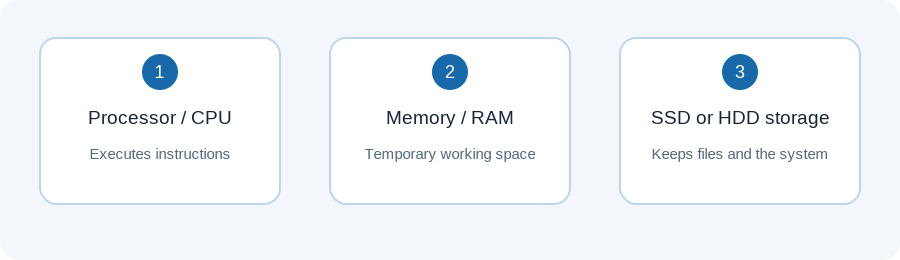
The CPU executes instructions, RAM keeps current work temporarily, and storage retains files after shutdown. Slow startup does not automatically mean a failed CPU; storage space, startup apps, or memory pressure may be responsible.
- Open Task Manager > Performance to view CPU, Memory, and Disk. Record the model and capacity before shopping.
You can identify whether memory, storage, or CPU load is the bottleneck during the same task.
Common issue at this step
Do not compare only by brand name; check your needs and device limits.
Compare HDD and SSD and check the interface
An HDD can offer more capacity for less cost; an SSD usually starts Windows and apps faster. SATA is an interface, while NVMe is a storage protocol over PCIe. M.2 describes a form factor/socket specification; support for protocol, key and module length must match the device.
- Use the motherboard manual or manufacturer's page to check M.2 type, supported length, port sharing, and PCIe lanes. Check 2.5-inch SATA support too.
The selected part is confirmed compatible by the manual and offers appropriate capacity.
Common issue at this step
Check thermal limits and heatsink needs; do not buy based on connector photos alone.
Back up and plan recovery before replacing storage
Copy files to an external drive or trusted cloud backup and open a test file. Record how to reinstall the system and retrieve the BitLocker key. Power off and read the service manual before opening the case.
- Shut Windows down fully and disconnect power. For a laptop with an internal battery, follow the manufacturer's instructions. Never pull connectors by force.
The backup opens and you can access installation media and the recovery key.
Common issue at this step
If you cannot identify the drive or isolate power, stop and ask a qualified technician.
Install or replace the part and test it
Only install a user-serviceable part if the model manual supports it. Ground yourself against static, avoid touching connector contacts, secure the drive as specified, and close the case before restoring power.
- Start and check BIOS/UEFI or Disk Management for the expected model and capacity. Before initializing a new drive, confirm it is the correct device; formatting erases data.
The expected capacity appears and a non-destructive check succeeds after intentionally preparing a new drive.
Common issue at this step
If it is missing, power off and check compatibility, screw, and connector. Do not randomly switch RAID/AHCI settings.
Troubleshooting
New drive is not detected
If firmware does not detect the drive, check compatibility, cabling and shared ports against the manual. If Windows shows a genuinely new blank disk as Unknown/Not Initialized, identify it before initializing. Never initialize an existing data disk merely because Windows cannot read it.
An HDD makes repeated clicking sounds
Copy critical files immediately if possible without repeated stress tests, then seek diagnosis; clicking can indicate mechanical failure.
An SSD shows less space than its label
Operating systems use different capacity units and reserve system partitions. Check the model and capacity in BIOS and Disk Management.
Security and privacy
- Never format or erase a drive until you confirm its identity and backup.
- Disconnect power; never open or repair a power supply, which can be dangerous even when unplugged.
- Use secure erasure or a trusted recycling service for drives holding personal data.
- You can identify whether memory, storage, or CPU load is the bottleneck during the same task.
- The selected part is confirmed compatible by the manual and offers appropriate capacity.
- The backup opens and you can access installation media and the recovery key.
- The expected capacity appears and a non-destructive check succeeds after intentionally preparing a new drive.
Official references
Practice: do you need more RAM or an SSD?
Choose an upgrade from the workload rather than a popular product name. Open your usual applications, press Ctrl + Shift + Esc for Task Manager, and watch Performance while reproducing the slowdown. Memory pressure while switching between applications differs from slow startup on a mechanical drive. A percentage is a snapshot, not a diagnosis by itself. Record free space, drive model and computer model too.
- Read the hardware manual. Is memory replaceable or soldered? What type and capacity does the device support? A matching physical appearance alone does not prove compatibility.
- Distinguish a storage form factor from its connection. M.2 describes a form factor; a slot may support SATA, PCIe/NVMe, or a documented combination. Confirm protocol, module length and mounting support before buying.
- Plan either a clean installation followed by file restoration, or a migration tool compatible with your drive. Open a file from the backup before dismantling anything. Keep the encryption recovery key available if the existing drive is encrypted.
After installation, check detection in firmware and Windows, then repeat the workload that was slow. Do not initialize or format a disk until you identify it. A new blank disk is not automatically faulty. Repeated HDD clicking or significant read errors call for stopping unnecessary experiments; valuable files may require specialist recovery.
Separate processing, working memory and storage
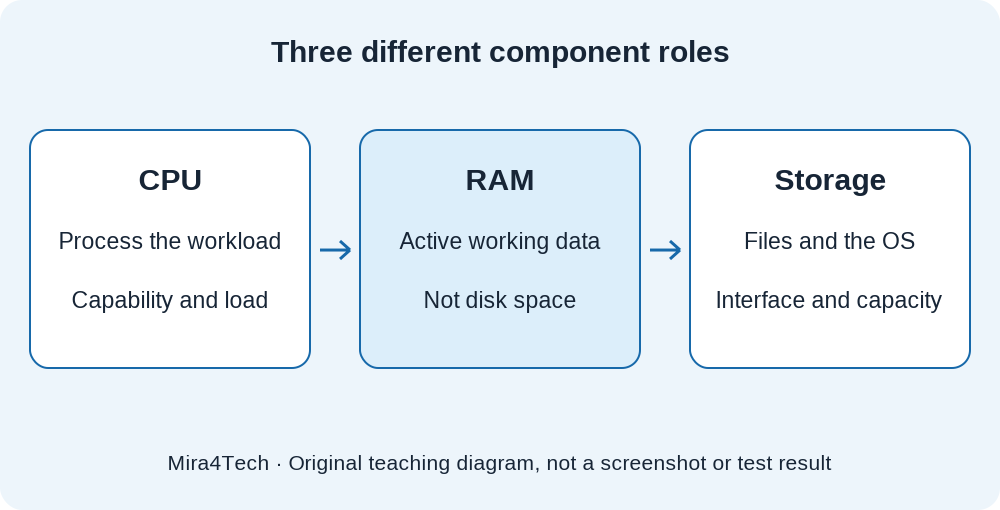
Free drive space is not RAM, and buying a larger SSD does not change the CPU. Observe the task first: is memory pressured, is storage busy, or is one application affected? Use Task Manager with a repeatable task rather than treating one instant as a purchasing verdict.
Check documentation for the exact model rather than the broad product family. A laptop may have soldered memory or physical restrictions; an M.2 slot can support particular interfaces and lengths. If compatibility is unproven, obtain the missing information before paying or opening the device.
Write the decision before buying
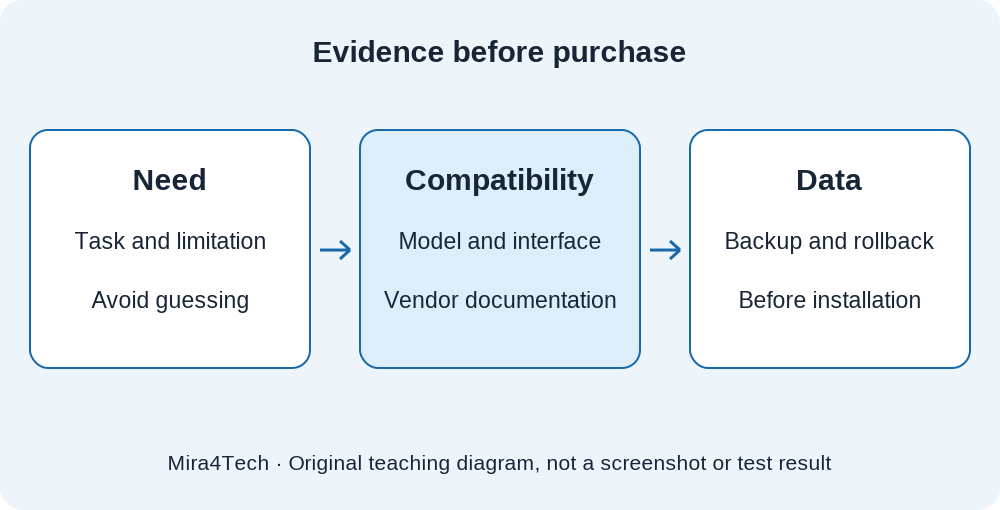
- Record the task and evidence of a possible bottleneck, considering suitable configuration fixes first.
- For memory, review RAM identification and compatibility.
- For storage, review SATA, NVMe and M.2.
- Prepare file backups, recovery information and a rollback plan before installation or migration.
Afterwards compare the same task and verify recognition of the component. Do not promise a numerical speedup before measuring it on the actual machine. Do not format a disk simply because it appears in management tools without establishing its identity.