Review Windows 11 startup apps and test sign-in responsiveness
Identify the delayed startup stage, review apps in Settings or Task Manager, and compare one familiar task before and after a reversible adjustment.

The sign-in screen may appear promptly, yet you still wait after entering your password before windows respond normally. Calling this “slow booting” does not identify the delayed stage. This guide separates those stages, reviews apps that start when you sign in, and tests one familiar, nonessential app at a time. You will compare the same small task before and after changing its automatic launch setting.
This guide covers Microsoft Windows 11, with option names checked against Microsoft documentation. Translations and placement can vary by release. The images are original explanatory diagrams, not screenshots from a personal computer. Timings below are invented arithmetic examples. If the computer remains slow throughout the day, also use the Task Manager slowdown diagnosis guide rather than attributing every delay to startup apps.
What does starting an app with Windows mean?
Some programs register a startup task so part of the app is ready when you sign in. That is useful when you need the tool immediately. It can also add simultaneous work while you are trying to open your first files. The useful question is whether you need this particular function at sign-in, rather than whether the app merely appears in a list.
Disabling automatic startup is different from uninstalling a program. It remains installed, and you can generally open it from Start when needed. Changing the setting also does not necessarily close an instance already running in your current session. We will evaluate the next comparable restart while retaining a clear way to restore the original setting.
1. Identify the delayed stage before changing settings
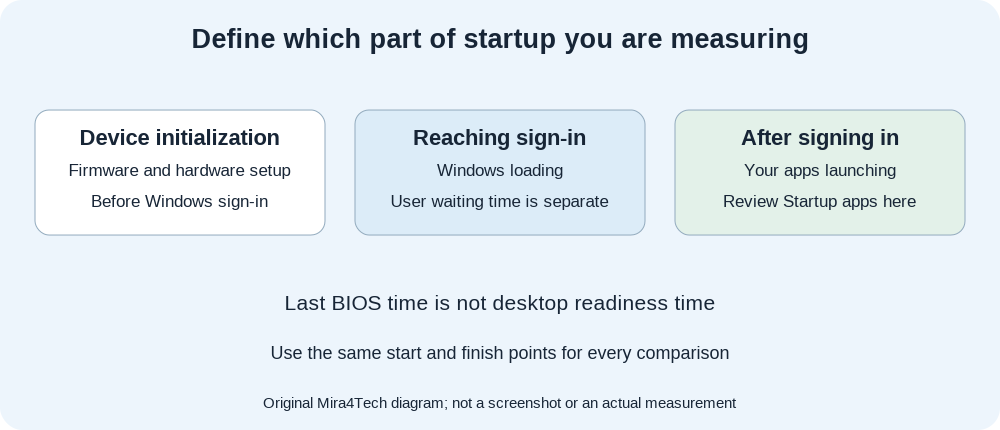
Separate device initialization before Windows, reaching the sign-in screen, and becoming ready for your task after signing in. If the long wait occurs at the manufacturer's logo before Windows appears, the Startup apps list alone does not explain that stage. A delay in responsiveness after sign-in makes reviewing these apps a more relevant next step.
Task Manager may display Last BIOS time on supported systems. Do not treat it as the time needed to prepare the desktop or open your first app; it concerns another stage. Seeing the desktop likewise does not establish that the particular task you need is already responsive.
2. Choose a small task with consistent start and finish points
Save your work and choose a local practice folder and an unimportant text file. One practical finish point is “the practice folder opens and I can type a sentence in Notepad without a noticeable wait.” Avoid using a website load as your only test, since network and server delays introduce another variable.
Choose a start point such as completing sign-in, and keep time spent entering your password or waiting voluntarily separate from the comparison. Use the same timing method and repeat the same actions in the same order. If you want to measure a different interval, describe it explicitly and keep its results separate from post-sign-in readiness.
Check whether Windows is completing a known update or you have deliberately started a file copy. Let that known work finish before comparing similar conditions. Keep the account, power arrangement, and local task consistent. Record the symptom as well as the duration; a shorter measured duration can hide a specific window that still stops responding.
3. Record a baseline before disabling apps
After saving your files, use Restart from the power options. Keep using that method instead of comparing it with a shutdown followed by switching the computer on manually. This lesson does not require changing Fast Startup or editing the registry. If Windows needs to complete an update, let it finish rather than forcing a power-off to shorten the test.
Perform your task after sign-in and record the approximate duration and responsiveness. For a clearer comparison, repeat three reasonably similar trials instead of relying on one. There is no need to restart a computer you require for work repeatedly without a useful question: begin with an observation, then decide whether the adjustment warrants more testing.
Keep a note of the original setting for the app you will choose. The goal is an understandable, reversible comparison, rather than the smallest number obtainable by any means. Small differences can occur between two trials without a configuration change, so we will look for an improvement that repeats in the same task.
4. Open Startup in Settings
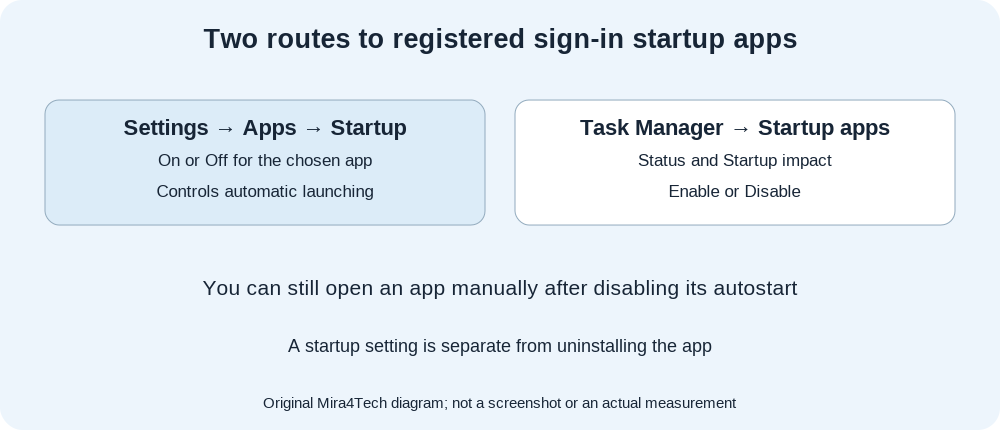
Open Settings, then Apps, then Startup. This list provides switches for registered startup apps. On permits an app to start automatically at sign-in; Off prevents that launch through this setting. Identify the app before changing its switch.
Read the list first. Look for an optional tool you recognize and can open manually when needed, rather than something required at the beginning of every session. A familiar publisher name can help identify a program, but it does not by itself establish that every item bearing that name is necessary or trustworthy.
5. Use Task Manager when you need more detail
Press Ctrl + Shift + Esc, then select Startup apps in the navigation. Task Manager presents the same registered startup list as Settings, with additional information useful for reviewing entries. Read Status for the current state and Startup impact to help prioritize your investigation.
An impact may be Low, Medium, or High, and measured information may be unavailable for some entries. This is the tool's startup-impact classification, rather than the number of seconds you will save by disabling an entry or a judgment of program quality. High does not automatically mean “disable this,” and an unmeasured impact does not establish zero effect.
Select the intended app and read the available action. Use Disable to prevent automatic startup or Enable to restore it. If a work computer restricts these controls, consult its administrator. Do not alter organizational policies or permissions simply to expose an unavailable setting.
6. Change one app whose role you understand
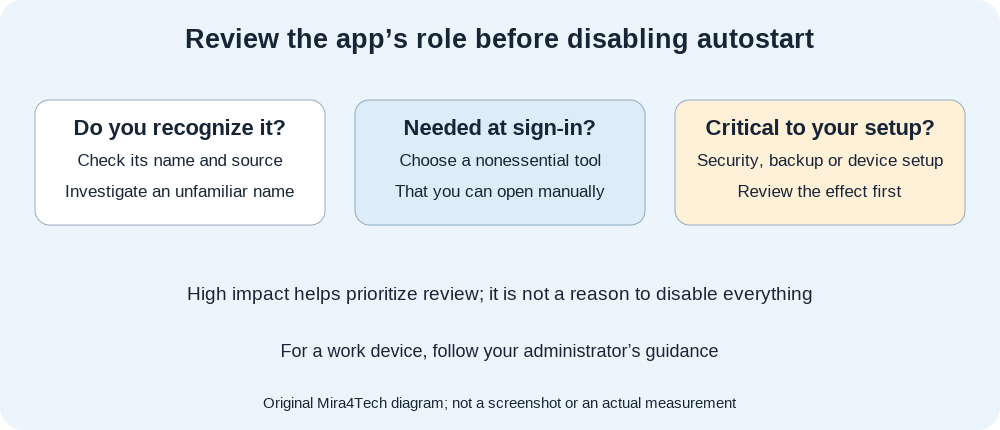
Before making the adjustment, ask what the app does, whether you need it immediately after signing in, and what function will stop launching automatically. Security, backup, synchronization, device preparation, and accessibility tools can perform important work without displaying a large window. Understand your dependence on those functions first.
Choose one nonessential item for this test, record its original state, and select Off or Disable using either route above. Check that the state changed for the intended app. Do not use both interfaces to change several apps at once: that would make it difficult to identify which adjustment helped or removed a needed function.
If you do not recognize an entry, identify it using the program's official documentation or installed-app information before testing it. Do not delete an executable from its installation folder. An unfamiliar name alone is not evidence that an app is malicious.
7. Restart and repeat the task under similar conditions
Save open files and use Restart as you did for the baseline. After signing in, perform the folder and Notepad task in the same order and record the duration and responsiveness. Also verify that the function you rely on remains available and that you can manually launch the app whose automatic startup you disabled.
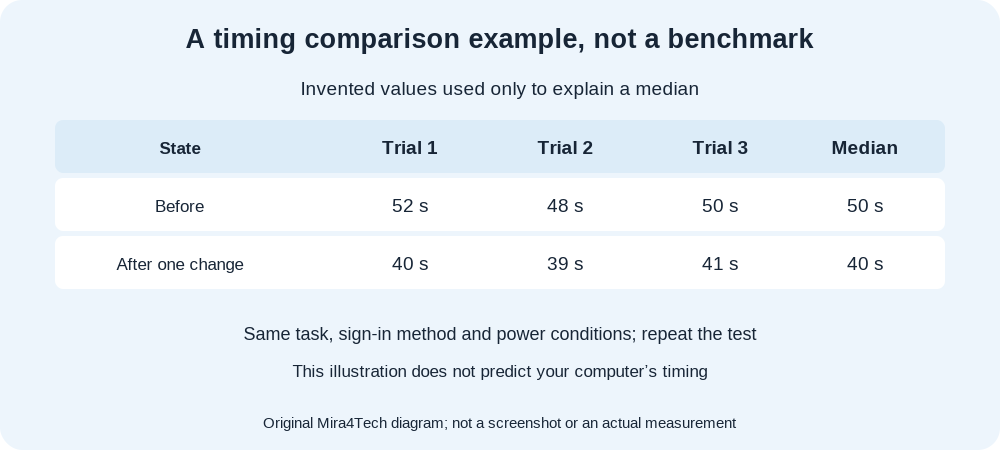
If you collect three trials, sort their durations and take the middle value, or median. Invented values of 52, 48, and 50 seconds become 48, 50, and 52, giving a median of 50. After one imaginary change, values of 40, 39, and 41 give a median of 40. These numbers explain the calculation; they are not Windows benchmark results or a promise to save ten seconds on your computer.
Retain individual trials alongside the median. A wide spread can reveal that conditions were not comparable in the first place. If an update or file copy occurs during a trial, note it rather than silently discarding it and announcing an improvement you cannot reproduce. Do not compare a different task against your original baseline.
8. Decide whether to keep or reverse the adjustment
If the task improves repeatedly and you retain the functions you need, you can keep the setting and record why. If there is no clear benefit, or you need the app immediately at sign-in, restore On in Settings or Enable in Task Manager, and check its behavior after the next sign-in.
A result that does not improve is still informative: the chosen app did not explain the symptom you tested under those conditions. Do not compensate by disabling the rest of the list at once. Return to observing CPU, Memory, and Disk during the slowdown, or use the broader troubleshooting guide to investigate further.
If an app is missing or starts again
Programs do not all launch through the same mechanism. An app may have its own sign-in launch preference, and startup shortcuts or other mechanisms may be involved. Restoring restartable apps after sign-in is also distinct from this registered startup list. An entry missing from the list does not establish that the program cannot open automatically.
Begin with the app's settings and official documentation. Check that you did not launch it manually or leave a deliberate task configured to restore it. Microsoft's reference covers additional methods and advanced configuration; this beginner experiment does not require registry, service, or scheduled-task changes. If the behavior remains unclear, retain the program name and your observations with the timing of the symptom.
Questions before considering the experiment successful
Does disabling automatic startup remove my files or subscription?
The setting changed here controls automatic launching. Consider background functions such as synchronization separately, and do not assume that stopping them proves an up-to-date copy exists elsewhere. Check your backup independently using the backup and restore guide.
Is one faster trial enough?
It does not distinguish an adjustment's effect from different conditions on its own. Relate the result to your actual task, repeat it sensibly, and keep a record of what changed. You may still need to diagnose a particular program even when the beginning of a session feels more comfortable.
When should I move to the next step?
When you can describe the delayed stage, explain what you changed and how to restore it, and show a clear before-and-after comparison. Continue from the Windows maintenance path, or revisit methodical Windows troubleshooting.
Sources and further reading
- Microsoft Support — Configure Startup applications in Windows.
- Microsoft Support — System configuration tools in Windows.
- Microsoft Learn — Startup apps.
- Microsoft Support — Sign-in options and restartable apps.
Core source navigation last reviewed: 22/10/2026. The comparison workflow and invented timing examples are Mira4Tech educational material, rather than measurements published by Microsoft.