Troubleshoot Windows Methodically: From Symptom to Cause
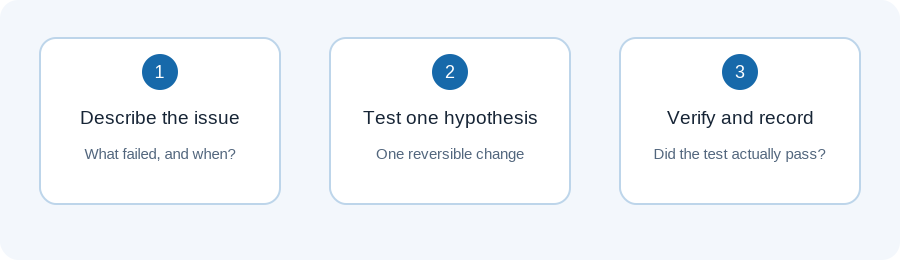
Instead of trying many fixes at once, use a method that protects data: describe the issue, identify the last change, run a simple test, then make one reversible change and verify it.
Use these steps only on a device or network you own or are authorized to inspect. Record original values, and stop before any action that could erase data or interrupt a service if its impact is unclear.
Key terms in plain language
- Symptom: what you observe, such as a blue screen or missing audio.
- Cause: a possible reason; one symptom can have several causes.
- Safe Mode: starts Windows with a limited set of drivers and services to help isolate issues.
- Recovery Environment: Windows repair tools used when normal startup fails.
- Event Viewer: records system and application events.
Prerequisites
- Capture the exact message or code and the time it occurred.
- Back up important files if possible and prepare your BitLocker recovery key.
- Record the last update, driver, device, or app you changed.
Write a testable description
State what fails, when it began, and whether it repeats. Separate an observation like “audio stopped after today's driver” from a guess like “the motherboard is dead.” Test another device or account when safe.
- Record the full error, model, and Windows version. Change only one variable per test.
You can reproduce the symptom or identify its conditions.
Common issue at this step
Do not reset the PC or delete partitions before backing up files and securing encryption keys.
Start with low-risk checks
Restart normally and inspect power, cables, and network. Disconnect one unnecessary peripheral and test. Check Task Manager and Device Manager for high load or warnings.
- Determine whether one app or the whole system is affected. Review Windows Update and Reliability Monitor when available. Record each result.
You know whether the issue is more likely an app, peripheral, or the system.
Common issue at this step
Do not disable security services or run unknown repair commands.
Use recovery tools if startup fails
If Windows will not start, use the official Windows Recovery Environment. Try Startup Repair, Safe Mode, or removing a recent update based on the symptom. Reset this PC may remove apps or files; read each option and back up first.
- Use the manufacturer's documented recovery shortcut or official installation media to reach repair tools. Enter your saved BitLocker key if prompted. Choose one action and record the result.
Windows starts again or you have the exact error code needed for further support.
Common issue at this step
Do not interrupt disk checks or updates. Do not use delete or format commands to fix an undiagnosed boot issue.
Collect logs and escalate safely
Open Event Viewer or Reliability Monitor and record the event name and time. Search the publisher's or manufacturer's support page for the exact code. Redact email, user names, and device names before sharing screenshots.
- Do not upload memory dump files publicly; they may contain sensitive data. Share the minimum information through official support.
You connected the issue to a time, driver, or app change.
Common issue at this step
If you notice drive failure, overheating, or a burning smell, shut down and stop testing; consult a technician.
Troubleshooting
Repeated blue screens
Record the stop code and timing, disconnect new hardware if possible, then check official updates and vendor diagnostics. If data matters, stop and seek help.
Automatic repair repeats on every boot
Do not choose Reset in a hurry. Connect power, record the code, try Startup Repair or uninstalling a recent update, and protect files before reinstalling.
Issue started after a driver update
Use Roll Back Driver in Device Manager if available or reinstall the previous official driver. Avoid unknown driver sites.
Security and privacy
- Keep a separate backup and BitLocker key before recovery work.
- Review logs and dump files before sharing; they can expose private data.
- Record changes and original values so you know how to roll back.
- You can reproduce the symptom or identify its conditions.
- You know whether the issue is more likely an app, peripheral, or the system.
- Windows starts again or you have the exact error code needed for further support.
- You connected the issue to a time, driver, or app change.
Official references
Worked example: sound stopped after a driver update
Write a reproducible baseline: “The built-in speakers stopped working after yesterday’s driver update, but a USB headset works.” This narrows the problem more than “audio is broken.” Save your work and record the audio device, driver version, and whether every application is affected. Avoid bulk driver deletion and unknown repair bundles.
- Open Sound settings and choose the intended output device. Check volume and mute, and disconnect an unintended Bluetooth output. Use a local audio file so networking cannot confuse the result.
- If the fault remains and coincides with a new driver, open the audio device’s Properties in Device Manager and inspect the Driver tab. Use Roll Back Driver where available and appropriate, or follow the official computer-model support instructions. The rollback option depends on a previous driver being available.
- Restart and test the same file on the same output. If it works, record that result and watch for an official correction. If it fails, return to the baseline rather than accumulating changes with unknown effects.
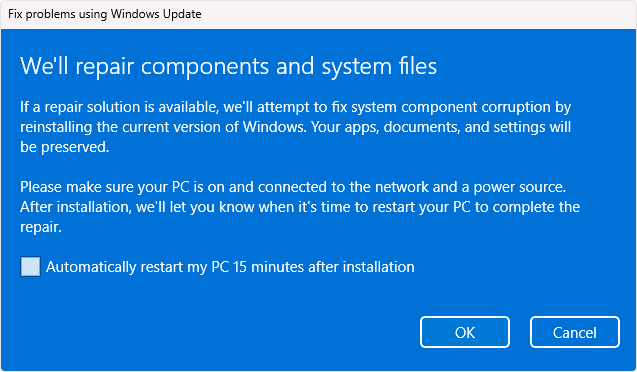
Reinstalling the current Windows version through Windows Update repairs system components and differs from Reset this PC. Check its documented prerequisites, back up files, and maintain power and connectivity before using it. A major repair is unnecessary for a wrongly selected output: more disruptive does not mean more suitable.