Try it yourself

Linux practice: paths, files and searching step by step

Assume Bash with GNU tools on Ubuntu, Debian, Fedora or CentOS Stream.

Updated: 06/11/2026

Assume Bash with GNU tools on Ubuntu, Debian, Fedora or CentOS Stream. All paths are training directories. Read the current location and task before choosing a command. Searching filenames differs from searching file contents.
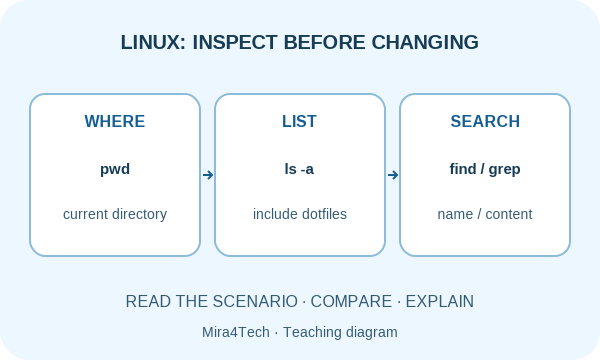
Teaching illustration for the practice module

How to work through a scenario

Read the goal and assumed environment, then separate known facts from untested assumptions. Compare choices with the task and distinguish inspection from modification. Choose an answer and review every explanation. If the outcome surprises you, return to the related guide and identify what changed your understanding.

Example scope and learning use

These bounded scenarios train understanding. Real environments can add different versions, policies or permissions. Output is authored example text and the page does not inspect your device. For real work, consult official documentation and your environment and use non-sensitive samples.

Sources and review

Prepared and edited by the Mira4Tech team. The teaching sequence uses format behaviour and app documentation. Menu names may differ by release and language; test a separate copy in your environment.

Interactive practice

Read the scenario conditions before answering. Review every choice after checking and retry if needed. The score covers these examples only.

Walk through the first scenario

Step through at your own pace, or play the walkthrough to follow each stage.

Identify environment and goal

/home/learner

Read the task precisely

/home/learner

Compare the action with the information needed

read → compare → explain

1. Which command shows the current directory?

You opened a terminal and want the current path before copying a file.

/home/learner

Explanation of every choice
  1. pwd — Correct choice. It prints the working directory, giving context before changes.
  2. cd — Without an argument, it commonly changes to the home directory.
  3. ls — It lists directory contents rather than explicitly printing the full current path.
  4. mkdir — It creates a directory when given a name, which changes the filesystem.
2. Where does cd .. take you here?

You are in /home/learner/lab/project and these are ordinary directories without symlinks.

cd ..

Explanation of every choice
  1. / — This command does not jump directly to the root from here.
  2. /home/learner — That is two levels up, while this command moves one.
  3. The same directory — One dot refers to the current directory; two refer to its parent.
  4. /home/learner/lab — Correct choice. The two dots refer to the parent directory in this context.
3. How do you include names beginning with a dot?

The training directory contains .notes, absent from the ordinary ls output.

ls

Explanation of every choice
  1. mkdir .notes — It attempts to create a directory rather than display the listing.
  2. cd .notes — It tries to change directories rather than include hidden names in a listing.
  3. ls -a — Correct choice. The -a option includes names beginning with a dot.
  4. pwd -a — pwd is not the directory-listing tool.
4. Find a file named report.txt below lab. Which command fits?

GNU find is available and the search should stay in the training directory.

lab/reports/report.txt

Explanation of every choice
  1. pwd report.txt — pwd reports the working directory rather than searching this filename.
  2. find lab -type f -name report.txt — Correct choice. It starts at lab and matches the name of a regular file.
  3. grep report.txt lab — grep searches input text rather than performing this filename search.
  4. cd report.txt — cd changes directories rather than searching for a file.
5. How do you search for ERROR ignoring letter case?

You have a text file training.log and want matching lines with line numbers.

1: INFO ready
2: error sample

Explanation of every choice
  1. grep -in ERROR training.log — Correct choice. -i ignores case and -n prints line numbers.
  2. find training.log -name ERROR — That tests a name in find rather than searching lines.
  3. ls -i ERROR — It concerns listings and inode numbers, not the required text search.
  4. grep -v ERROR training.log — -v inverts matching and does not provide case-insensitivity or line numbers.