Firefox 160 Mini Window: keep a guide above your apps
Use Firefox 160 Mini Window to float an entire tab or part of a page. Follow an illustrated ShareX example and learn how to move the tab back.
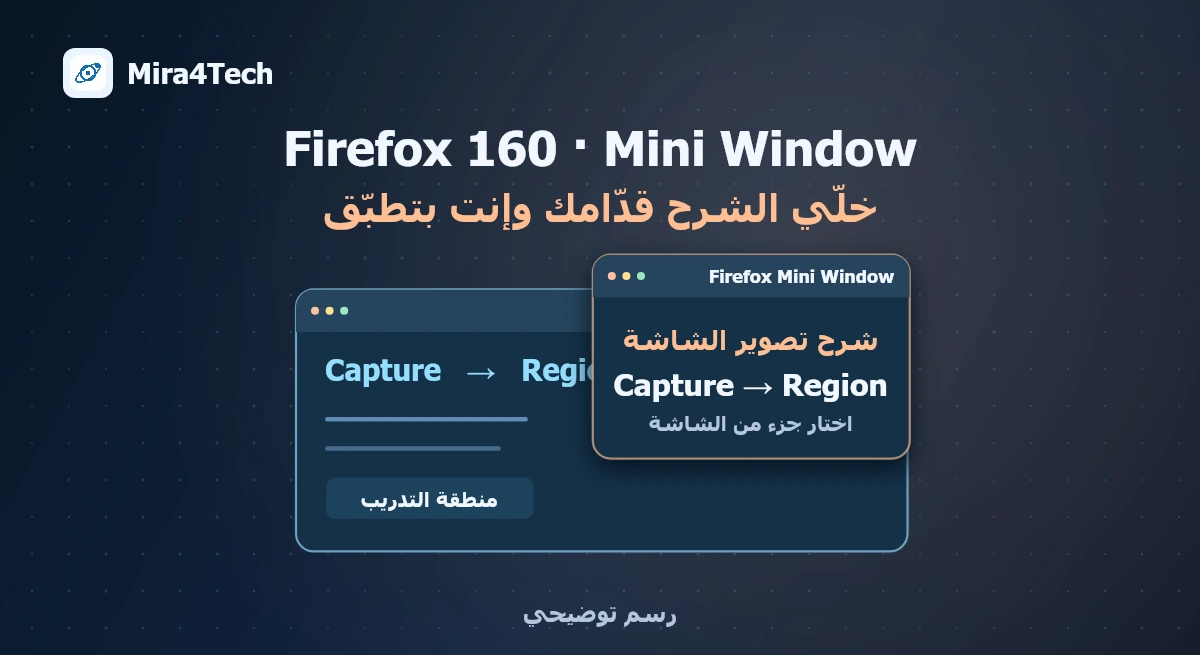
Switching between a browser guide and the app you’re learning can make it easy to lose your place. Mozilla introduced Mini Window with the desktop release of Firefox 160 on November 10, 2026. It moves an entire tab or a selected area of a page into a compact window that stays above other windows. This walkthrough follows Mozilla’s instructions and uses a ShareX tutorial as an example. The images illustrate the steps.
Before you move the tab
In desktop Firefox, open Help → About Firefox and check your version. These instructions cover Firefox 160 for desktop. If Firefox offers an update, let it finish and restart when prompted. Open the Mira4Tech ShareX guide and scroll to the section about capturing part of the screen.
Option 1: Keep the whole tab visible
- Right-click the guide’s tab in the tab bar.
- Choose Move Tab, then Move to Mini Window.
- Drag the compact window to a corner where it won’t cover the other app’s controls. Scroll inside the window as you work through the guide.
- When you finish, use the button in the Mini Window toolbar to return the tab to its original window. The close control closes the tab.
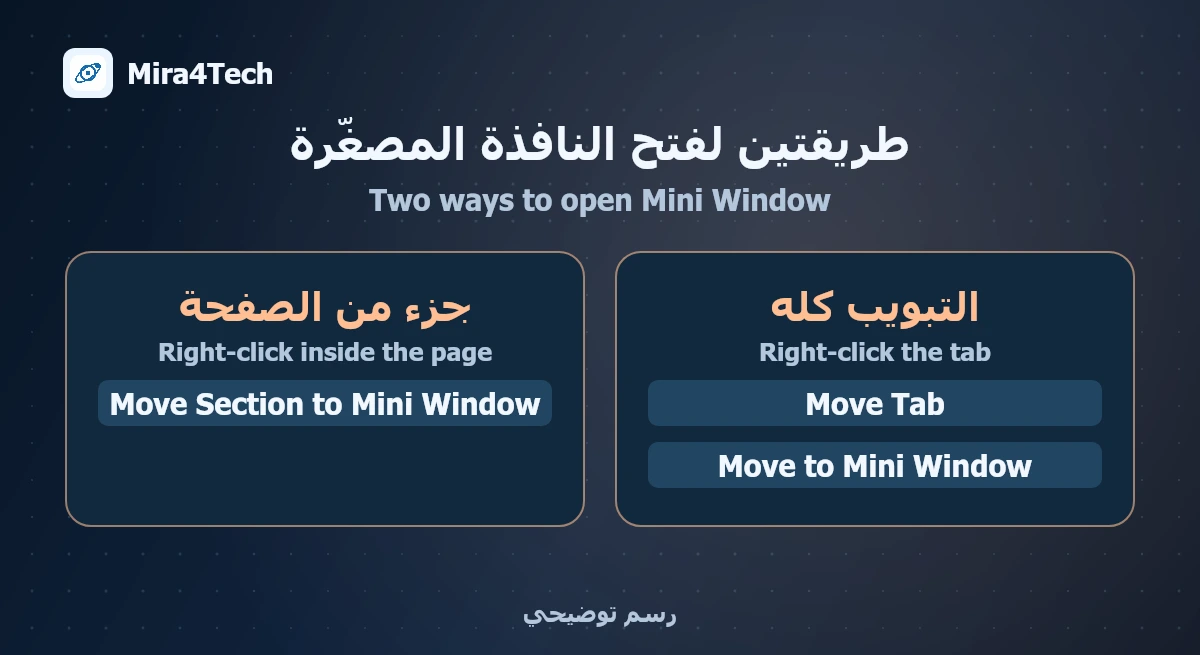
Use the whole tab when you need several steps. Mozilla explains that it moves the same tab into the floating window. Use the return button to move it back.
Option 2: Show a single step from the page
- Right-click regular page content away from links and images, then choose Move Section to Mini Window.
- Select a region that includes the step heading and the instructions you need. Follow the confirmation shown in Firefox.
- If the selection is too narrow to read, choose a larger region or move the entire tab and scroll to the relevant step.
For quick access, right-click the browser toolbar, choose Customize Toolbar, and drag the Mini Window icon onto the toolbar.
Example: Follow the ShareX guide while you work
- Keep the capture instructions visible and open a practice window with harmless text, such as a blank Notepad document with sample text.
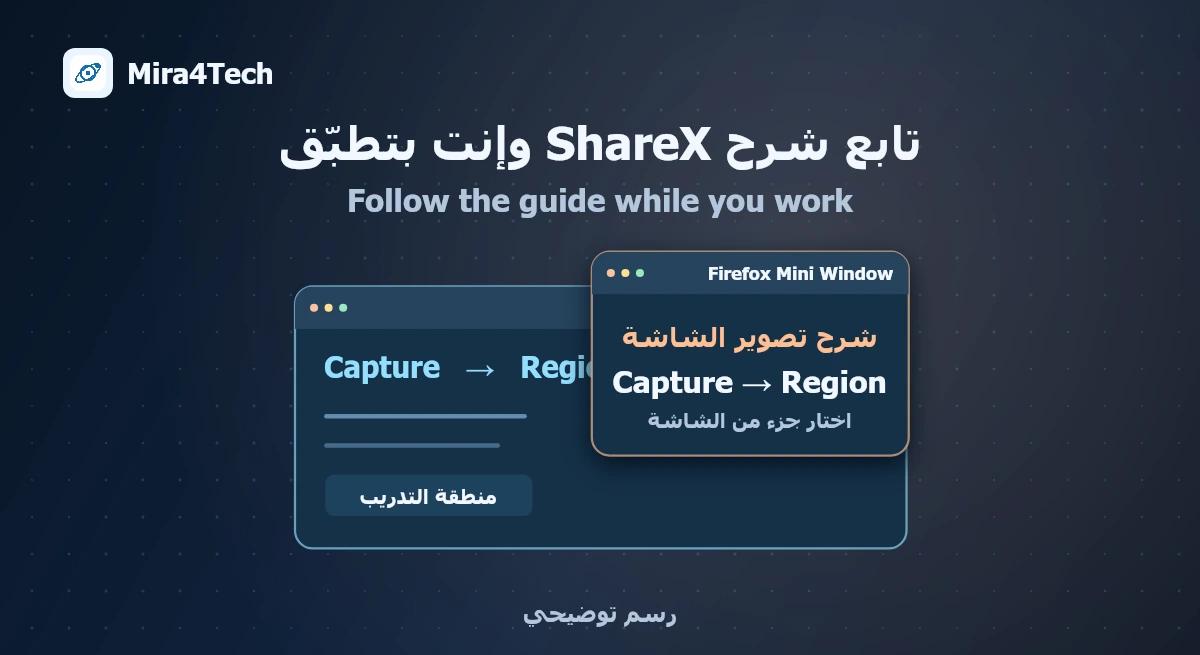
- Open ShareX and check the guide’s Capture → Region step against its menu. Decide what you want in the screenshot before starting the capture.
- Move the floating guide clear of the area you’re about to capture. After saving, open the file and check that it shows the intended practice area.
If the option is missing or the selection behaves differently
Check that you’re using the desktop browser and the expected version. Try both the tab menu and the page’s context menu. Mozilla calls this an early version. An open Bugzilla report describes a case where selecting a region still shows more of the page than expected. If that happens, move the full tab and scroll to the step you need.
Mini Window versus Picture-in-Picture
Use Mini Window to keep a page or part of it visible. Picture-in-Picture gives you a separate floating video player. To keep two tabs side by side within a single browser window, see Mozilla’s Split View guide.