Summarise a PDF and make study questions with Gemini Notebook
Prepare a source, create a summary and questions, and inspect citations. An original copied-text trial with PDF-upload and OCR limits explained.
A long PDF can be easier to study when you have a reliable outline and questions to answer. Start by checking whether its text is readable, select the right source, and ask for an output you can inspect. We use Gemini Notebook, formerly NotebookLM, with original Mira4Tech practice material, and distinguish our actual copied-text experiment from the documented PDF upload workflow.
The intended result is a four-point summary, a correct activity table and questions whose answers can be checked against the reference. A study aid helps you navigate the material; it does not replace reading the parts you need.

1. Prepare the file and check its text
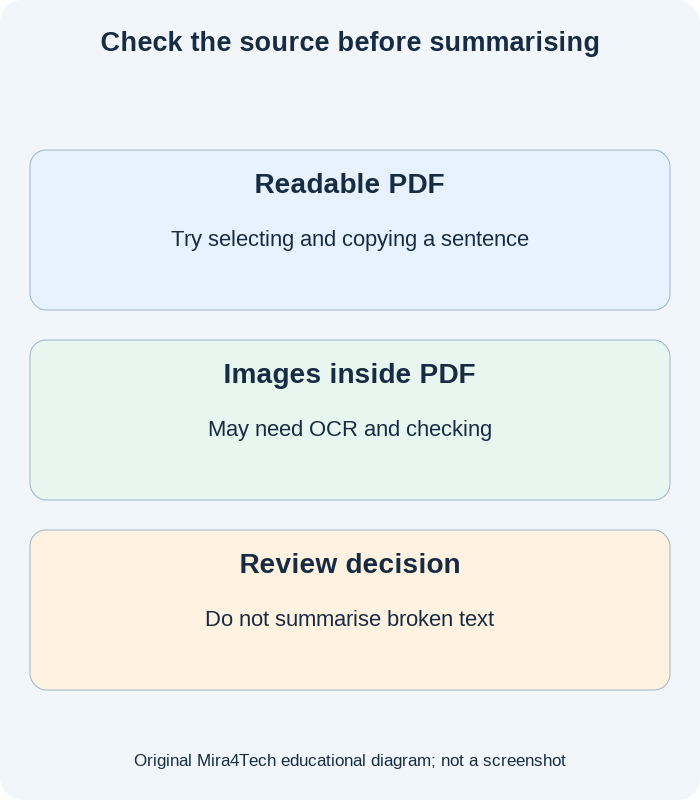
Open the PDF locally, select a sentence and paste it into a text editor. Readable words are a useful starting point. If every page is an image or the copied text is broken, you may need optical character recognition, or OCR. Even after OCR, inspect figures and tables before sending text for summarisation.
For practice, download our original two-page training PDF. It is an English fictional brief, not an announcement of a real event. It contains no personal records and is not an Arabic scanned-document test. Keep the original and use a separate copy for changes.
2. Choose material you are allowed to use
Begin with your own writing or permitted public material. Do not upload confidential work, student records or identity documents merely because an upload button is available. Review the service's policies, account type and sharing settings. Downloading a summary does not require making your notebook public.
Our experiment used a desktop browser and an existing Google account on 27 October 2026, without a new subscription or API key. Availability and usage limits can vary with the account, age, region and product updates. Seeing a feature in our account does not establish identical access for every reader.
3. Create a notebook and add the source
- Open the official Gemini Notebook website and create a notebook with a descriptive name.
- Choose Add sources. For a PDF, use file upload, select your permitted copy and wait for processing to finish.
- Open the source and compare its title and opening and closing passages with the original. Check that you selected the right material.
- For an excerpt, use Copied text and paste the text with its title and scope. Do not present one excerpt as the complete file.
- Select the source you want the answer to use. With several sources present, exclude unrelated material so the evidence boundary remains clear.
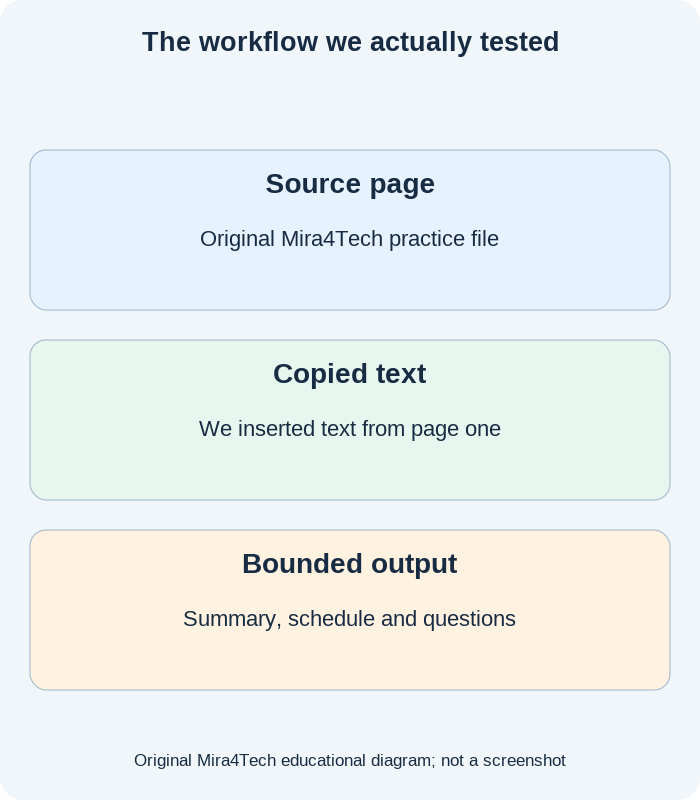
What we actually tested: direct PDF upload through our browser-control tool was blocked by the extension's local-file permission. We left that permission unchanged and inserted text from page one through Copied text. It appeared as a selected note among the notebook's sources, and the following summary test succeeded on that text. This does not validate PDF parsing or OCR. Upload steps are documented by Google; our observed trial concerns the copied excerpt.
4. Check what the source says before summarising
What does the selected source cover, and which parts can you read?
Identify its audience, duration, activities and unspecified details.
Use only this source and add no outside facts.
Our fictional session is for computer beginners, on Saturday, lasting thirty minutes. Three activities take ten minutes each. The trainer, venue, fee and exact Saturday date are unspecified. If the answer supplies a price or full calendar date at this stage, return to the source before generating questions from incorrect details.
5. Request a bounded summary and table
Using only the selected source, write in Arabic:
a four-point summary and an activity table with minutes and total.
State that this is fictional training material, not a real event.
Do not invent a trainer, venue, fee or exact Saturday date.
Attach available source citations to factual statements.
The actual response retained the fictional context and the instruction to keep an original, create a working copy and compare the saved result. Its table contained exploring Windows 11, organising files and reviewing how to copy a practice file. Each took ten minutes and the total was thirty. We checked the figures and meaning against the text rather than accepting the table because it looked well formatted.
Ask the tool to retain important conditions. “Create a separate copy before editing” should not become simply “edit the file”. For a multi-chapter document, start with one chapter and expand after reviewing it. This makes it easier to find where a condition or definition was lost.
6. Include a question the source cannot answer
Create three review questions and answers from the source.
Separate questions from solutions so I can try first.
Add a fourth question: What is the session fee?
If the answer is absent, write “not stated”.
Include supporting citations where available.
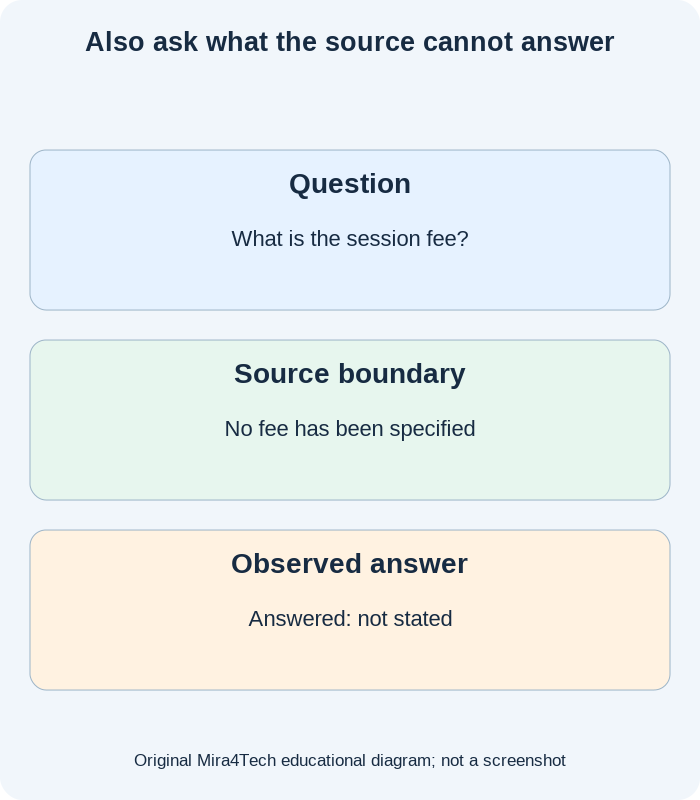
Our response asked about the learning goal, the exercise's scope, and the audience and duration. For the fee, it answered “not stated”. This tests whether the tool respects the reference boundary instead of answering every question at any cost. Remove questions that depend on outside facts, or explicitly change the task's scope.
7. Open a citation and inspect its support
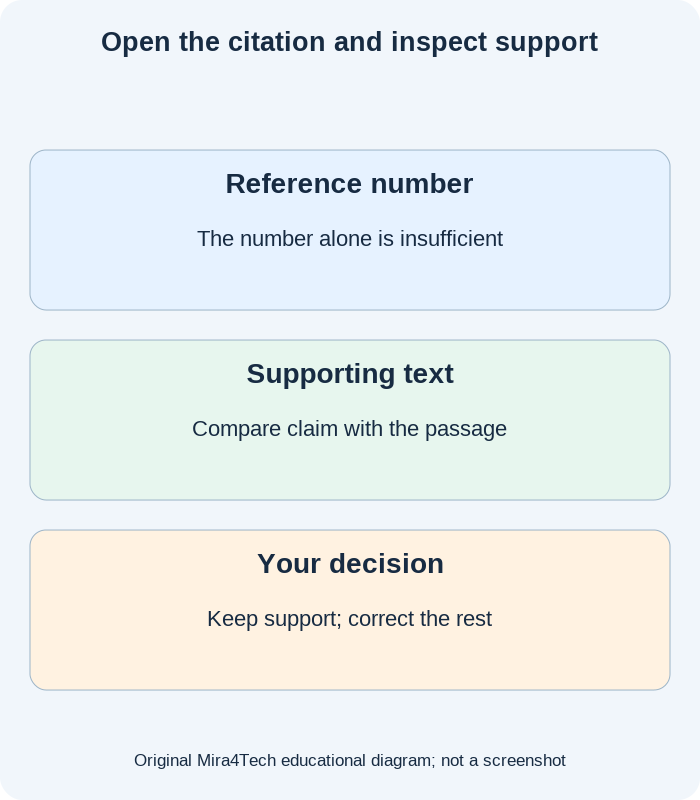
We clicked a reference number in the answer. A Citation Details panel displayed our inserted source text, including the statements that the material was fictional and that the fee was unspecified. This checked the evidence behind the claim. The number's presence alone would not have established support.
Our source was copied text from one page, so this was not a test of jumping to a PDF page or line number. For your own upload, check whether the citation leads to the relevant passage. If the reference supports only part of a sentence, split the sentence or correct its unsupported part.
8. Turn the reviewed output into a study aid
Save the checked version locally with a filename that distinguishes it from the original. Include the source title, excerpt scope and review date. Answer the questions without looking at the solutions, then return to the source for anything you missed. Check what the summary omitted, especially definitions, exceptions and tables.
If you need slides, follow the companion file-to-presentation guide after checking the summary. Slides should not hide gaps in the evidence. Generated questions are practice material, not official examination questions or guaranteed predictions.
Common problems and useful checks
- The source does not appear: allow processing to finish and check that the file opens and that you have access. Do not spread private copies across random services while troubleshooting.
- Arabic text is broken: inspect copying from the PDF itself. Fix reading or OCR first and check a small sample before summarising everything.
- The answer uses another source: inspect selected sources and request the source title and supporting passage.
- No citations appear: ask where the statement occurs and compare manually if necessary. Missing references do not prove an error, but the answer is not automatically verified.
- A usage limit appears: stop and read the displayed limit. A small text exercise does not inherently require buying a plan.
Common questions
Must the PDF be in Arabic?
No. Our source was English and the requested output Arabic. Check translated technical terms. Cross-language summarisation does not establish that Arabic text inside scanned images was read correctly.
Can it replace reading the book?
Use it to make a map and practice questions, then read the relevant sections. Summaries can omit important details and generated explanations can go beyond the reference.
Sources and experiment limits
The practice material and diagrams are original Mira4Tech work. The 27 October 2026 trial used copied text from page one; we did not test OCR, protected files or every account type. References: Google's source types and upload guidance and Google's update explaining notes alongside sources. If the interface differs, follow the controls available in your account while retaining the same evidence checks.