Create an AI presentation from a file: Gemini Notebook with reviewed results
Outline four slides, set source and language, then inspect the downloaded PDF. An actual trial shows useful results and a layout defect requiring correction.
Making slides from a file starts with the audience and message, before colours and layouts. Extract the facts, arrange them into a small outline, then generate a draft. We used Gemini Notebook to create an Arabic deck from original Mira4Tech training material and inspected the downloaded output, including a visual problem that still needed human correction.
The goal was four readable, verifiable slides without turning an incomplete source into a detailed event announcement. The trial ran on 27 October 2026 using an existing account, without buying a plan or making the notebook public.

1. Understand the source
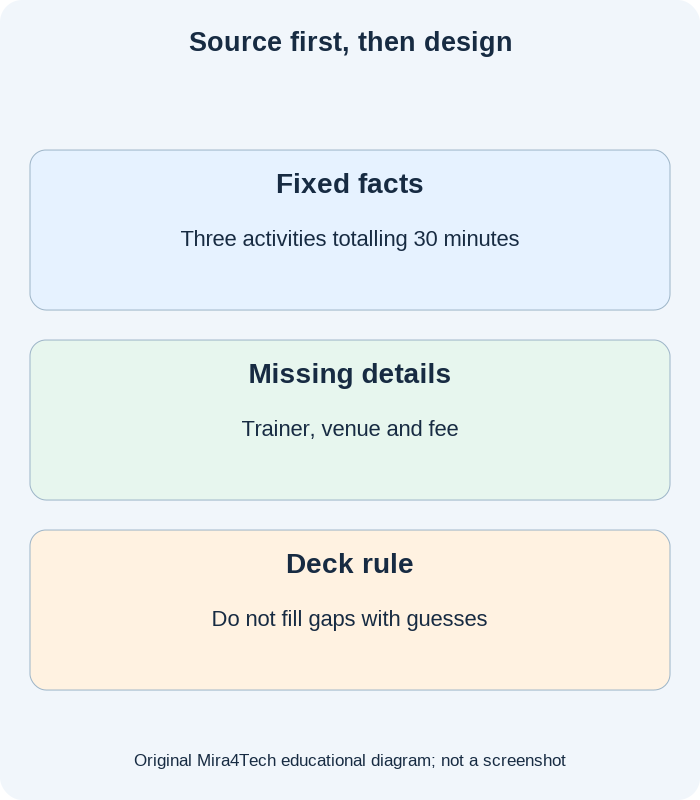
Our original two-page training file describes a fictional thirty-minute Saturday session for beginners, split into three equal activities. Its goal is understanding steps, preserving the original, making a working copy and comparing the saved result. It supplies no trainer, venue, fee or exact Saturday date.
We inserted copied text from page one because direct PDF upload through our browser-control tool was blocked by local-file permissions. We left that permission unchanged. This deck therefore used a known text excerpt; it was not a test of directly parsing the complete PDF. The companion summary and study-questions guide explains the source preparation.
2. Build a four-slide outline
- Audience and purpose: beginners using fictional practice material, rather than an actual event announcement.
- Schedule: ten minutes exploring Windows 11, ten organising files and ten reviewing a practice-file copy; thirty minutes total.
- File workflow: preserve the original, create a clearly named working copy, then open and compare it.
- Unknown details: trainer, venue, fee and the exact Saturday date.
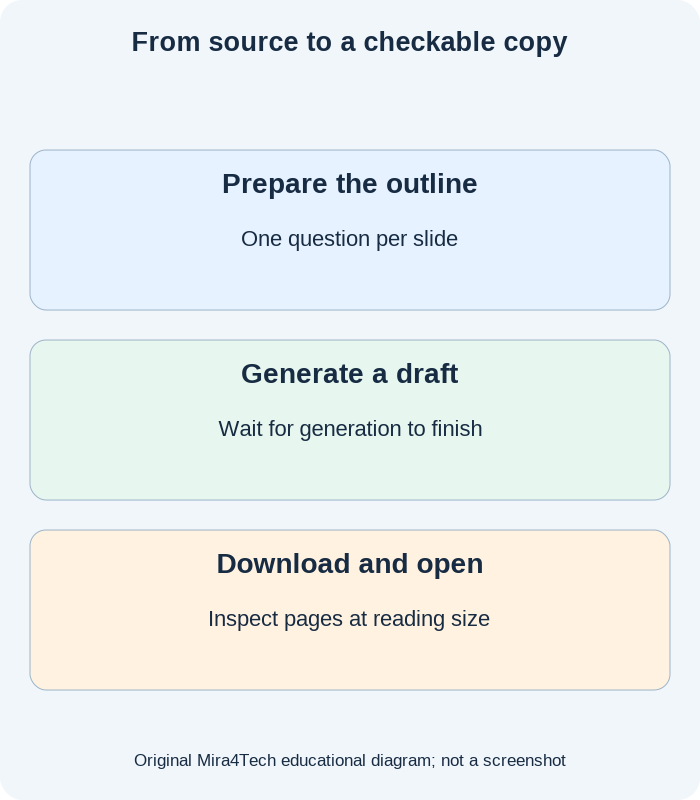
Give each slide one question to answer. Putting the entire source on the opening slide and using the rest for decoration does not create a useful sequence. Save this outline locally first: it remains a review reference if you switch tools or layouts.
3. Open Slide Deck and choose settings
- Check that the intended source is selected. Our notebook used one source.
- Choose Slide Deck in Studio. Our account displayed Customize Slide Deck.
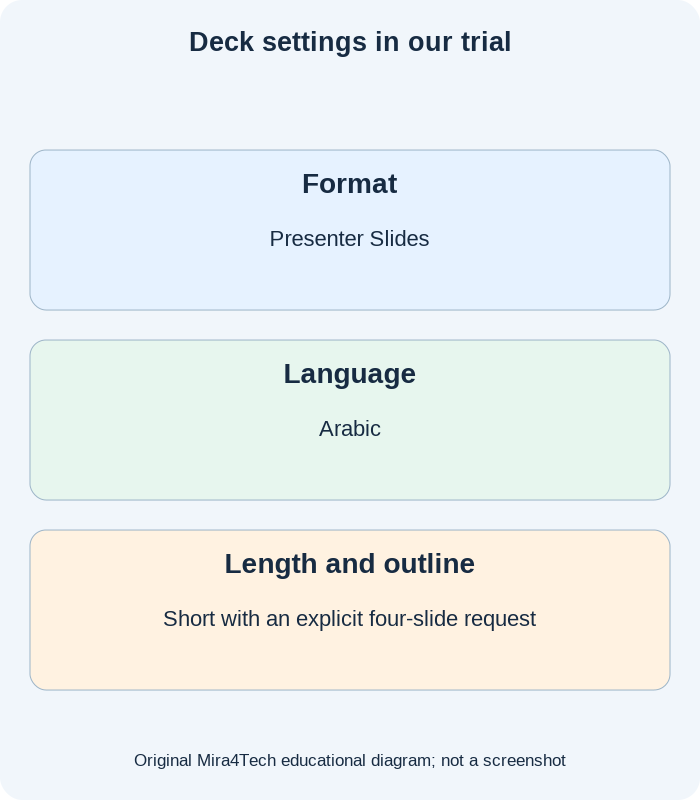
- Select Presenter Slides for short talking points. Detailed Deck is intended for fuller text that readers can follow independently.
- Set Choose language to Arabic. Our account also offered Egyptian colloquial Arabic; we selected general Arabic.
- Select a length. We chose Short and explicitly requested four slides; a short setting alone is not an exact slide-count guarantee.
- Read the usage meter and limits before generating. Features can differ by account, age and rollout. Do not buy a plan merely because a guide shows a control absent from your account.
4. Write a request with checkable requirements
Create exactly four Arabic slides for beginners:
1. Fictional practice, not a real event: audience and goal.
2. Three activities: 10 + 10 + 10 = 30 minutes.
3. Preserve the original, make a working copy, then open and compare it.
4. Unspecified details: trainer, venue, fee and exact Saturday date.
Use only the selected source. Add no registration, fees or other logos.
Use right-to-left reading order and large, concise text.
Separate mandatory content from style preferences. Figures, names and evidence boundaries must stay correct; colour and placement can change. For professional or academic slides, supply references you can inspect. Do not ask the model to invent a bibliography to fill the final slide.
5. Generate and open the output
We selected Generate now and waited for completion. The Studio card was titled Windows 11 Training Simulation. Opening it showed four slides, matching our request. The suggested English title did not mean that the slide content was English. Inspect the content, then rename the artifact if you need an Arabic title.
Work on your notes while generation runs rather than clicking repeatedly and creating duplicate versions. If a limit or failure appears, read the message before trying again. Our trial does not establish a fixed waiting time for other accounts or documents.
6. What the actual deck got right
The first slide described fictional beginner training and understanding before editing a real file. The second showed ten plus ten plus ten equalling thirty, with activity labels. The third arranged the original, working-copy and comparison workflow. The fourth retained unspecified details rather than inventing a price or location.
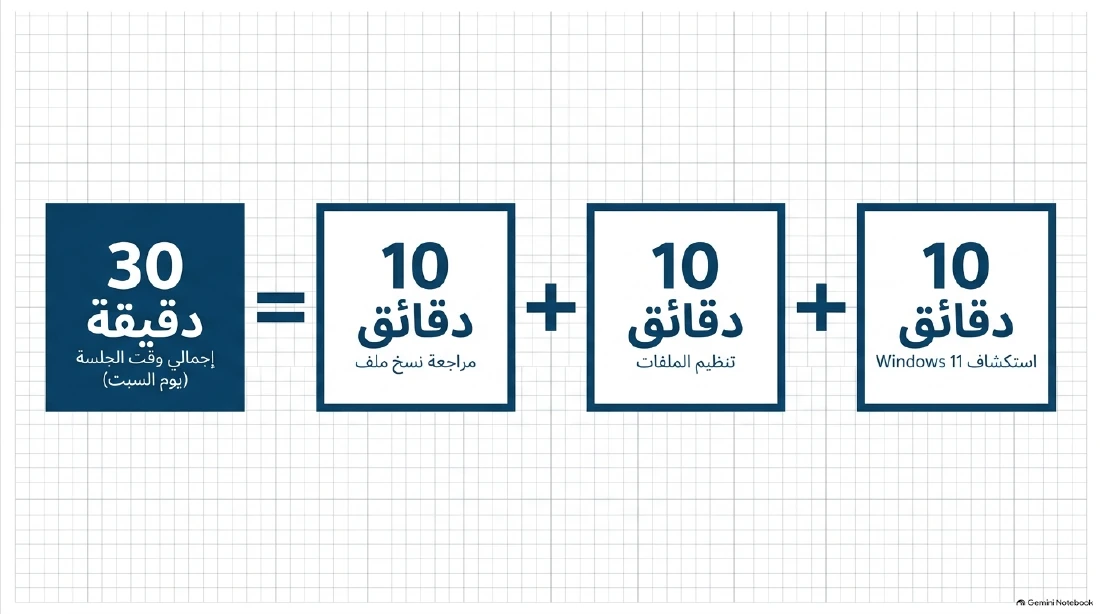
We inspected the downloaded PDF, rather than only its thumbnail. Arabic text was readable across the four slides and the workflow order was clear. That is an observation about one short source, not a guarantee for every Arabic presentation or long document.
7. What still needed human correction
The last slide placed a large “unspecified” stamp over its fields. The meaning was appropriate, but the stamp obscured parts of the field labels. Checking only the slide count or file extension would not have revealed this layout problem.
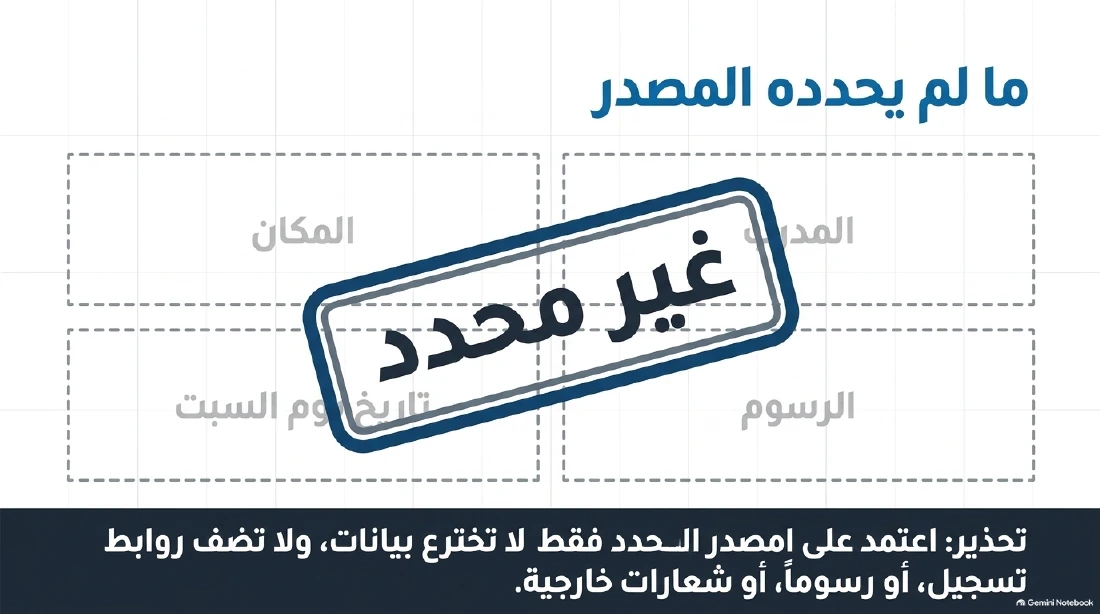
A suitable correction is removing the stamp and placing “unspecified” clearly inside or beneath each field. Use an available revision tool, or edit a copy in a presentation editor if its elements are editable. Recheck the source after regeneration: fixing appearance does not establish factual accuracy. We did not regenerate this deck and do not claim the defect was automatically corrected.
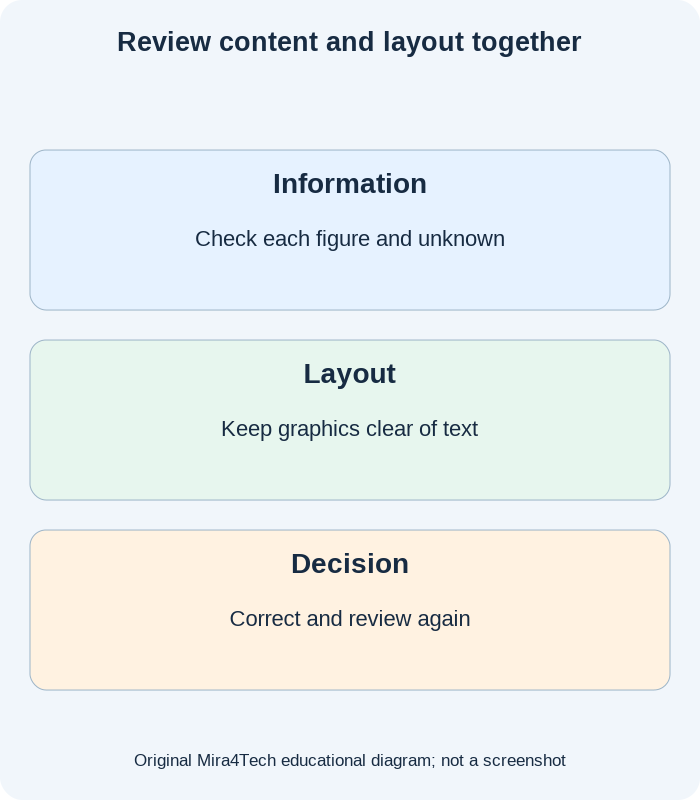
8. Download the right format and inspect it
Our More options menu offered Download PDF Document (.pdf) and Download PowerPoint (.pptx). We downloaded and inspected the four-page PDF. We did not test the PowerPoint file, so we cannot promise that every text or graphic is separately editable. The extension alone does not prove editability.
PDF suits a reviewed fixed-layout copy. If editing matters, open the presentation format in your chosen editor and check text, fonts, objects and page size. Preserve source and output separately. Review the version you will send on a small screen and at the size the audience will actually use.
Before sharing
- Slide count and order match the outline.
- Figures, totals and names match the reference; missing facts remain clearly marked.
- Arabic reading order and fonts are intact, with no words hidden by graphics.
- Text is readable without excessive zoom and contrast is sufficient.
- Images do not imply a real event or endorsement that never occurred.
- The downloaded file opens and notebook permissions do not expose private source material.
Common questions
Must I make the notebook public?
Not to download your file. Sharing a notebook link is a separate action that may expose sources and other content depending on permissions. Share only what your purpose requires.
What if Slide Deck is unavailable?
Check account eligibility, age requirements and current official feature guidance. You can still use the outline to build slides manually. Uploading your document to an unknown service is not a necessary workaround.
Sources and review method
The source and outline are Mira4Tech work; the illustrated slides are actual Gemini Notebook-generated output, labelled accordingly. We visually reviewed the four PDF pages on 27 October 2026 and retained the overlap finding. References: Google's slide generation, download and revision guidance and October 2026 Google Workspace updates. We did not test PowerPoint editability, all revision tools or all account types.