IDM Guide: Official Installation and Download Management
Install the official Internet Download Manager, connect its browser extension, and manage a first download with clear checks for folders, resuming, queues, and licensing.

What a download manager does
Internet Download Manager, or IDM, is a Windows application for organizing file downloads, monitoring progress and managing categories and queues. Its official browser extension passes download information to the application. The extension and the installed app are different components; having just one does not establish working integration.
Multiple connections and resuming may help in some situations, but the internet connection, remote server and website policies still set limits. No fixed speed increase applies to every file. Resume continues a partial transfer when the server supports it and the link remains valid. A page with a download button is not always a direct file URL, and some links expire or require your signed-in session.
Check the source, space, and trial
Start at the official IDM download page and check the internetdownloadmanager.com domain. The publisher states a 30-day trial; continued use requires valid registration. Review the current purchase options and terms instead of relying on an old price or update entitlement.
Save your work and choose a download drive with space for the final file and temporary data. Use a small file from a trusted publisher for this exercise, such as a document you are permitted to download. Follow your organization’s policy on a managed computer. The official trial needs no activation patch or modification tool.
Install the application
- Save the installer from the official page and locate it in Downloads. Review Properties and Digital Signatures when available and check that the source and publisher match the intended download.
- Run the installer, read the license and destination folder, and follow its instructions. Close and reopen the browser if requested.
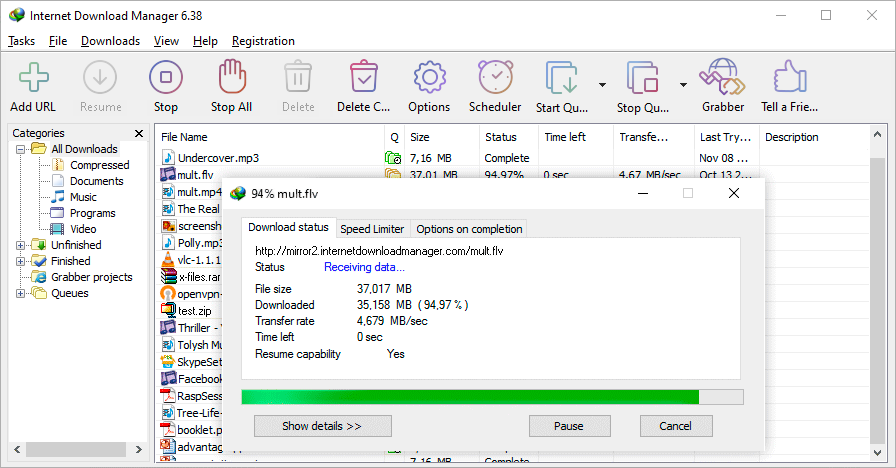
- Open IDM from Start. The main list contains download tasks, categories organize file types, and toolbar controls add, stop or resume transfers.
- Use Help, About to identify the installed release. Update through the application’s official update function or publisher’s site. Investigate a security or organizational block before proceeding.
Connect Chrome, Edge, or Firefox
Follow your browser’s link from official IDM support to install IDM Integration Module through the supported browser store. Review the name, publisher and permissions, then confirm that it is enabled in the browser’s extension settings. Similar names are not proof that an extension belongs to IDM; start at the publisher’s site.
In IDM, open Options, General and check integration for the browser you use. Restart the browser after changing it and try a normal download link. Consult the official instructions if the browser is missing from the list. Browsing as administrator is unnecessary and can interfere with integration. Permit access in private browsing only when needed and after considering the access it grants.
Download and verify a first file
- Visit the trusted file owner’s page and select its download link. In Download File Info, review the URL, filename, category and Save As folder.
- Choose Start Download, or Download Later to queue it. If you expected a PDF but receive an EXE, investigate the source instead of trusting the filename because IDM handled it.
- Monitor progress and errors. On a disposable test download, try Pause and Resume to see whether that server supports continuation. Do not interrupt an important transfer just to experiment.
- After completion, open the containing folder and scan the file with system protection. Compare its size or a trusted published checksum when available.
- Open an expected document to confirm the result. Completed indicates that the transfer task finished as the app recorded it; it does not certify safety or permission to use the content.
If integration misses a known direct link, use Add URL with a URL you are authorized to access. Avoid giving private links or account credentials to unknown helper services.
Choose folders, queues, and speed limits
Review category folders under Options, Save To so files end up where you expect them. Depending on the selected option, changing a destination can affect later tasks in that category. Try it with a small file. Keep temporary data on a suitable drive and avoid deleting it while downloads are incomplete.
A queue can transfer a group in sequence or with a chosen number of simultaneous tasks. Open Scheduler, select the queue, time and concurrency, and review the completion action. Start with a simple configuration. Leave shutdown and additional command actions disabled unless you specifically need them. The computer must be running and connected at the scheduled time.
Use Speed Limiter or pause some transfers if downloads disrupt a call. Raising connection counts does not solve every slow transfer: some servers restrict them. Compare speed under similar network load and remember that an internet plan’s Mbps and a file transfer’s MB/s are different units.
Troubleshoot one cause at a time
- Browser integration fails: update the app and extension through official sources, check both are enabled, review General integration and restart the browser. Check File Types for excluded extensions.
- Expired link or resume rejected: return to the source with your authorized account and follow IDM’s link-refresh instructions. Some files must be downloaded again; continuation is not guaranteed.
- Cannot save: check space on the final and temporary drives, write permissions and any disconnected external storage.
- Unwanted download capture: use website exceptions or file type preferences instead of repeatedly reinstalling the extension.
- No video panel: the site may use an unsupported method or protected content. Consult support and the site’s own download options. IDM does not grant permission to bypass content protection.
Register and keep downloads trustworthy
Purchase through the publisher or its approved sales route, keep the receipt and registration details secure, and follow Registration instructions. Check the registration status in the app. Trial resets, key generators and unknown activation files do not provide a publisher-issued license.
A crack may modify the app or request that you disable protection; a familiar filename cannot establish safety. If you already ran an unknown file, remove it and scan the device with trusted protection. If compromise is indicated, change sensitive credentials from a clean device. Store site passwords in the app only when necessary on a trusted computer, and respect permission to download and redistribute the content.