WinGet for beginners: find, inspect and install a package
Understand search, show and install, review package identity, sources and agreements, and test the installed application.
Understand search, show and install, review package identity, sources and agreements, and test the installed application.

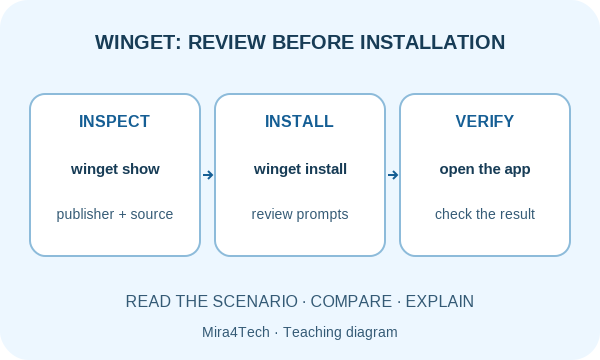
Begin with the tool on your device
WinGet is the Windows Package Manager client. Open a normal terminal and inspect winget --version. If unavailable, review App Installer availability and Microsoft documentation rather than downloading an unknown script. This guide covers chosen applications on a device you are authorised to manage. Work accounts may have policies limiting these steps.
Search identifies candidates
For example, begin with winget search 7zip. Read name, identifier and source and distinguish similarly named results. Do not choose the first approximate match. Establish the intended app using its publisher page, review requirements and use an exact identifier when moving to installation.
Inspect details before installation
winget show --id 7zip.7zip --exact --source winget requests a particular package from a particular source. Review publisher, links, licence and available installer and requirement details. This informs a decision without testing your actual workflow or every plug-in you use.
Install after reviewing the choice
If appropriate, use winget install --id 7zip.7zip --exact --source winget. Read displayed agreements or elevation requests. Some installers need additional privileges. Review purpose and publisher before approval. These examples leave agreement and access decisions to you.
Review a multi-app plan
The setup tool displays show and install commands for each selected app and can download a text plan. Open that file and review each app before copying commands. Several tools with overlapping functions can complicate setup, so begin with what you need and add others for a defined reason.
What if a package cannot be found?
Check identifier spelling, source and connectivity, then compare the Microsoft repository and publisher page. Avoid adding an unknown source just to clear one message. If unavailable for your environment or region, use a supported vendor download or suitable alternative rather than forcing a different package.
Upgrading differs from a first installation
Before updating an important app, review changes, file compatibility and backups. A bulk upgrade is a poor first diagnostic step for a defined fault because many simultaneous changes obscure cause and effect. Review one package and retest the task you depend on.
Verify and record the outcome
Open the app, check identity and version and perform a suitable sample task. For archiving, create a small archive and extract it elsewhere; for reading, open a known document. Record package name, time and failures so you can select an appropriate error guide later.
Open the interactive PC setup planner →
Continue with practical guides
Sources and review
Prepared and edited by the Mira4Tech team. The teaching sequence uses format behaviour and app documentation. Menu names may differ by release and language; test a separate copy in your environment.