How to check laptop battery health in Windows 11
Generate a Windows 11 battery report, find Design Capacity and Full Charge Capacity, and calculate what those readings mean for your laptop.
Why can the laptop show 100% and still drain quickly?
The percentage by the clock describes the current charge relative to what the battery can hold now. If it was designed for 50,000 mWh and currently holds up to 40,000 mWh, Windows can display 100% at 40,000. Generate a report to compare two readings for the same battery. If capacity is close to its original value and the laptop still drains quickly, investigate energy use as well.
1. Generate the Windows battery report
- Search Start for Command Prompt. Choose Run as administrator and approve the Windows prompt if it appears.
- Run the command below. Windows writes an HTML file locally and displays its location in the terminal.
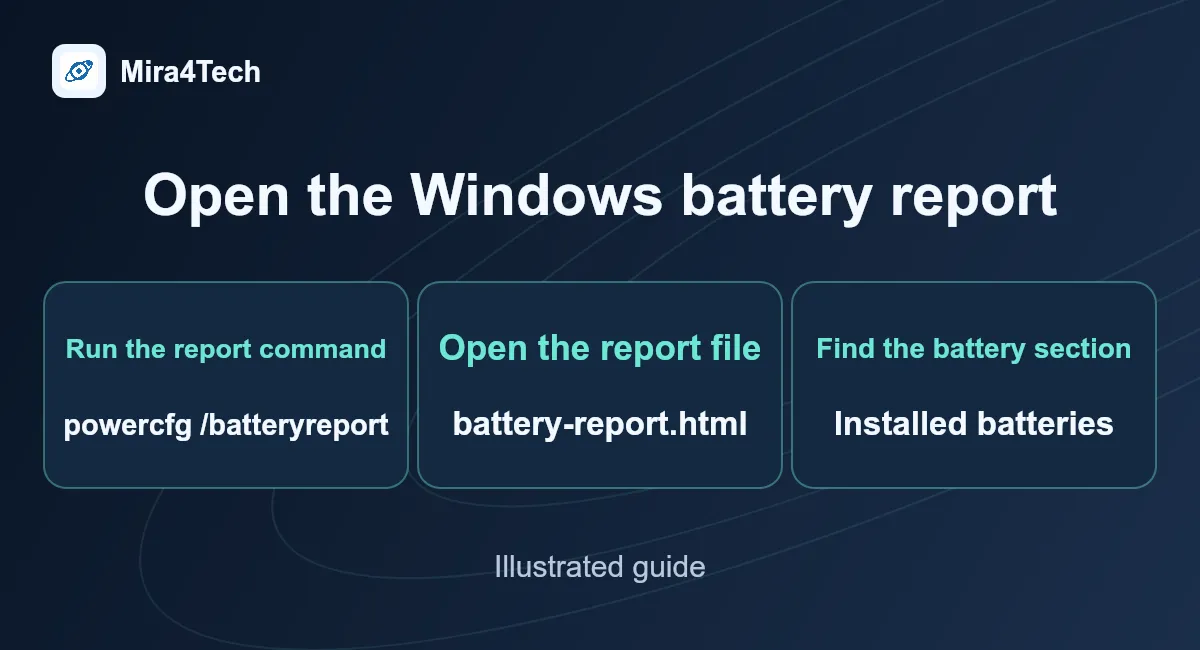
powercfg /batteryreportOpen File Explorer, go to the location printed after Battery life report saved to, then open the file in your browser. Use Ctrl+F to find Installed batteries. You can do this with the charger plugged in. Keep the report local because it may contain the computer name and system details.
2. Read the two capacities for the same battery
Design Capacity is the original design target. Full Charge Capacity is the capacity the battery controller currently reports at full charge. Copy both values in mWh from the same section. If the laptop has more than one battery, read each separately. If a value is unavailable or zero, use the laptop manufacturer's diagnostic tool. Cycle Count may also be unavailable on some devices.
3. Calculate the remaining capacity ratio
Divide Full Charge Capacity by Design Capacity, then multiply by 100. With 40,000 and 50,000 mWh, the ratio is 80%. Enter only the two numbers. The calculation runs in your browser.

4. Compare capacity with actual battery life
In the example, 80% describes the estimated full-charge capacity relative to the design target. Screen brightness, software and processor activity also affect runtime. Review Battery capacity history for readings over time, when available. If drain increased while capacity stayed similar, check Settings → System → Power & battery for usage. Recheck a small difference or a reading above 100%, especially after a battery replacement.
If declining capacity consistently limits your work, compare your results with the manufacturer's diagnostics and warranty guidance. If the battery visibly swells or deforms the case, stop using the device and contact the manufacturer or qualified service.
How to verify the result
Record the date and both capacities, then compare with a later reading for the same battery. For a runtime check, repeat a similar task at similar brightness and note how long the laptop runs over a known interval. Consider the capacity trend alongside real runtime when choosing your next step.