Install Visual Studio Code on Windows and open your first project folder
Install the official editor, open a training folder and understand reading code, execution and workspace trust.
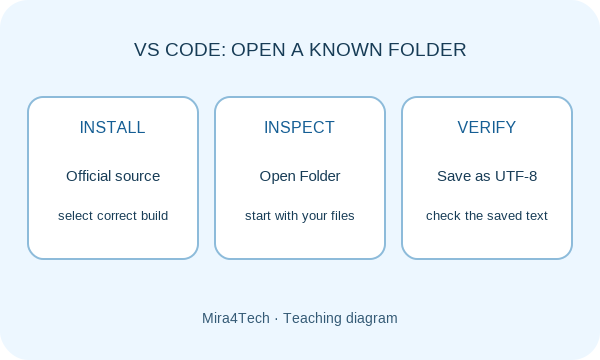
Choose a matching install
From Microsoft’s page choose Windows and your architecture. User Setup is typically per user; System Setup is machine-wide and requires appropriate permissions. Close the editor before updating and open a fresh terminal if checking the code command.
Open a training folder
Create a mira-test folder with hello.txt. Use File > Open Folder. Enter a line of Arabic and save as UTF-8. Explorer shows files under that folder; opening a folder gives context beyond one file.
Review trust and extensions
Inspect unfamiliar folders in Restricted Mode. Review files before trusting a workspace. The editor reads code; Python, Git or build tools may need separate installation. Add an extension for a defined task and check its publisher.
Verify the result
Reopen the file and check Arabic text and the saved path. Change a value in a small JSON file and review the edit before saving. If code is not recognised, try Start first and inspect PATH in a fresh terminal.
Check which file you opened when two copies have the same name
In a training folder you created, make sibling folders named lesson-1 and lesson-2. Put a UTF-8 file named hello.txt in each. Save «الدرس الأول» in the first copy and «الدرس الثاني» in the second.
- Use File → Open Folder to open
lesson-1. Check the root shown in Explorer and openhello.txtfrom that tree. - Open a fresh PowerShell terminal through Terminal → New Terminal and run the commands below. If Restricted Mode blocks the integrated terminal, you can run standalone PowerShell from your training folder.
Split-Path -Leaf (Get-Location).Path
Test-Path -LiteralPath '.\hello.txt' -PathType Leaf
Get-Content -LiteralPath '.\hello.txt' -Encoding UTF8
In a PowerShell test, the commands printed lesson-1, True and «الدرس الأول». From the second folder they printed lesson-2, True and «الدرس الثاني». File existence alone cannot tell those copies apart.
If the terminal reads the second copy, check its working folder in the first line and reopen the intended folder with a fresh terminal. If the folder matches but the text differs, save the editor tab and verify the full file path before editing another copy.