Try it yourself

Windows practice: DLLs, drivers and app runtimes

Five scenarios after setting up Windows. Choose the action that addresses the cause with the smallest change, from missing DLLs to network drivers.
Updated: 07/11/2026

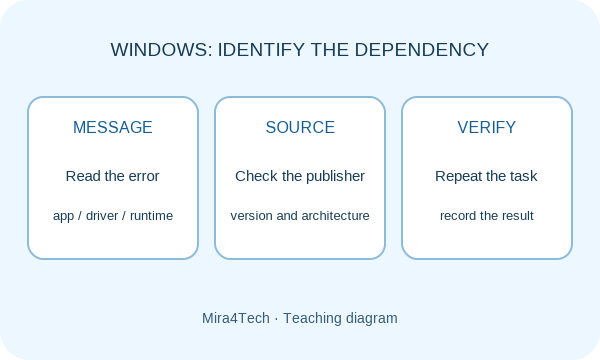
Teaching illustration: Windows practice: DLLs, drivers and app runtimes
Mira4Tech teaching illustration.

How to work through the scenarios

Identify the task and the available evidence. Choose the smallest action that addresses it, and read the reason for each choice. These are decision exercises; the page neither runs commands nor inspects your device.

Official references

Interactive practice

Read the scenario conditions before answering. Review every choice after checking and retry if needed. The score covers these examples only.

Walk through the first scenario

Step through at your own pace, or play the walkthrough to follow each stage.

Identify environment and goal

Windows x64 · App x86 · runtime required

Read the task precisely

Windows x64 · App x86 · runtime required

Compare the action with the information needed

read → compare → explain

1. Which runtime architecture fits?

Your PC is x64. A trusted x86 app needs the matching Visual C++ runtime, confirmed by its vendor.

Windows x64 · App x86 · runtime required

Explanation of every choice
  1. Any x64 runtime because the PC is x64 — An x64 system does not change the app’s x86 architecture.
  2. A standalone DLL from a generic site — A matching name proves neither version, publisher nor dependencies.
  3. Remove all existing runtimes — Other apps may need them; removal does not test this requirement.
  4. The matching official x86 runtime — Correct choice. The app architecture determines the libraries it can load.
2. What should you repair first?

One app fails with an app-specific library error. Other apps work and the vendor provides Repair.

One app · vendor library · official repair available

Explanation of every choice
  1. Reinstall Windows first — That is a broad change before a targeted repair.
  2. Register an arbitrary DLL — Registration does not restore a missing app library.
  3. Check requirements and try the vendor repair — Correct choice. Repair restores components for the affected app version.
  4. Manually replace Windows files — The available evidence points to the app.
3. Which component describes supported devices?

An official package contains SYS, INF and CAT. You want to inspect hardware IDs without installing.

adapter.sys · adapter.inf · adapter.cat

Explanation of every choice
  1. Rename SYS to INF — Renaming does not produce setup information.
  2. Read INF as text — Correct choice. INF describes device matching and setup.
  3. Run the SYS file — SYS is driver code, not an ordinary app.
  4. Import CAT into the registry — CAT is the catalogue used to verify the package.
4. How do you prepare for no network after formatting?

You know your device model and have a matching official network package available.

Before reinstall · model known · offline media available

Explanation of every choice
  1. Keep the official package on separate media — Correct choice. You can reach the driver without network access.
  2. Keep only a bookmarked link — A bookmark cannot fetch the file while offline.
  3. Choose a similar-looking driver name — A similar name does not establish hardware or architecture support.
  4. Copy a SYS from another PC — A single binary does not include the full package and setup.
5. Which test shows whether the repair helped?

The runtime installer succeeded. The original app failed when opening a project.

Installer: success · original failure: open project

Explanation of every choice
  1. Treat installer success as sufficient — It does not show that the app opens the project.
  2. Install more packages before checking — Extra changes make attribution harder.
  3. Delete the project file — That discards the test sample without fixing the cause.
  4. Reopen the app and repeat the original task — Correct choice. Installer success is evidence; the original task tests the outcome.