SMB Access Denied 0x80070005: Check the Account and Permissions
The account was denied access to the share or an item inside it. Understand the context and follow diagnostic checks and verification, with an original diagram and official references.
This guide explains the message in context, walks through focused checks and verifies the outcome. The website does not run commands on your device; choose an appropriate action after understanding its conditions.

What the message means
This case concerns file sharing rather than Windows Update. A device can reach a host while the account lacks the required permission; SMB security policy may also affect access. The locally signed-in account is not necessarily the account used for the share.
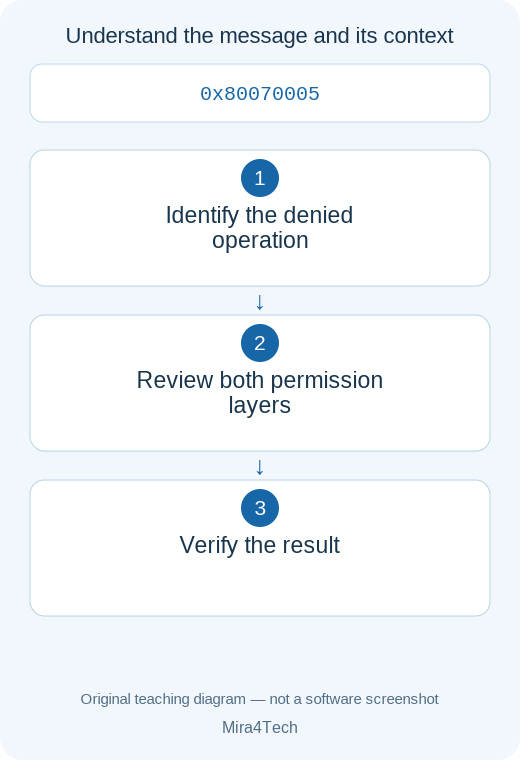
Prepare a controlled check
Keep the message, time, app or device name and version. Save work and use a non-sensitive training file when testing. Start with an observable check, change one factor and record the result. On a managed device, follow your authorised access and organisation policies.
Step 1: Identify the denied operation
Distinguish opening the share, opening one file and saving a change. Reading a folder does not automatically authorise writing, and access to one file does not establish identical permissions for every item.
Step 2: Check the account identity
Ask the owner which account and sign-in format are authorised, such as a host-local or organisational account. Keep passwords private. Review only the relevant host’s saved credentials with administrator guidance rather than clearing all credentials.
Step 3: Review both permission layers
Windows access can be restricted by both share and filesystem permissions. Have the owner inspect the relevant account or group in both layers and distinguish Read from Change or Write. Avoid granting Everyone full control for one user’s problem.
Step 4: Separate policy from file permissions
If the message names unauthenticated guest access or began after a Windows upgrade, investigate SMB authentication and signing. Adding a file permission cannot necessarily fix rejected authentication. Use the guest-block case when that is the displayed message.
Step 5: Test the minimum required access
After an owner-approved change, reconnect with the intended account and test the previously failing operation. A read-only requirement does not justify a deletion test. Record read and write outcomes separately to keep access proportionate.
Verify the outcome
The intended account should complete its authorised task without unnecessarily widening access. Use a training file and have the administrator verify that unrelated accounts did not gain access. Keep sign-in failures distinct from file-permission failures.
When to stop and seek help
Stop before changing system-folder ownership, granting broad control or bypassing an organisation’s policy without authorisation.
Two questions before another change
Is the code alone enough to choose a remedy?
No. The location and circumstances must match this guide. If a new code, message or stage appears, record it and establish its context before another action.
What evidence should I give support?
Provide the product and version, error and time, attempted checks and observed results. Redact passwords, recovery codes, identities and personal files. Verify a support provider before granting remote control.
Related practical guides
Sources and scope
Prepared and edited by the Mira4Tech team. The checking sequence uses documented message meanings and product guidance; it is not a claim of testing your device or proving one cause for every occurrence. Interface labels can vary with version and language.