Do it here · a tool with a step-by-step guide
Convert images to PDF and arrange pages online
Combine JPG, PNG and WebP images into a local PDF, arrange pages, choose A4 orientation and verify the download.
Prepare readable images before combining them
This tool puts images into a PDF. It does not merge existing PDF documents or turn image text into searchable writing. Prepare copies you are entitled to use and identify the beginning and end of the document. For photographed paper, correct alignment, lighting and framing before selection: the tool does not repair blur or automatically crop paper. Keep originals and try two practice images first. Avoid using sensitive personal documents for a test.
Select the group and respect the limits
Choose up to12 still JPG, PNG or WebP images. Limits are12 MB per image,40 MB total,20 megapixels per image and60 megapixels across the group. These bounds reduce heavy browser processing; a low-memory device may need an even smaller selection. SVG, HEIC and animated files are unsupported. For an existing PDF, use our PDF24 guide to merge or split local copies instead of selecting a file this tool cannot accept.
Set page order before creation
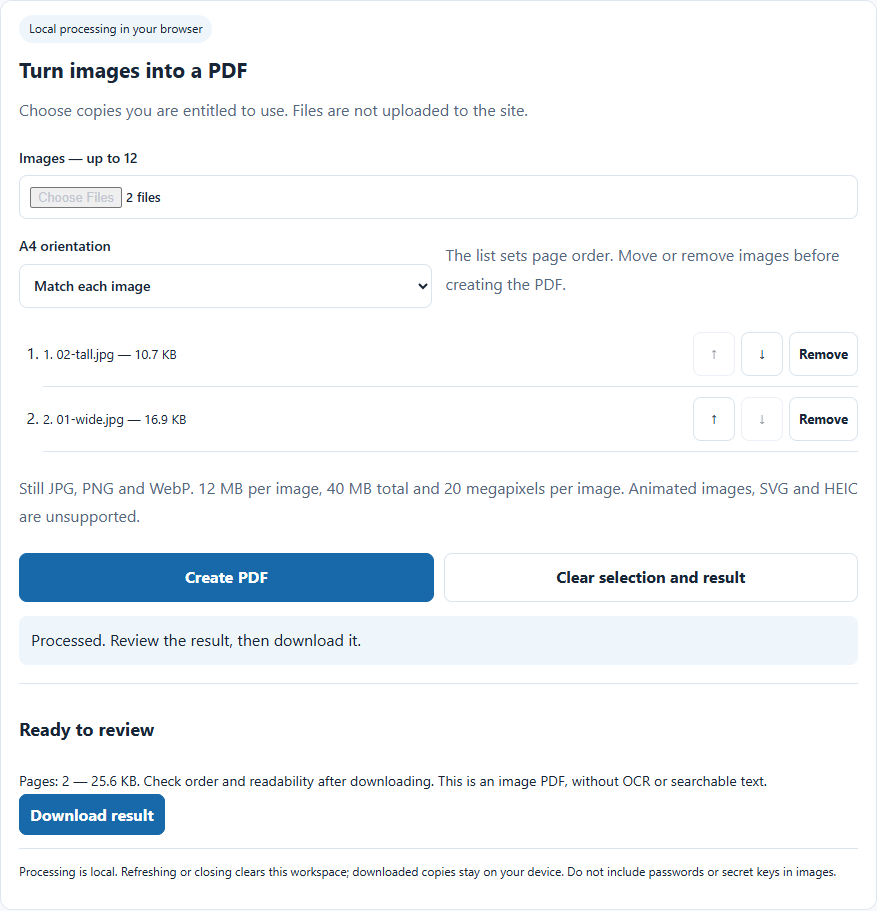
The visible list determines PDF page order. Up, down and remove controls appear beside each file. Read the names and sequence numbers rather than assuming the operating system’s file picker has sorted them correctly. If the first selected image contains page2, move it after page1. Removing affects this selection, not the source file. A new file selection replaces the current group. Check that every required page appears exactly once and has the intended orientation.
Choose A4 orientation and understand fitting
Automatic orientation selects portrait or landscape A4 independently for each image; alternatively force one orientation. Each whole image is fitted within the page and a margin without cropping or changing its aspect ratio. The tool re-encodes each image as JPEG with a white background, a longest edge of2500 pixels and88% quality. Transparency does not remain transparent, and fine details in large originals can be lost. Inspect small print after downloading. This is not an original-quality, lossless image-archiving tool.
Create and wait for every image
Choose Create PDF. A status indicates the current image, followed by the download link when the whole group is complete. Do not repeatedly start it or close the page during processing. If pixel or memory limits are reached, use smaller images or split the group. A failed image does not produce an advertised partial PDF: correct the selection and run creation again so the final output matches your intended list.
Verify the downloaded PDF
Open mira4tech-images.pdf in a PDF reader. Its page count should match the selected image count. Check the first and last pages, zoom into a small line, inspect edges for clipping and verify landscape pages. Searching for words will not behave like a text document: this PDF contains images without OCR. Creation does not add a digital signature, password protection or legal validity. If submitting it to an organisation, check that organisation’s file-size, readability and page requirements.
Privacy and common failures
Images are processed inside an isolated browser workspace, without uploading files or filenames to the hosting account. The necessary PDF library loads from this same website, then creation takes place locally. Advertising or usage measurement on the surrounding page does not run in the file workspace. If the PDF library fails to load, check the page connection and reopen before selecting files again. Clearing or refreshing removes the selection and undownloaded result, while copies already saved to your device remain. If downloading does not start, check browser permissions and the Downloads folder.
Sources and scope
Tool and guide prepared by the Mira4Tech Team. These tools do not repair every file or replace the requirements of the receiving organisation.