Download PDF24 Creator and merge, split and compress PDFs locally
Use the official download, merge practice PDFs, split their pages and compress a copy, then verify the saved output locally.
Two PDFs need to become one attachment, a single page needs to leave a longer document, or a scan is too large to send. PDF24 Creator provides desktop tools for these jobs on Windows. This guide starts with recognisable practice pages so you can understand what each operation changes and check the saved result rather than relying only on a success message.
We will use the official download, merge two original Mira4Tech practice files, split the merged copy and try compressing another copy. Instructions are based on publisher documentation and the tool names shown in the publisher's references, reviewed on . Button positions can vary with version and language. The diagrams are educational illustrations, not screenshots of a test installation; the practice PDFs contain no real personal records.

Before starting: choose the local tool and preserve the original
PDF24 Creator is a desktop application. PDF24 tools opened on a website are a different workflow and may upload documents for server processing. The publisher describes Creator's core document processing as local. For this exercise, open the installed application from Start rather than switching to a browser tool when you intend to keep the document on your computer. Local processing does not mean every application feature is disconnected: downloads, update checks and optional services serve different purposes.
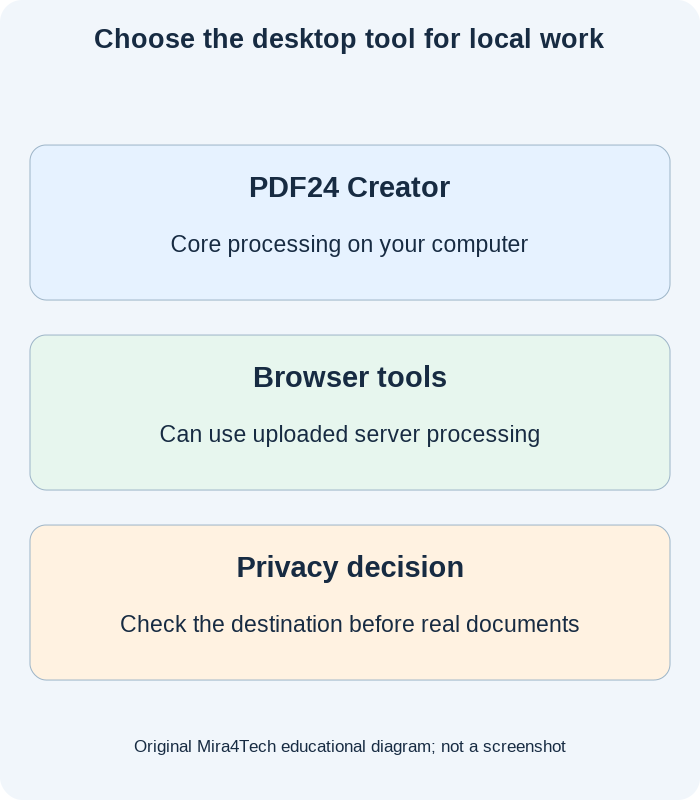
Start with the practice PDFs until the save location and page selection are familiar. For work documents, keep the original separately and save each result under a different name. Preserve a digitally signed original unchanged: combining pages or rewriting the document can affect signature validity, and a new copy is not automatically an accepted replacement. Interactive forms and attachments also need checking after processing.
- A Windows version supported by the current download page, with space for originals and output copies.
- A PDF reader to reopen results, and a recognisable working folder such as
PDF24-Practice. - Permission to install software; follow your organisation's policy on a managed computer.
- A backup of important documents, rather than just a renamed copy in the same working folder.
1. Download PDF24 Creator from its publisher
Open the official PDF24 Creator download page and check its supported operating systems and current release. At the review date, the publisher lists 11.31.1, released on , for Windows 10 and Windows 11, with free personal and commercial use. Read the installer licence: free use does not mean that the application is open source or that every form of installer redistribution is permitted.
Use the publisher's Creator download control rather than an advertisement or a third-party re-upload. After downloading, inspect the file's properties and digital signature if available, and check that the details are consistent with the official publisher. If Windows presents an unexpected warning or you cannot establish the source, stop and revisit the publisher's page. Do not disable Windows protection to get the installer running.
Run the installer, read its licence and review the destination and selected options before accepting them. If a PDF reader association or virtual printer choice appears, make a deliberate choice; replacing an existing reader is not required just to follow these file exercises. Recent versions may offer printer options. Merging, splitting and compressing PDFs do not require disabling Windows Protected Print or weakening printing security. After setup, open PDF24 Toolbox from Start.
2. Download and identify the practice pages
Create a working folder and save practice file A as a PDF and practice file B as a PDF there. Each contains two pages. File A has A1 followed by A2; file B has B1 followed by B2. Open both in a reader before editing and confirm that their page labels and coloured shapes are visible.
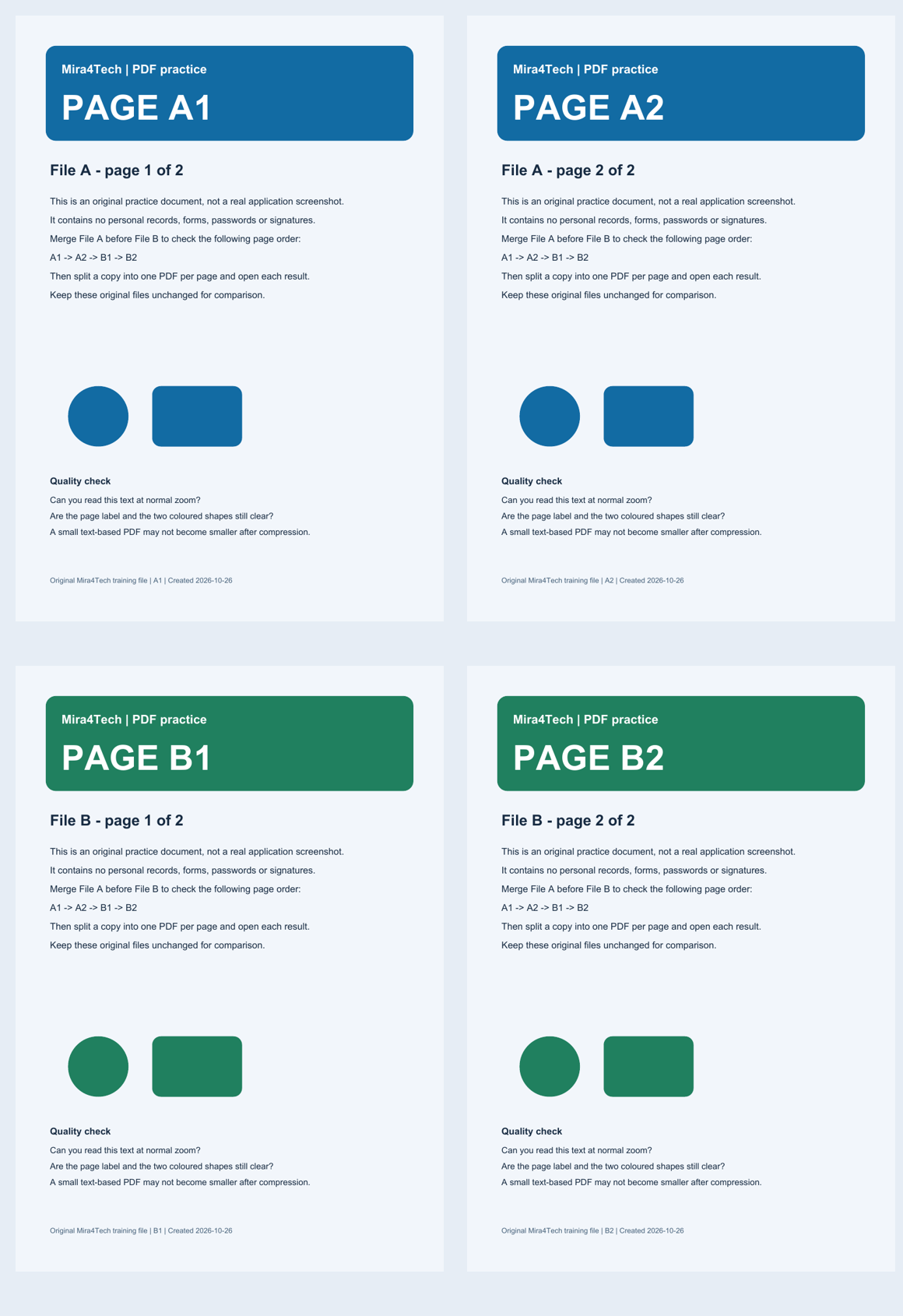
Give outputs meaningful names: merged-a-b.pdf for the combination, merged-a-b-compressed.pdf for a compressed copy and a split-pages folder for individual page files. The purpose is to distinguish input from output without opening several almost identical filenames. Leave the original two files untouched throughout the exercise; they help establish whether a mistake came from the source material or the operation you selected.
3. Merge two PDFs in the intended order
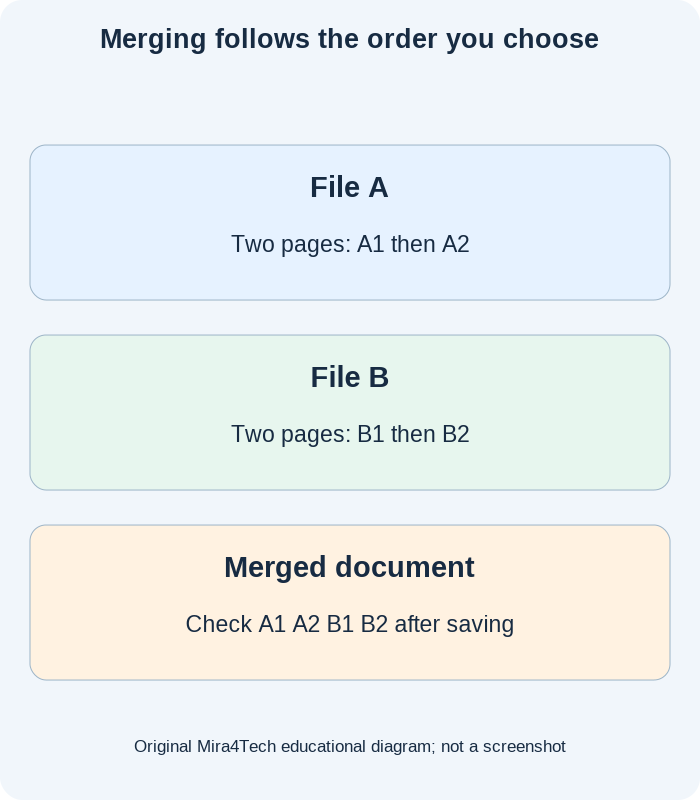
In Toolbox, find Merge PDF or its translated label. Select the files from your computer or drag them into the tool. Add A before B, then inspect the list or previews before merging. Addition order alone is not sufficient evidence of final order if you subsequently sorted or dragged items.
- Add the two practice files and check that neither was added twice.
- Arrange A before B. If individual pages are shown, inspect all four directly.
- Run the merge action offered by your interface, then save the output as
merged-a-b.pdfin the working folder. - Open the saved document from that folder, not only the application's preview.
- Confirm four pages in the sequence
A1 → A2 → B1 → B2, with readable text and visible shapes on every page.
If B appears first, correct the input order and save a clearly named result again. If six pages appear instead of four, inspect the input list for duplicate additions. Moving an entire file and moving an individual page are different actions. With a real document, read the beginning and end of each part before sending it, especially where filenames or cover pages look similar.
4. Split a PDF into one file per page
Choose Split PDF in Toolbox and add merged-a-b.pdf. For this exercise, select the method that splits after every page or its equivalent in your version. Choose split-pages as the output location and save the results. If the interface asks how many pages each part should contain, select one for this exercise, then review the preview before processing.
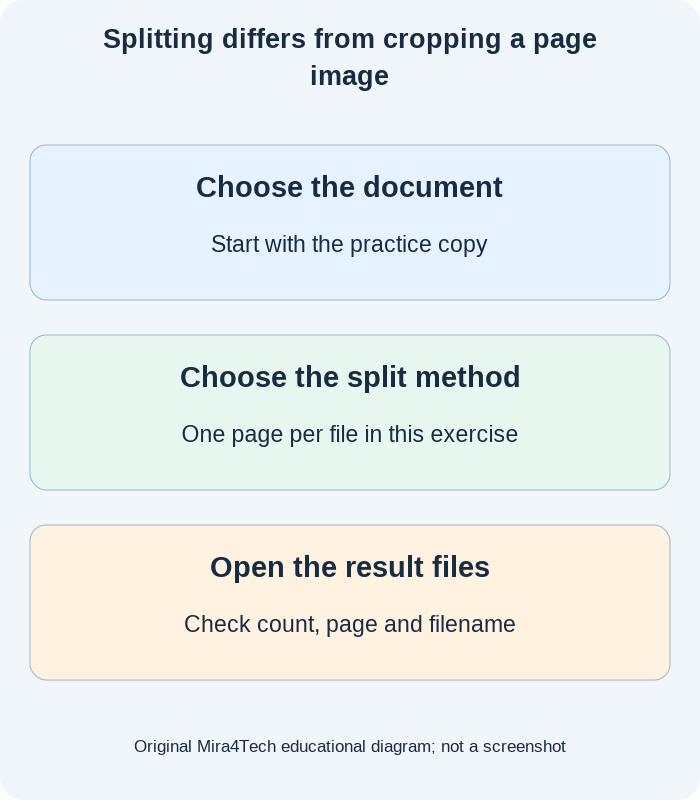
Open the four resulting files individually. They should contain A1, A2, B1 and B2 according to the source sequence. Do not trust an automatically generated filename alone: Explorer can sort names differently. Check both the page content and the number of pages within each result. Two files with two pages each indicate a different split setting, not necessarily lost pages.
Splitting is different from cropping a page boundary. Cropping changes the visible page area; splitting produces separate documents. If you need only a particular page, use Extract PDF pages instead of splitting a large document into many files. Work from a copy, save the extracted result under a new name and check that no unintended pages are included before sharing it.
5. Compress a copy and compare quality as well as size
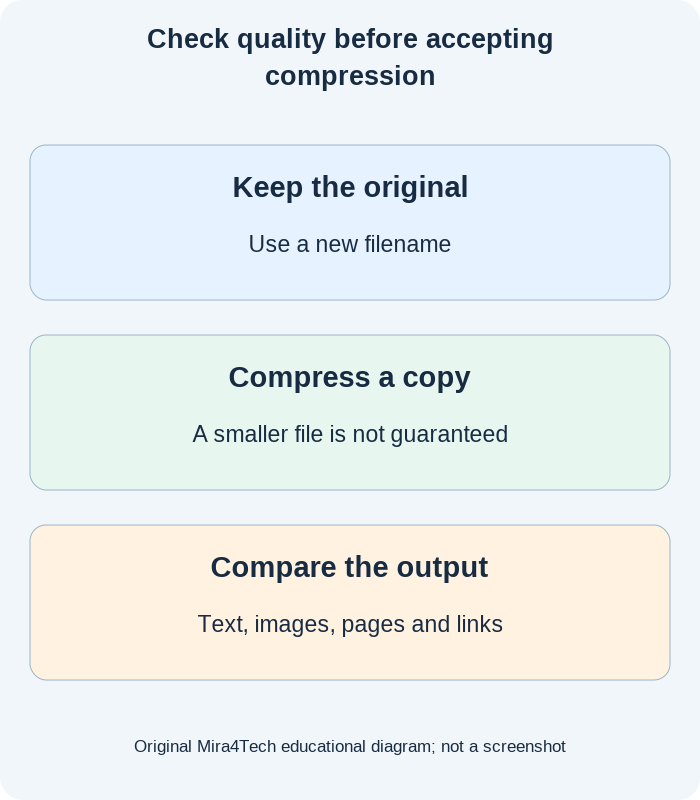
Open Compress PDF and add a copy of the merged document. Compare the original size with the estimated output if the tool shows one. Image resolution, labelled DPI, and image quality may be available. Lowering them can reduce detail in embedded images, so one setting cannot suit every scan, chart, certificate and printing requirement.
- Preserve the original and start with moderate settings rather than the lowest quality values.
- If the interface offers a size calculation or preview, wait for it to finish before evaluating the result.
- Save under a new filename, reopen that saved file and compare it with the original.
- Inspect small text, pictures and colours at normal viewing zoom. Try selecting text and following a link where these features exist.
- Check page count and the actual size in file properties. Keep the new copy only if it meets the intended sharing requirements.
Our practice PDFs are small, text-based documents. They might not become smaller at all, and rewriting them could even increase their size slightly. That alone does not establish a fault. Image-heavy scans behave differently from a document that is already efficiently compressed. A result from one file is not a promised compression percentage for all documents, and a displayed estimate is not proof of the saved output size.
6. Check the result before sending or removing working copies
Saving successfully is an intermediate step. The goal is a correct document that its recipient can read, rather than simply a smaller attachment. Reopen it from its final location. Read the first and last pages and the boundary between the two original files, then inspect pages with pictures or fine text. For an important document, check all pages rather than only a sample.
- The filename and location are correct, with the original still safely retained.
- Page count and order match the intended result, without accidental duplicates or blanks.
- Text and shapes are legible; important links and form fields still work if present.
- No extra pages or private material entered through an incorrect file selection.
- The copy meets its recipient's requirements, including any signature or print-quality rules.
Common problems: investigate one thing at a time
The merge control is missing: check that you opened Toolbox rather than only Reader or a printer window. Search the tools for Merge and check the language and version. If you are working in an internet browser, return to the installed desktop application for this local exercise.
The output cannot be saved: choose a folder where you have write permission, close a result that might prevent replacement, and try a new filename. Do not start by disabling antivirus or running everything as administrator. The error message and destination path are more useful than repeatedly attempting to overwrite the original.
A page is missing or the file became larger: first open the input files, then check selection, order and split method. For compression, compare the saved size with the visual result and retain the original if the new copy provides no benefit. With a large document, try a small copied page range to isolate the problem before processing the whole file again.
Quick questions
Does Creator need a crack? No. The publisher offers free personal and commercial use under its licence. Use the official download and updates rather than unknown modified installers.
Can Creator be installed natively on Linux? The current publisher page lists Creator for Windows, without a native Linux or macOS edition. Browser tools are a separate option with a different processing and privacy model, not an installation of the same desktop application.
Will every signature or form be preserved? Do not assume so. Keep the original and verify signatures, fields and attachments after processing, including any requirements from the receiving organisation. Editing pages is not evidence that an official document remains valid.
Sources and scope
Use the official Creator page for downloads and supported systems, the PDF24 Creator 11 manual for components and functions, and the official changelog for current releases and fixes. These references were reviewed on . This article does not claim an application performance test or publish its interface screenshots. Tool names are reference points; the diagrams and practice files are ours. The download link leads to the publisher, and we do not host its installer.