How to use your phone as a webcam on Windows or Mac
Use Android as a webcam on Windows 11 or iPhone on Mac, select it in Zoom or Google Meet, and test the preview before joining.
Choose a setup for your devices
Your phone can provide a camera for video calls on a laptop or desktop. Set it up in the operating system, then select the phone in your meeting app. Mount the phone horizontally and put a light in front of you so you can judge the picture.
- Android and Windows 11: Use the connected camera feature. Microsoft lists Android 10 or later and Link to Windows version 1.24022.0 or later.
- iPhone and Mac: Use Continuity Camera with an iPhone XR or later on iOS 16 or later and a compatible Mac on macOS Ventura 13 or later.
- Pixel over USB: If your phone offers a Webcam USB mode, use a data-capable cable and a computer that supports UVC. Availability depends on the phone.
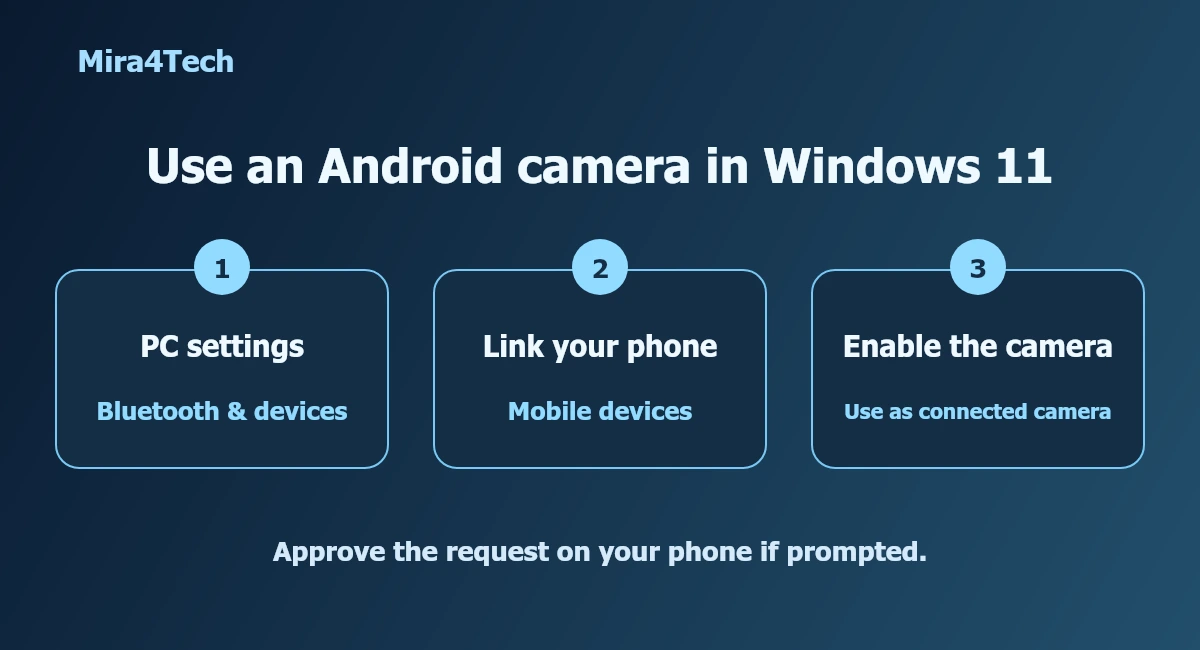
1. Use an Android camera on Windows 11
- Open Settings → Bluetooth & devices → Mobile devices on the PC. Enable access to mobile devices if prompted, then open Manage devices or Add device.
- Follow the pairing steps with Link to Windows on the phone. Keep both devices nearby and check the network connection if pairing stalls.
- Select the phone and turn on Use as connected camera. Select the phone in your video app. If you see a placeholder, check for a permission prompt on the phone or a camera window on the Windows taskbar.
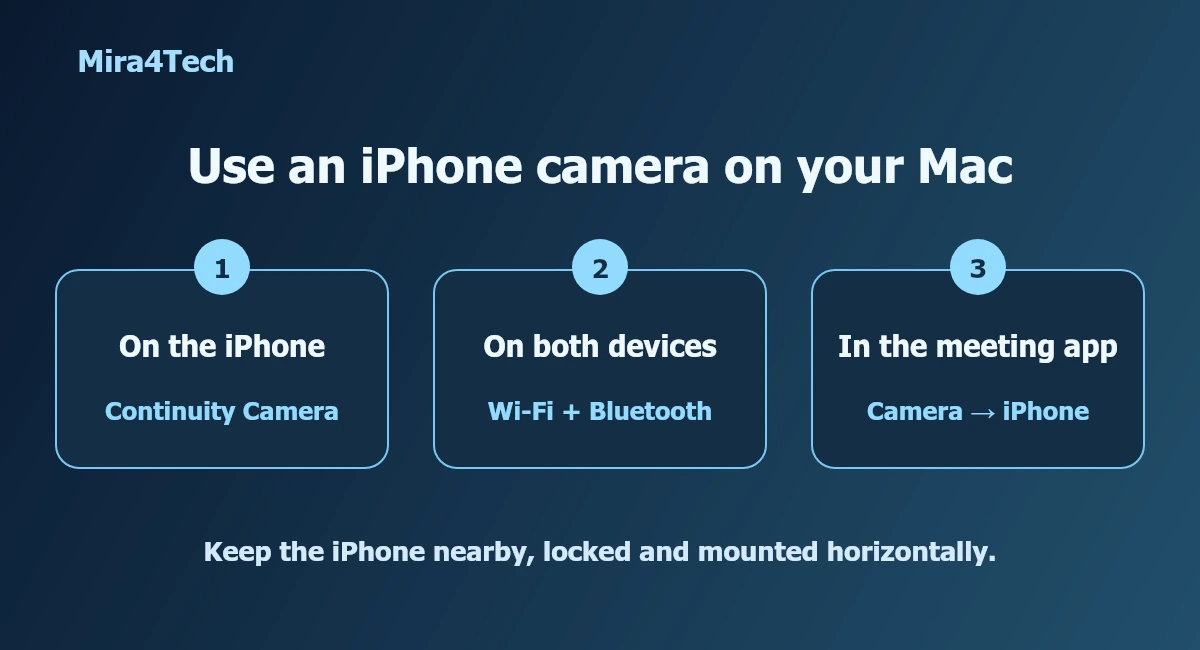
2. Use an iPhone camera on Mac
- Use the same Apple Account with two-factor authentication on both devices. Turn on Wi-Fi and Bluetooth, and keep the phone near the Mac.
- On the iPhone, open Settings → General → AirPlay & Continuity, sometimes named AirPlay & Handoff. Turn on Continuity Camera.
- Mount and lock the iPhone horizontally, with the rear camera facing you. Select the iPhone in your video app. If wireless is unreliable, try a data cable and approve trust for your own Mac if prompted.
3. Select the camera in Zoom or Google Meet
- Zoom desktop: Open your profile picture, then Settings → Video & effects. Choose the phone in the camera list and check the preview.
- Google Meet: From the preview screen or meeting, open Settings → Video → Camera. Choose the phone and grant browser camera permission if prompted.
Briefly hold your hand near the phone lens to confirm which camera you are seeing. Camera and microphone inputs are selected separately. You can keep using your computer microphone if it sounds clearer.
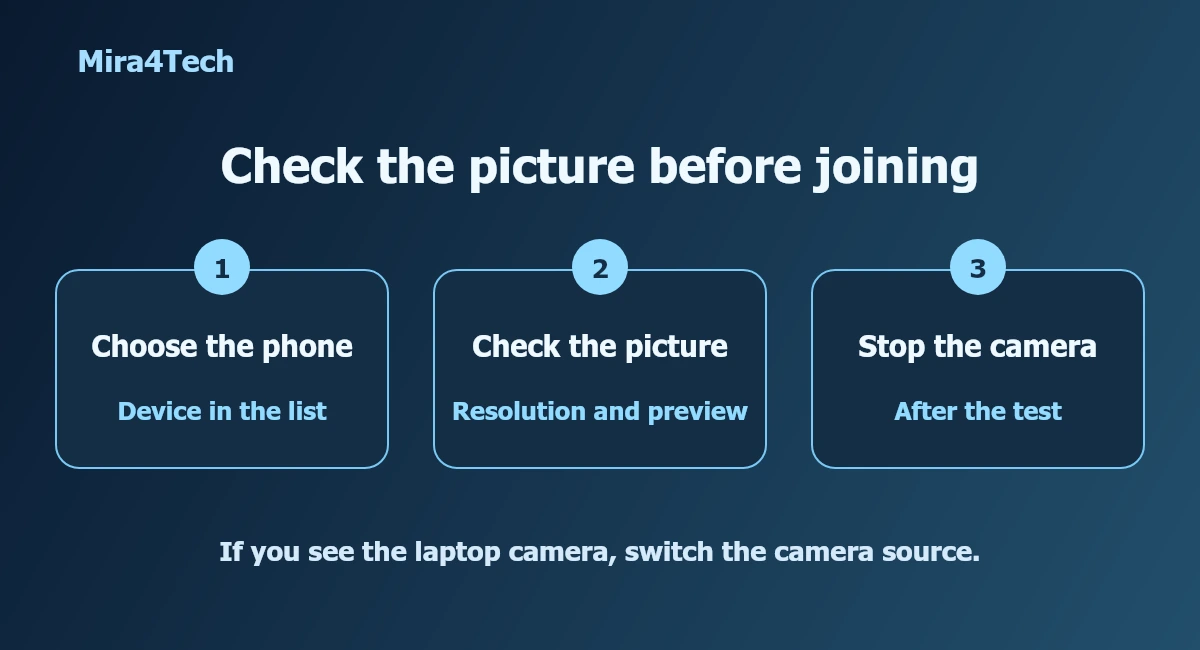
4. Test the picture and resolution
Open the test screen and select Start test. Allow camera access, then select the phone if it appears in the list. Check the framing, lighting and motion. The resolution shown is the preview delivered to your browser. Call quality also depends on the meeting app and connection. Select Stop camera before opening the meeting.
If the camera is missing or the picture is black
- The phone is missing: Check pairing and the connected camera switch. Restart the meeting app so it can detect new devices. For USB, try a data cable.
- The camera is listed but shows black: Look for a permission prompt on the phone and check permission for the app or site. Close any other camera apps, try the Mira4Tech test, then stop the preview before opening the meeting app.
- The image stutters or is rotated: Mount the phone horizontally and check Android rotation lock. Move the devices closer or try a wired connection where supported.
- The phone is hot: Improve airflow and keep the test short. If the phone displays a temperature warning, stop using the camera and let it cool.
After confirming that the local preview starts and stops, open Zoom or Meet and select the same camera. If it works only in the browser test, check the meeting app’s selected device and permission.