Display an Android screen on Windows: Phone Link and scrcpy step by step
Check Phone screen compatibility or use scrcpy over USB on your authorised device, with permission checks, a practice task and safe debugging-session cleanup.
Choose file transfer or screen mirroring deliberately
If you only need to move a picture, Quick Share or USB transfer is simpler than exposing the whole phone screen. Mirroring may display notifications and other content on the computer, and may permit control depending on the method and device. We will test an ordinary settings screen and close the session without opening private accounts or documents. This guide does not unlock somebody else’s phone or bypass its lock screen. Its original diagrams explain the two approaches rather than claiming a test of every supported model.
Two approaches, not one universal button
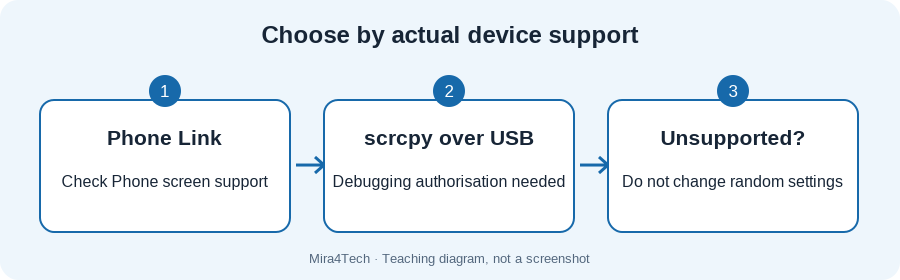
Phone Link provides several Windows integration features, but Phone screen has a specific supported-device and market list. Successful access to messages or pictures does not guarantee a screen button. This guide’s alternative is scrcpy over USB on Android, requiring USB-debugging authorisation. The project does not require root, but debugging access is a meaningful permission: grant it only to a computer you trust and read the phone’s request. It is separate from ordinary USB file-transfer mode.
Prepare a nonsensitive practice session
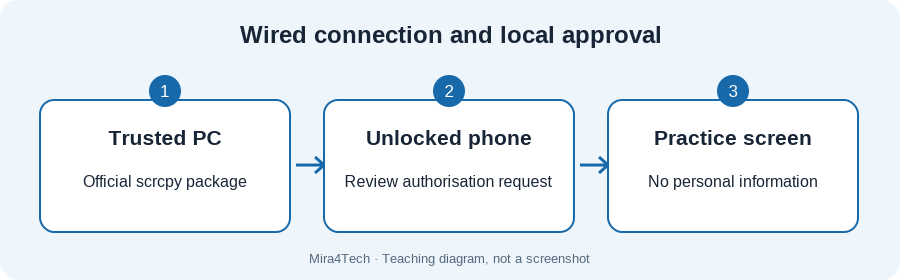
Update the devices and relevant applications through official sources, and prepare a data cable for the wired route. Close private apps and choose a general settings screen that does not expose account names. Before sharing with other people, consider notifications and pop-up content as well; temporarily hiding notifications improves privacy but is not a guarantee that nothing sensitive can appear. Record the phone model and operating-system release so that you can check the correct compatibility guidance.
Check Phone screen support before pairing
Start with Microsoft’s supported-device list and check Phone screen specifically, not just Phone Link availability. Follow its current system and network requirements. On Windows open Phone Link, use Link to Windows on an eligible phone, and follow the official account and pairing-code flow. Microsoft’s phone-screen route requires communication over Wi-Fi. After pairing, look for Phone screen and review its requested permissions. If the option is absent, check feature support instead of repeatedly reinstalling on the assumption every handset must have it.
Get scrcpy from its official project
The official project is Genymobile/scrcpy on GitHub. Choose an official Windows release matching your computer architecture and compare the publisher’s SHA-256 where provided. Extract it into a clear folder rather than running from inside a ZIP. Do not use a random download site merely because its name contains scrcpy. Keep the package files together, including its supporting adb files. This walkthrough uses USB and does not ask you to expose a debugging port to the internet.
Authorise debugging on your own device
Follow Android’s instructions to reveal Developer options and enable USB debugging; manufacturer menus can vary. Connect the unlocked phone to the trusted computer. When the debugging-authorisation request and key fingerprint appear, approve only the connection you initiated on the computer you administer. Do not approve an unexpected request just because a cable is supplying power. If that permission is unsuitable for your situation, use the supported Microsoft route or limit the task to file transfer.
Open a terminal and check the connection
The scrcpy Windows instructions provide open_a_terminal_here.bat in the extracted directory. Open it and run adb devices to check whether the phone is authorised. An unauthorized state calls for reviewing the phone prompt, not bypassing it. Then run scrcpy from the same location. The example below disables audio and requests a maximum video size of 1280 pixels for a simple practice session. These are example settings, not promised image quality or measured latency.
adb devices
scrcpy --no-audio --max-size=1280
Verify with a simple phone screen
Open a nonsensitive settings view on the phone and compare it with the computer window. Try one scroll and an obvious tap, and observe whether the actual phone changes accordingly. Some apps or devices do not support every interaction. A black view is not automatically a cable fault: test the normal phone interface first and respect app restrictions on displaying its content. Do not start recording or broadcasting before checking what is actually visible. Disabling audio does not hide visual notifications.
Diagnose errors without weakening protection
If scrcpy finds no device, first inspect the data cable and debugging authorisation. Use the official FAQ for device-not-detected, unauthorized and multiple-device cases. Obtain a required USB driver from the manufacturer. For Phone Link, check Phone screen compatibility, network communication and relevant permissions before declaring the software broken. Do not broadly disable the firewall or run unknown commands that erase the device or expose debugging outside the network you control.
Close the session and review access
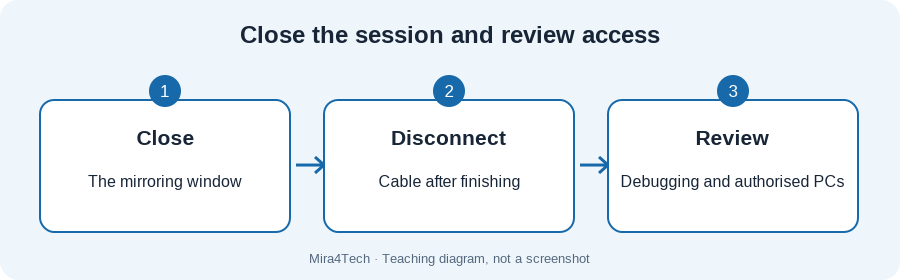
Close scrcpy after the exercise, then disconnect USB. Turn off USB debugging when it is no longer needed. Developer options may also let you revoke debugging authorisations; note that this can remove all previously authorised computers, not only this one. Review linked devices and permissions in Phone Link when pairing is no longer required. A successful outcome is understandable mirroring and a session that ends with access under your control, rather than a phone remaining linked indefinitely.
Record the exercise rather than relying on memory
Make a short nonsensitive note: the two devices and releases, the selected method, your expected outcome and what actually happened. If it fails, change one factor and repeat the same task. “It did not work” does not distinguish discovery, authorisation and result-verification failures.
- Before starting: a known practice copy and a clearly identified receiver.
- During the task: review requests and permissions yourself.
- Afterwards: open the result, end the session and review granted access.
Questions before trying the steps
Does every Phone Link device support phone-screen mirroring?
No. Check Phone screen support specifically; availability of another Phone Link feature does not establish mirroring support.
Does scrcpy OTG mirror without debugging?
The project documents OTG as an input-control mode with video and audio disabled. Do not confuse it with the screen-mirroring route in this guide.
Does closing scrcpy revoke the computer?
Closing ends the current view, but does not replace reviewing USB debugging and phone authorisations. Revoking authorisations can affect all previously approved computers.
A related next step
Transfer files between Android and Windows without a cable: Quick Share guide
Official references and image rights
- Microsoft: supported Phone Link devices
- Microsoft: Phone screen setup
- Microsoft: Phone Link requirements
- Official scrcpy repository
- Official scrcpy Windows instructions
- Official scrcpy troubleshooting
- Android: adb authorisation and revocation
- scrcpy: OTG scope
- Android robot: attribution and permitted use
Prepared by the Mira4Tech Team using official documentation. Menu steps vary by release and model. The clearly labelled original diagrams are instructional, not claimed tests of every device.