Do it here · a tool with a step-by-step guide
Compress images and convert WebP to JPG online
Resize an image, adjust quality or change format in your browser, with a preview and actual output size without uploading files.

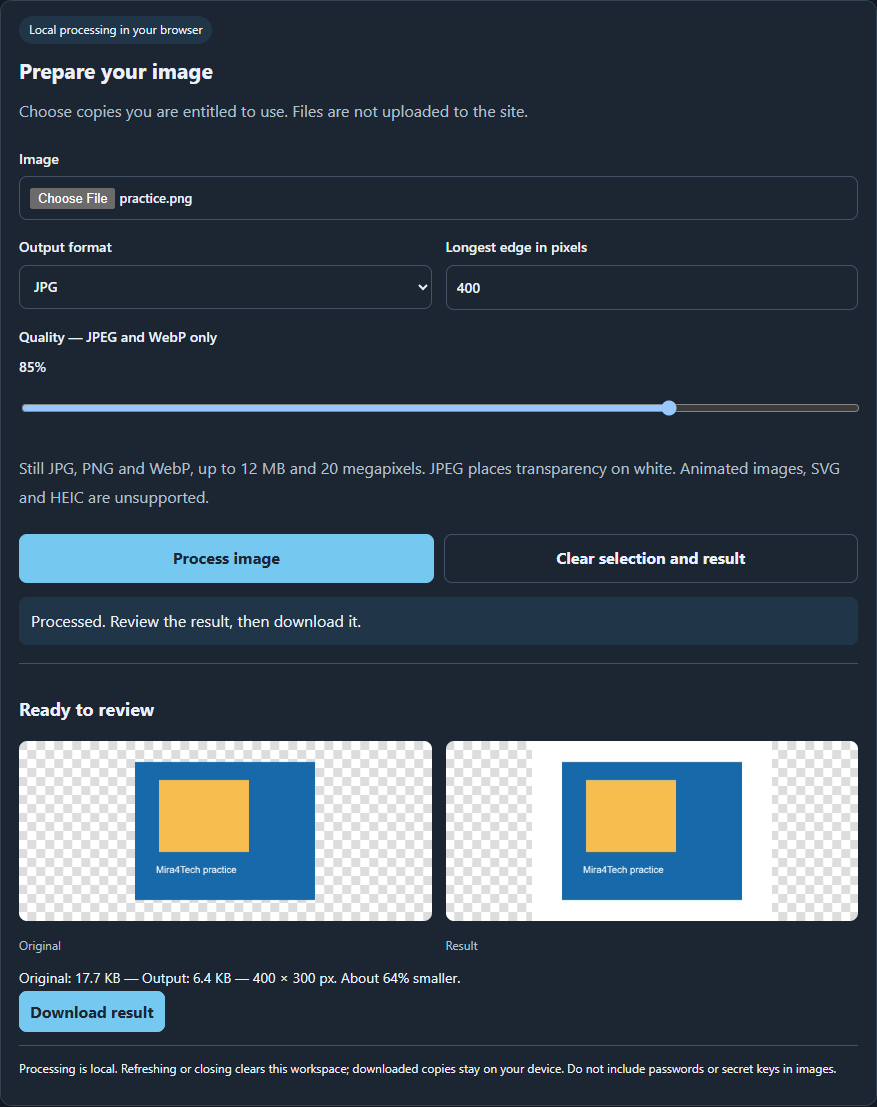
Keep an original and define the goal
Decide whether you need smaller dimensions, a different file format or fewer bytes. Renaming a WebP file to .jpg does not convert its contents. This tool decodes the image and creates a separate file in the selected format. Keep the original, particularly for small print or important documents. Try a nonsensitive practice image first and inspect the result before relying on it. No account or installed image editor is required to use the tool.
Choose the image and an appropriate format
Select one still JPG, PNG or WebP image. Each file is limited to12 MB and20 megapixels. If it fails validation, do not try to bypass the check by changing its extension; use a valid copy or export a JPG from the original application. SVG, HEIC and animated images are outside this version’s scope. JPEG is useful for photographs but cannot retain transparency, so transparent areas become white. Choose PNG when transparency matters, or WebP when your browser can export it.
Adjust dimensions and quality separately
Set the longest edge between64 and6000 pixels; the default is1600. Aspect ratio is preserved, and an image smaller than the requested edge is not enlarged. A3200×2400 image becomes1600×1200 at an edge of1600. The quality slider applies to JPEG and WebP only; start at85% and reduce it if necessary. It does not control PNG compression. Pixel dimensions and encoding quality solve different problems: resizing removes detail, while lower encoding quality may introduce visible compression artefacts. Change one setting at a time.
Process and read the actual comparison
Select Process image and wait. The original and output previews show the difference, while the size and dimensions describe the file that was actually created. There is no promise of an exact target size. Converting an already compressed image can produce a larger file. If a form requires a limit such as200 KB, reduce the edge or quality and inspect the result again. Meeting the byte limit is not enough if a document’s words are no longer readable.
Download and verify the separate copy
Download the result after reviewing it. The default name is mira4tech-image followed by the selected extension. Open that downloaded file and check its orientation, colours, edges and text. A preview is not a substitute for verifying the saved copy. Check the receiving form’s accepted dimensions and formats before submitting. Re-encoding is not a guarantee that every kind of metadata has been removed; do not rely on this tool alone for sensitive-image anonymisation or specialist document-preservation requirements.
What happens to your files?
File selection and processing take place in an isolated browser workspace. The tool does not upload images or filenames to the hosting account and uses no external conversion service. The surrounding page may load advertising or usage measurement under the privacy policy; the file workspace is separate. Clearing removes the current selection and result from this workspace, not your source image or downloaded copy. Refreshing or closing loses an undownloaded result. Use a device and browser you trust, and avoid selecting images of passwords or recovery keys.
If processing fails or the output is larger
An unsupported-image message means its contents or structure are outside the accepted formats; the extension alone proves nothing. A limit message means its byte size or pixel dimensions are too large: try a smaller copy. If WebP export is unavailable, use JPG or PNG. Lowering the quality slider does not shrink PNG; reduce its dimensions or choose another suitable format. If a result appears but no file is saved, check download permissions and the Downloads folder. On a low-memory phone, use a smaller image and do not repeatedly start processing.
Sources and scope
Tool and guide prepared by the Mira4Tech Team. These tools do not repair every file or replace the requirements of the receiving organisation.